

Send a Slack alert when a new Cardz appointment is received
When a customer books an appointment through your Cardz digital business card, this workflow posts the booking details to a Slack channel, so you and your team hear about the meeting where you already talk.
 Cardz
 Slack
2 steps Setup ~5 min Used on 3.4k sites Free to import
What this workflow does
Bookings that come in through a digital business card are easy to miss. They might arrive while you are at an event, travelling or busy with clients, and the confirmation sits in an inbox you check later. If your team coordinates in Slack, a post there puts the news where everyone already looks. This workflow sends one for every new booking.
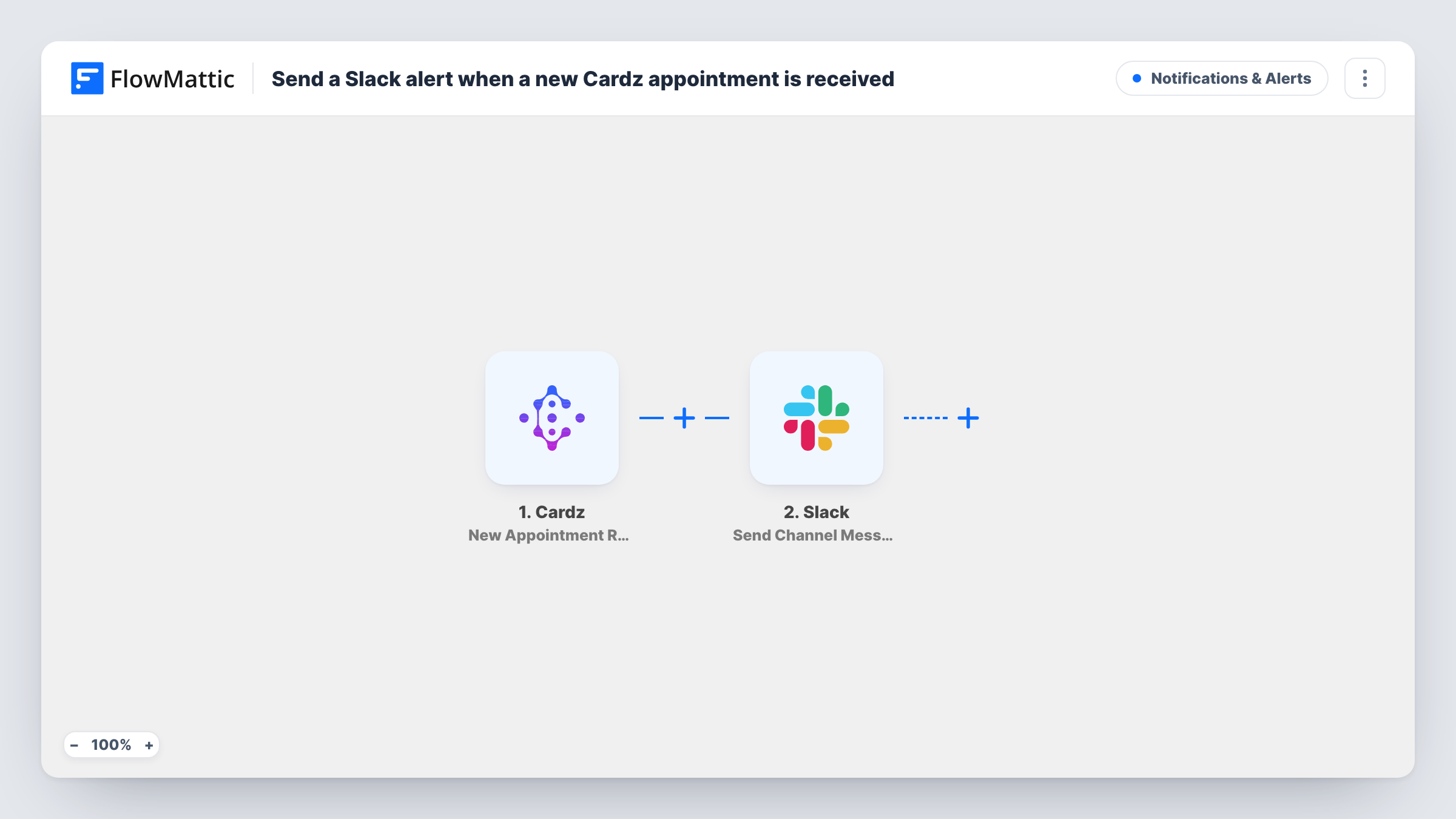
The Cardz trigger receives the booking data when a customer books a new appointment. FlowMattic passes it to Slack, where the Send Channel Message action posts to the #channel you select. You write the message and insert Cardz details, such as the customer's name and the booked time if the event carries them, wherever they belong in the text.
Every booking produces one post. Changes or cancellations made in Cardz afterwards do not send anything, since the template only listens for new appointments. Task History shows each run, including what was posted and Slack's response.
Meetings booked during a conference
You share your Cardz card with contacts at a conference stand. Each booking they make shows up in your team's events channel, so a colleague can prepare while you keep talking.
Small consultancy with a shared calendar
Partners see every appointment booked on the firm's digital cards in one Slack channel and agree in the thread who takes the call.
Personal reminder channel
A solo professional posts bookings to a Slack channel only they use, keeping new meetings in the app they check most during the day.
How this workflow runs
What happens at each step once the workflow is on, and what you need before you import it.
 Cardz New Appointment Received
Receives the booking data whenever a customer books a new appointment through your Cardz card, and passes it to the Slack step.
- Slack Send Channel Message
Posts your message to the Slack #channel you choose, with Cardz booking details inserted into the text. Connect your Slack workspace and pick a public channel the app can post to.
What you need
- FlowMatticCore
- Cardz AccountAccount
- Slack AccountAccount
After importing, map your own data. To keep the template universal, not every step is pre-filled. Open each step in the builder and connect your accounts and fields (channels, lists, sheets, recipients) before you switch the workflow on.
Make it yours
Changes worth making after you import it.
- Make a test booking on your own Cardz card after import, so FlowMattic captures the booking fields and you can place them in the Slack message.
- If the bookings should stay between a few people, use Slack's Send Private Channel Message action and point it at a private channel.
- Keep a record too by adding a Google Sheets Add New Row step after Slack, so every Cardz booking is also stored in a spreadsheet.
Questions about this workflow
Will Slack hear about a cancelled Cardz appointment?
No. The trigger fires for newly booked appointments only, so moving or cancelling a booking later sends nothing to Slack.
Can the Cardz alert go straight to one person in Slack?
It can, once you change the action. Pick Slack's Send Direct Message action instead and choose the person who should receive each booking.
What booking details can the Slack message include?
Anything the New Appointment Received event sends. A test booking shows the captured fields, and you insert the ones you want into the message text.
More Notifications & Alerts workflows
Other ready-to-import templates from the same category.





Import this workflow into your WordPress site
Download the JSON, import it from the Workflows screen and connect your accounts. Every run stays on your server, with no per-task fees.
30-day money-back guarantee Unlimited workflows and runs Self-hosted