

Send a Slack alert when Poper captures a new lead
Each time a Poper popup captures a lead, FlowMattic posts a message to the Slack channel you choose, with the lead’s details mapped in, so your team sees new sign-ups where they already talk.
 Poper
 Slack
2 steps Setup ~5 min Used on 1.8k sites Free to import
What this workflow does
Leads from a popup tend to sit in a dashboard until someone remembers to log in and look. If your sales or support team lives in Slack, the quickest way to get their attention is a message in their channel. This workflow posts one for every lead Poper captures.
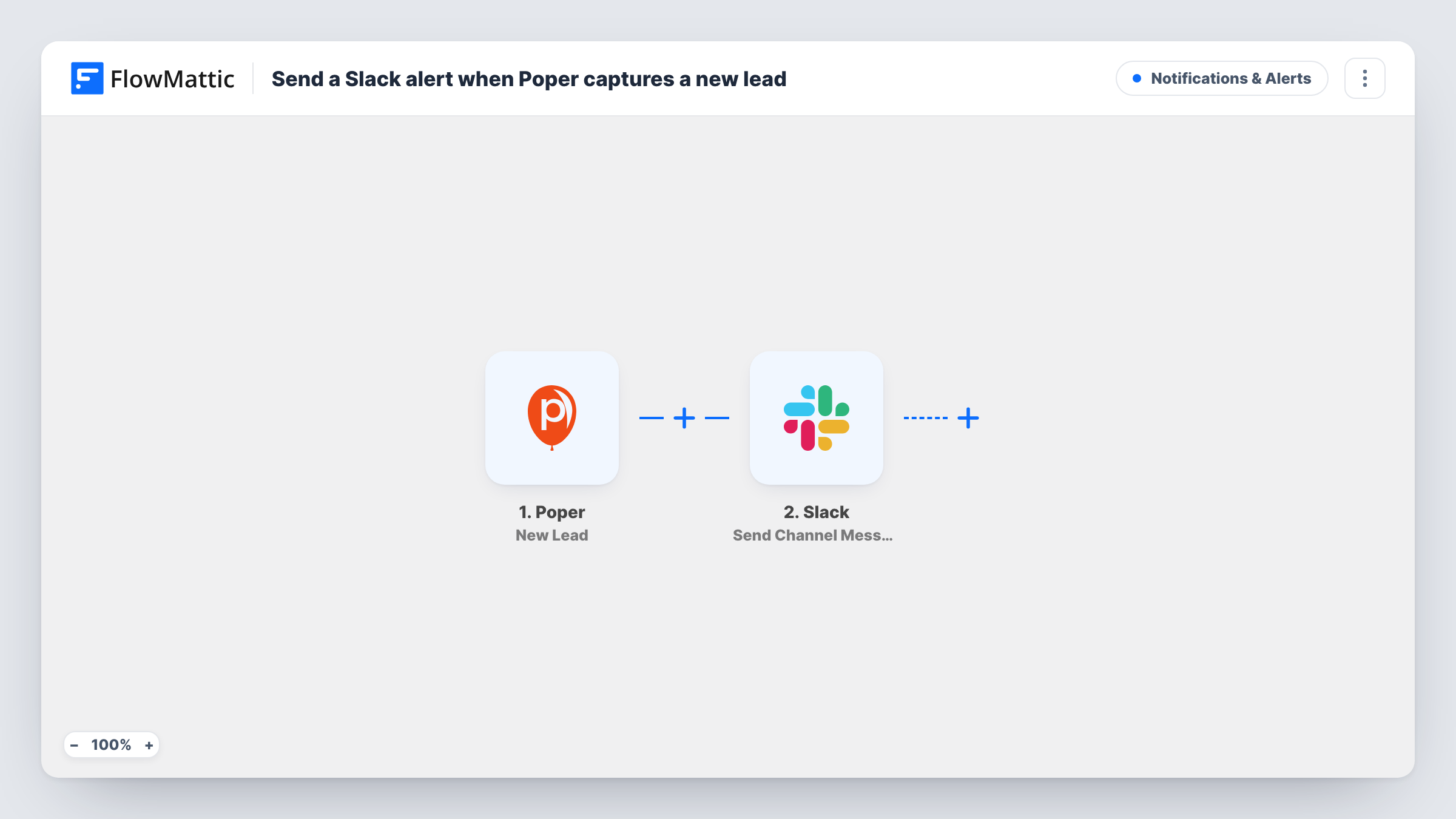
The Poper trigger fires when a popup on your site collects a new lead. FlowMattic receives the lead data Poper sends and passes it to Slack. The Send Channel Message action then posts to the channel you pick, using the lead fields you place in the message text.
There is no filter as imported, so every lead from every connected popup produces a message. That suits a low-volume site or a dedicated leads channel. On a busy site, narrow it with a Filter so the channel only hears about the leads that matter. Each run appears in Task History with the data Poper sent and the response from Slack.
Discount popup on an online store
A shopper enters their email to claim a discount code. The team channel gets a note with the address, so you can see how the offer is pulling in sign-ups during the day.
Demo request popup for a software product
A visitor asks for a demo through a Poper form. The sales channel sees the request with the details they gave and someone picks it up.
Exit-intent offer on a service site
Visitors leaving the pricing page leave their contact details in an exit popup. Each lead is posted in Slack for whoever handles follow-up calls.
How this workflow runs
What happens at each step once the workflow is on, and what you need before you import it.
 Poper New Lead
Fires when one of your Poper popups captures a new lead. The data Poper sends for that lead is passed on for you to place in the Slack message.
- Slack Send Channel Message
Sends the alert into whichever Slack channel you select. Connect your Slack workspace, pick the channel and write the message, inserting the lead fields from Poper where you want them.
What you need
- FlowMatticCore
- Poper AccountAccount
- Slack AccountAccount
After importing, map your own data. To keep the template universal, not every step is pre-filled. Open each step in the builder and connect your accounts and fields (channels, lists, sheets, recipients) before you switch the workflow on.
Make it yours
Changes worth making after you import it.
- Add a Filter after the Poper trigger to post only leads that meet a rule you set, for example ones where a phone number was given.
- Swap the single channel for a Router if different popups should alert different teams, with one Slack step per route and a condition that tells the leads apart.
- Add a Google Sheets Add New Row step after Slack to keep a running list of every Poper lead next to the alerts.
Questions about this workflow
Which Poper leads trigger the Slack message?
Every new lead the Poper trigger receives. There is no Filter in the template, so add one if you only want some leads posted.
Can I mention a teammate in the Slack alert?
You write the message text yourself, so you can include a Slack mention in it. Check the result with a test lead to confirm it notifies the person.
Are leads captured before I turn on the workflow sent to Slack?
No. The trigger reacts to new leads, so only those captured after the workflow is active are posted.
More Notifications & Alerts workflows
Other ready-to-import templates from the same category.





Import this workflow into your WordPress site
Download the JSON, import it from the Workflows screen and connect your accounts. Every run stays on your server, with no per-task fees.
30-day money-back guarantee Unlimited workflows and runs Self-hosted