

Notify the team in Discord when a Waitwhile location status is updated
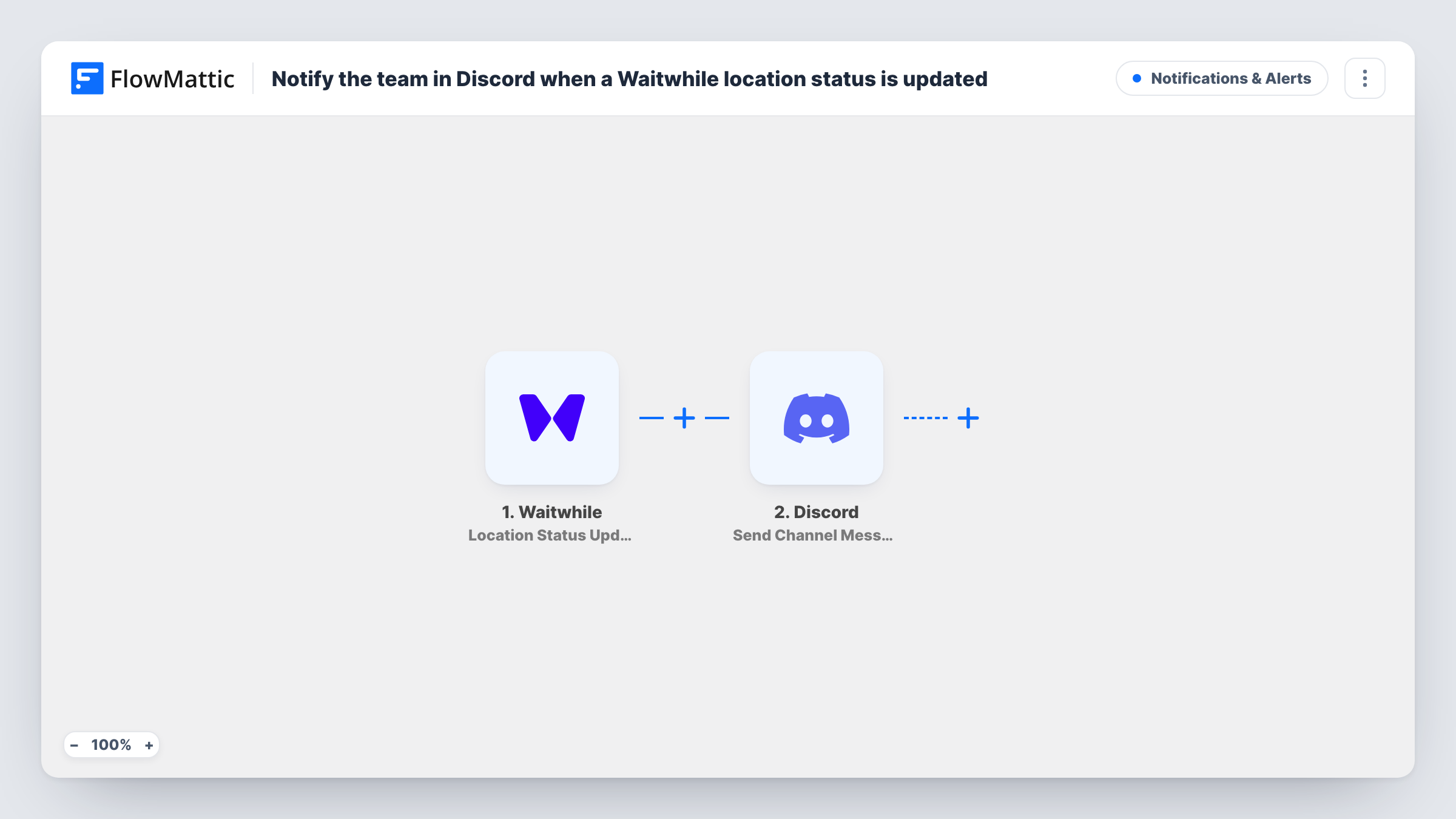
Each time the status of one of your Waitwhile locations changes, FlowMattic posts a message to the Discord channel you pick, so staff on that server see the new status without opening Waitwhile.
 Waitwhile
 Discord
2 steps Setup ~5 min Used on 486 sites Free to import
What this workflow does
When a Waitwhile location changes status, the people who need to know are often not looking at the Waitwhile dashboard. Front-desk staff, managers at another site or a support team may all keep Discord open instead. This workflow passes each location status change to a Discord channel as it happens.
The Waitwhile trigger is Location Status Updated. FlowMattic describes it as firing when there has been a change to the status of a location, so every change runs the workflow, whichever status the location moves to. The location data from Waitwhile is then available to map. The second step posts a message to the Discord channel you choose, built from text you write and the fields you insert.
Nothing is filtered as imported, so each status change produces one Discord message. Task History keeps a record of every run, so you can see what Waitwhile sent and what was posted.
Multi-site clinic or salon
Managers at each branch follow one Discord channel and see when any location's status changes in Waitwhile, without logging in to check each one.
Community or volunteer service desk
Volunteers who coordinate on a Discord server get a post when the Waitwhile location for a food bank or help desk changes status.
Support team covering walk-in queues
A remote team that answers calls about wait times reads the Discord channel to learn when a location's Waitwhile status has changed.
How this workflow runs
What happens at each step once the workflow is on, and what you need before you import it.
 Waitwhile Location Status Updated
Starts the workflow when the status of a Waitwhile location changes. Every status change fires it, and the location's details from Waitwhile become available to map into the Discord message.
- Discord Send Channel Message
Sends the status update to a Discord channel of your choice. Write the text and insert fields from the Waitwhile step, such as the location name and new status if Waitwhile sends them, then connect your Discord account.
What you need
- FlowMatticCore
- Waitwhile AccountAccount
- Discord AccountAccount
After importing, map your own data. To keep the template universal, not every step is pre-filled. Open each step in the builder and connect your accounts and fields (channels, lists, sheets, recipients) before you switch the workflow on.
Make it yours
Changes worth making after you import it.
- Run a test status change in Waitwhile after import so FlowMattic captures the location fields, then pick which ones to show in the Discord message.
- Only care about one status? Add a Filter after the trigger that continues when the status field equals that value, so other changes post nothing.
- To send different statuses to different Discord channels, put a Router before the Discord step, one route per status value. Move the existing Discord step into the first route and give each other route its own copy.
Questions about this workflow
Does every Waitwhile location status change post to Discord?
Yes, as imported. The trigger fires on any change to a location's status and there is no Filter, so each change sends one message. Add a Filter on the status field to narrow it.
Can the Discord message say which Waitwhile location changed?
Yes, if Waitwhile includes it in the event. Run a test change and look at the data FlowMattic captured, then insert the location fields you need into the message text.
Does this change anything in Waitwhile?
No. The workflow only listens for location status changes and posts to Discord. Your Waitwhile locations and settings stay as they are.
More Notifications & Alerts workflows
Other ready-to-import templates from the same category.




Import this workflow into your WordPress site
Download the JSON, import it from the Workflows screen and connect your accounts. Every run stays on your server, with no per-task fees.
30-day money-back guarantee Unlimited workflows and runs Self-hosted