

Send a Slack alert when a new Caspio record is created
Whenever a new record is added to the Caspio table you choose, FlowMattic posts a message to a Slack channel, so your team hears about new entries without opening the Caspio app.
 Caspio
 Slack
2 steps Setup ~5 min Used on 896 sites Free to import
What this workflow does
Caspio apps collect records through forms and data pages, often from people outside your team. Unless someone is watching the table, a new entry can wait hours before anyone notices it. This workflow puts a notice in Slack each time a record arrives.
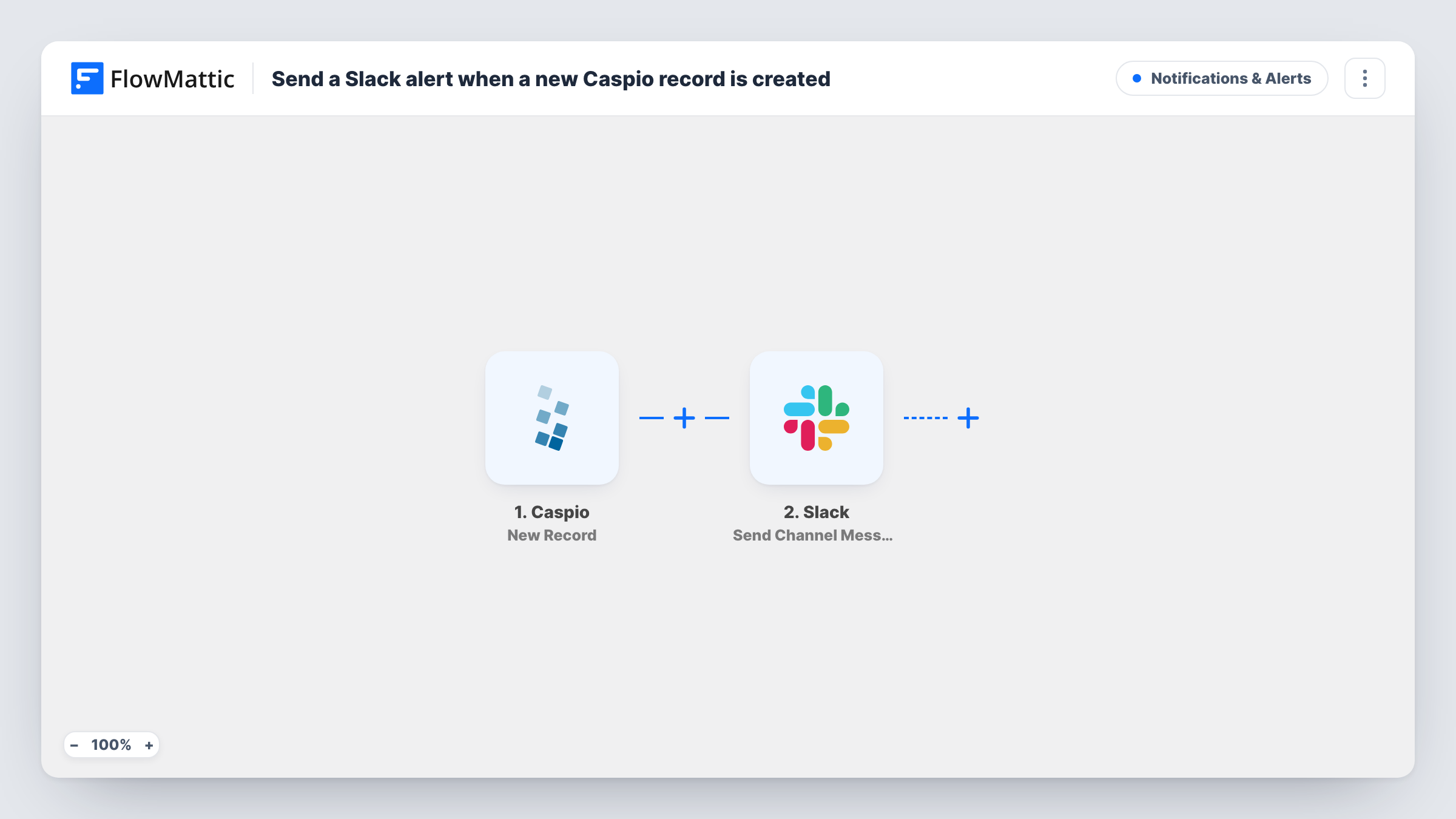
The Caspio trigger, New Record, fires when a record is added to the table you pick. FlowMattic passes that record's fields to Slack, where Send Channel Message posts your text to a channel. Write the message and insert the field values your team needs to act on the entry.
Only additions fire this trigger. Edits and deletions are separate Caspio events, Updated Record and Deleted Record, and don't post here. Each new record produces one message in a regular channel; for a private one, use Slack's Send Private Channel Message action.
Service requests in a facilities app
Staff log maintenance requests in a Caspio app, and the facilities team sees each request in #maintenance with its location and description.
Applications in a grants portal
A nonprofit collects grant applications in a Caspio table, and the review committee gets a Slack message as each one is submitted.
Inventory additions
When a warehouse user adds a new item record in Caspio, the purchasing team sees it in Slack and can check pricing.
How this workflow runs
What happens at each step once the workflow is on, and what you need before you import it.
 Caspio New Record
Fires when a new record is added to the Caspio table you select. The record's fields become available to insert into the Slack message.
- Slack Send Channel Message
Posts the alert in the Slack channel set on this step. Write the message, insert Caspio field values, and connect your Slack workspace on import.
What you need
- FlowMatticCore
- Caspio AccountAccount
- Slack AccountAccount
After importing, map your own data. To keep the template universal, not every step is pre-filled. Open each step in the builder and connect your accounts and fields (channels, lists, sheets, recipients) before you switch the workflow on.
Make it yours
Changes worth making after you import it.
- Add a Filter after the trigger on a Caspio field, such as a category or priority, so only the records your team needs to see reach Slack.
- To alert one person, replace the step with Slack's Send Direct Message action.
- Want a notice for edits too? Import a second copy of this workflow and switch its trigger to Caspio's Updated Record.
Questions about this workflow
Does editing a Caspio record post to Slack?
No. This template uses the New Record trigger. Caspio's Updated Record trigger is separate and is not part of it.
Which Caspio fields can I show in the Slack message?
Any field the New Record trigger sends from your table. Add a test record after import to see them, then insert the ones you want.
Can one copy of this workflow alert Slack about several Caspio tables?
No. The New Record trigger watches the single table you choose. For a second table, import another copy and point its trigger there.
More Notifications & Alerts workflows
Other ready-to-import templates from the same category.




Import this workflow into your WordPress site
Download the JSON, import it from the Workflows screen and connect your accounts. Every run stays on your server, with no per-task fees.
30-day money-back guarantee Unlimited workflows and runs Self-hosted