

Send a Slack alert when a new Instabug crash is reported
Whenever Instabug reports a new crash in your mobile app, this workflow posts an alert to a Slack channel with the crash details you map, so your developers hear about it where they already work.
 Instabug
 Slack
2 steps Setup ~5 min Used on 2.1k sites Free to import
What this workflow does
Crash reports in a monitoring dashboard only help once someone looks. A mobile team busy with a release can miss a new crash for hours if nobody has Instabug open. This workflow puts each new crash in front of the team in Slack.
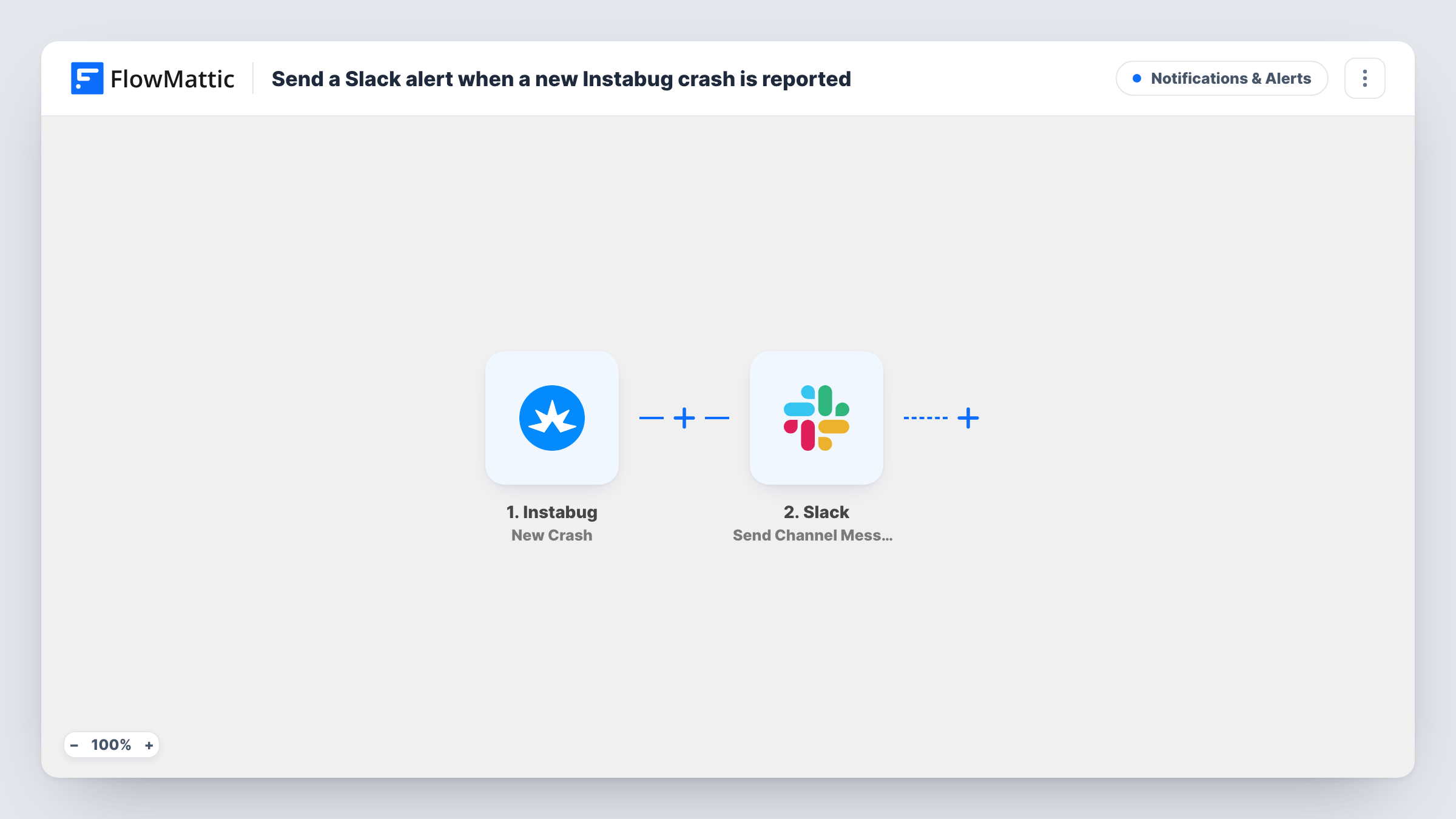
The Instabug trigger fires when a new crash is reported in your app. The crash data Instabug sends, such as its title, app version and a link where available, becomes fields you can map. FlowMattic then posts a message with Slack's Send Channel Message action to the channel you choose, with text you write around those fields.
The trigger covers new crashes. Bug reports and survey answers in Instabug use their own triggers and don't run this workflow. Every new crash posts one message, so a bad release can produce several alerts close together. Task History lists each run with the data Instabug sent.
Release-day watch
After shipping a new app version, the mobile team keeps an eye on one Slack channel. Each new crash in that version appears there for the on-duty developer.
Small teams without an on-call rota
A two-person app studio gets crash alerts in their shared Slack channel, so whoever is free can take a first look.
Keeping QA and support informed
Testers and support staff in the alerts channel see new crashes too, which helps them link a user's complaint to a known problem.
How this workflow runs
What happens at each step once the workflow is on, and what you need before you import it.
 Instabug New Crash
Fires when Instabug reports a new crash in your app. The crash details from Instabug are passed to the Slack step for the alert text.
- Slack Send Channel Message
Posts the crash alert in the public Slack channel you select. Write the message and insert Instabug fields such as the crash title, app version and link, then connect your Slack workspace.
What you need
- FlowMatticCore
- Instabug AccountAccount
- Slack AccountAccount
After importing, map your own data. To keep the template universal, not every step is pre-filled. Open each step in the builder and connect your accounts and fields (channels, lists, sheets, recipients) before you switch the workflow on.
Make it yours
Changes worth making after you import it.
- Put the crash link at the start of the message, if Instabug sends one, so developers can open the full report in one click.
- For a private Slack channel, swap in Slack's Send Private Channel Message action. To alert one developer instead, use Send Direct Message.
- Once Instabug reports its first crash after import, open that run in Task History and choose which fields belong in the alert.
Questions about this workflow
Does every Instabug crash post to Slack?
Every new crash Instabug reports runs the workflow once. There is no Filter, so add one on a field such as app version if you only want alerts for your latest release.
Will Instabug bug reports also reach Slack?
No. This workflow uses the New Crash trigger. Instabug's New Bug trigger is available in FlowMattic if you want a separate alert for bug reports.
Can the Instabug alert go to a private Slack channel?
The imported action is meant for public channels. For a private one, switch the second step to Slack's Send Private Channel Message and pick that channel there.
More Notifications & Alerts workflows
Other ready-to-import templates from the same category.





Import this workflow into your WordPress site
Download the JSON, import it from the Workflows screen and connect your accounts. Every run stays on your server, with no per-task fees.
30-day money-back guarantee Unlimited workflows and runs Self-hosted