

Send a Slack alert when a tag is added or removed on a Closely contact
Whenever a tag is added to or removed from a contact in Closely, this workflow posts a message to a Slack channel, so your sales team sees prospect status changes from LinkedIn outreach as they happen.
 Closely
 Slack
2 steps Setup ~5 min Used on 3.1k sites Free to import
What this workflow does
Teams running LinkedIn outreach in Closely often use tags to mark where a prospect stands: replied, interested, booked, not a fit. Those changes only help if the right person notices them. This workflow announces each tag change in Slack.
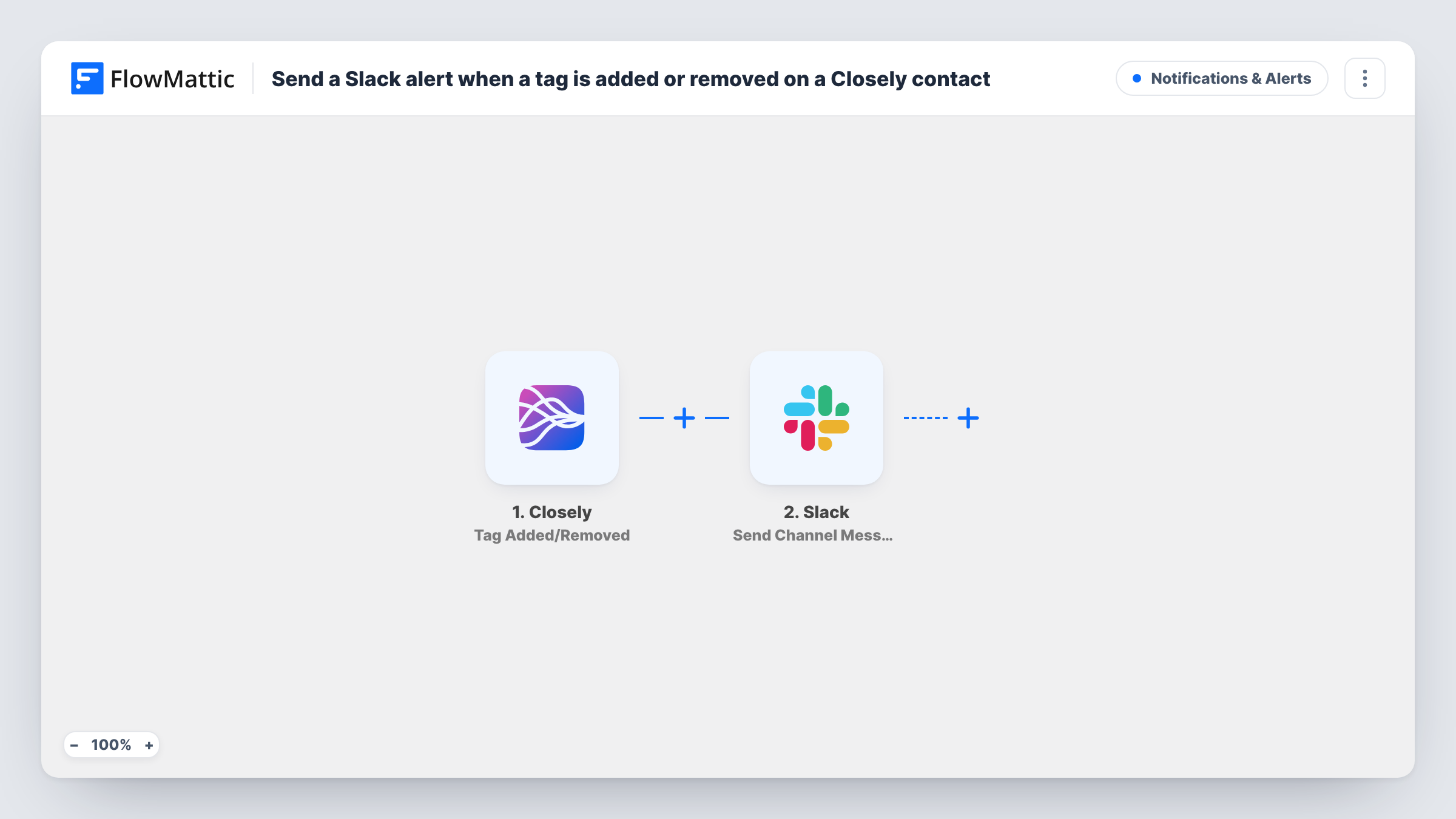
The Closely trigger fires when a tag is added or removed. FlowMattic receives the event data and passes it to Slack, where Send Channel Message posts in the channel you choose. You write the message and map in details from Closely, such as the contact and the tag, if the event carries them.
Adding and removing a tag both start a run, so one prospect moved from one tag to another can produce two messages. Without a Filter, every tag change on every contact is posted. Task History shows the data each event carried, which tells you whether you can tell additions and removals apart in a Filter.
Hot lead alerts for sales reps
When a teammate tags a prospect as interested in Closely, the sales channel sees it and a rep can pick up the conversation.
Keeping a manager in the loop
A sales manager follows a Slack channel showing every tag change from the team's Closely campaigns, without logging in to review each one.
Hand-off from outreach to closing
An SDR tags a prospect as meeting booked, and the account executive sees the Slack post and prepares for the call.
How this workflow runs
What happens at each step once the workflow is on, and what you need before you import it.
 Closely Tag Added/Removed
Fires when a tag is added to or removed from a Closely contact. The event data is captured for use in the Slack message.
- Slack Send Channel Message
Posts a message in the Slack channel you pick, built from the Closely tag event data you map. Connect your Slack account during import and send a test.
What you need
- FlowMatticCore
- Closely AccountAccount
- Slack AccountAccount
After importing, map your own data. To keep the template universal, not every step is pre-filled. Open each step in the builder and connect your accounts and fields (channels, lists, sheets, recipients) before you switch the workflow on.
Make it yours
Changes worth making after you import it.
- Add a Filter after the trigger that continues only for the tags that matter, such as interested or meeting booked, so routine tagging stays out of Slack.
- Use a dedicated channel for Closely tag alerts. A busy outreach campaign can change many tags in a day.
- Add and remove a test tag in Closely after import, then compare the two runs in Task History to see how the data shows which happened.
Questions about this workflow
Does removing a Closely tag also post to Slack?
Yes. The trigger fires for both added and removed tags, and the template has no Filter, so both changes send a message.
Can I limit the Slack alerts to one Closely tag?
Yes. Add a Filter after the trigger that checks the tag name in the event data. Run a test first to see which field holds it.
Does this change anything in Closely?
No. The workflow only reads the tag event and posts to Slack. Your Closely contacts and campaigns are not touched.
Are tag changes made before import posted to Slack?
No. Only tag changes that happen after you turn the workflow on start a run.
More Notifications & Alerts workflows
Other ready-to-import templates from the same category.



Import this workflow into your WordPress site
Download the JSON, import it from the Workflows screen and connect your accounts. Every run stays on your server, with no per-task fees.
30-day money-back guarantee Unlimited workflows and runs Self-hosted