

Send a Slack alert when an airfocus item status is updated
Whenever the status of an airfocus item changes, FlowMattic posts a message to a Slack channel, so the people who don’t open the roadmap still see what moved.
 airfocus
 Slack
2 steps Setup ~5 min Used on 3.4k sites Free to import
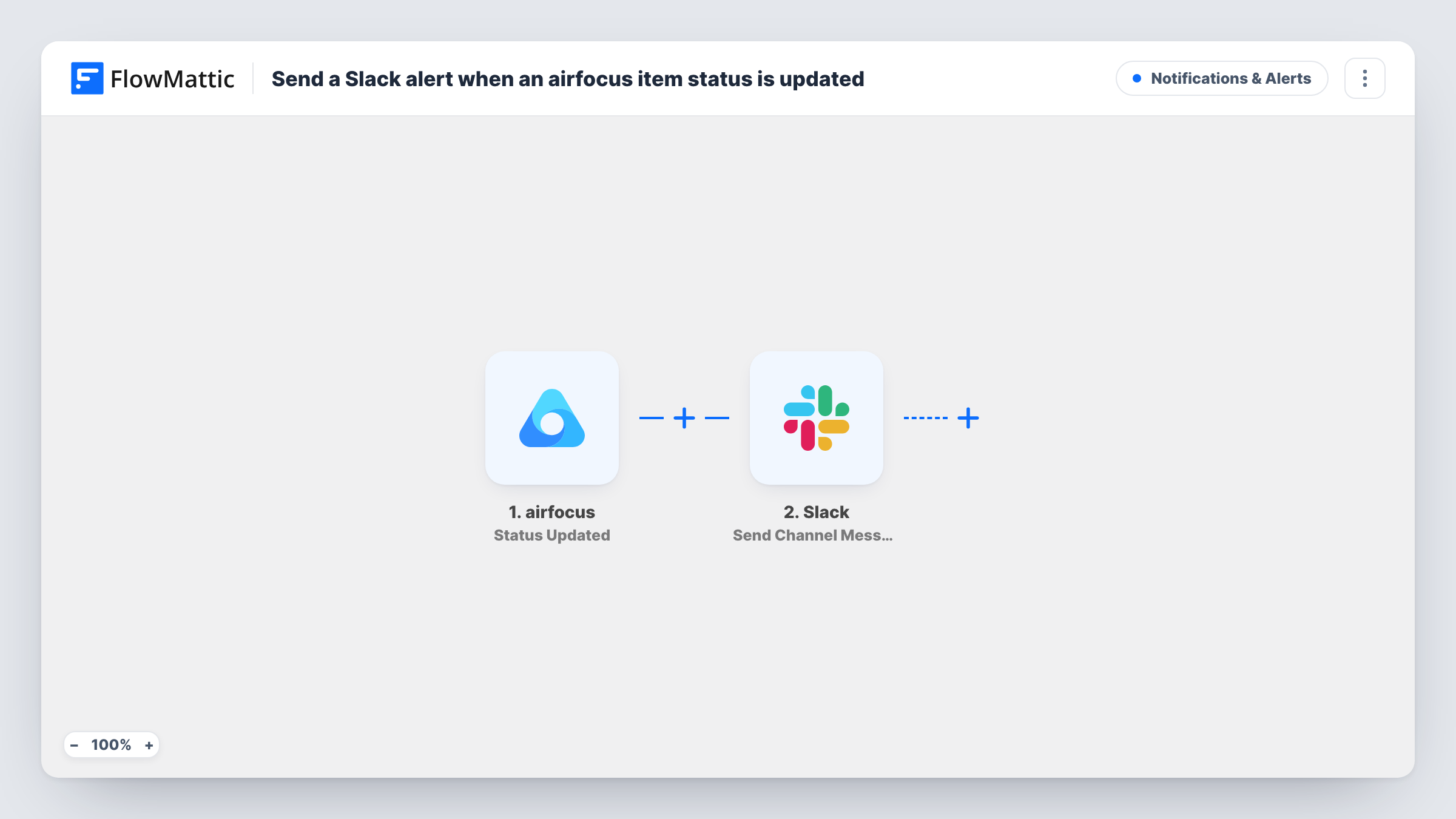
What this workflow does
Roadmap tools hold the latest picture of what is planned, in progress and shipped, but only the people who open them see it. Engineers, support staff and sales reps tend to learn about a status change days later. This workflow announces each one in Slack.
The airfocus trigger fires when the status is updated for an item. It fires on any status change, not on one particular status. FlowMattic captures the item data so you can map it, and the Slack step posts a message to a specific channel. You compose that message from fixed text and airfocus values, for example the item's name and its new status, once a test shows what airfocus sends.
Edits to other item fields, such as dates or numbers, don't start the workflow; airfocus has separate triggers for those in FlowMattic. Every run is kept in Task History with the data that was posted.
Release notes for the support team
Support follows a #roadmap-updates channel. When an item changes status, they see it and know which customer requests to revisit.
Keeping sales in the loop
Account managers promised a feature to a client. A Slack post on each status change tells them when it moves, without asking product for an update.
Async stand-ups for a product team
A distributed team reads the channel at the start of the day to catch up on every item that changed status overnight.
How this workflow runs
What happens at each step once the workflow is on, and what you need before you import it.
 airfocus Status Updated
Fires when an item's status is updated in airfocus, whatever the new status is. The item's data is passed to the Slack step.
- Slack Send Channel Message
Posts to the Slack channel you set in this step. Combine fixed words with the airfocus item values you map, then change a test item's status to see the result.
What you need
- FlowMatticCore
- airfocus AccountAccount
- Slack AccountAccount
After importing, map your own data. To keep the template universal, not every step is pre-filled. Open each step in the builder and connect your accounts and fields (channels, lists, sheets, recipients) before you switch the workflow on.
Make it yours
Changes worth making after you import it.
- Add a Filter after the trigger if the channel only needs some changes, for example continuing when the new status equals Done. Change a test item first so you can pick the status value.
- Include a link to the item in the message if airfocus sends one in the trigger data, so readers can open it in one click.
- To post finished items in a launch channel and others in a planning channel, use a Router with a Slack step on each route and conditions on distinct status values.
Questions about this workflow
Does every airfocus status change post to Slack?
Yes, as imported. The trigger fires for any status update. Add a Filter if you only want certain statuses announced.
Will edits to other airfocus fields send a Slack message?
No. This trigger only reacts to status updates. FlowMattic has other airfocus triggers for fields such as dates and numbers if you want those too.
Can I choose which Slack channel gets the airfocus updates?
Yes. The Slack step posts to a channel you pick after connecting your workspace. Use a private channel if the roadmap is not for everyone.
Are past airfocus status changes posted when I import?
No. Only changes made after the workflow is turned on start a run.
More Notifications & Alerts workflows
Other ready-to-import templates from the same category.






Import this workflow into your WordPress site
Download the JSON, import it from the Workflows screen and connect your accounts. Every run stays on your server, with no per-task fees.
30-day money-back guarantee Unlimited workflows and runs Self-hosted