

Send a Slack message to the team when a Worksection task is completed
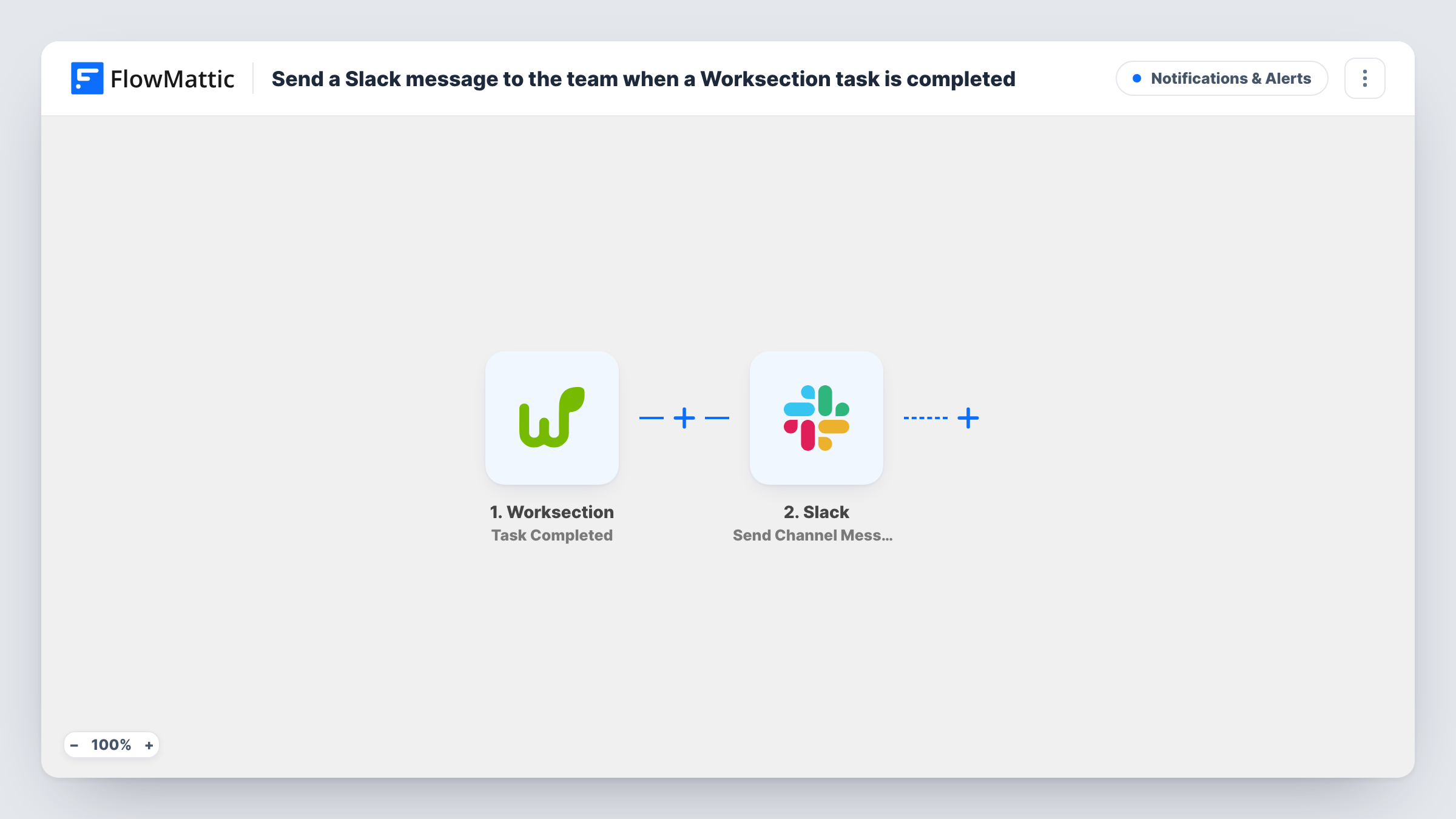
When a task is marked complete in Worksection, this workflow posts a message to a Slack channel, so the team hears about finished work without opening the project board.
 Worksection
 Slack
2 steps Setup ~5 min Used on 793 sites Free to import
What this workflow does
Finished tasks often need someone to act: a reviewer to check the work, a manager to update the client, the next person in line to start. This workflow tells the team in Slack each time a Worksection task is completed.
The Worksection trigger fires when a task is completed. FlowMattic passes the task data to Slack, where Send Channel Message posts to the channel you set. You write the text and drop in Worksection details, such as the task name or project, wherever they help.
Every completed task produces one message, across all the projects Worksection reports on. If that is too many for one channel, a Filter narrows it, as the tips explain. Nothing changes in Worksection itself, and Task History lists each run.
Hand-offs between design and development
When a designer completes a mockup task, the developers' channel gets a message and they can start building.
Client updates from account managers
An agency's account team watches a channel of completed tasks and passes good news on to clients the same day.
Quality checks on finished work
A QA lead sees each completed task in Slack and reviews it before it is reported as done to the client.
How this workflow runs
What happens at each step once the workflow is on, and what you need before you import it.
 Worksection Task Completed
Runs when a task is completed in Worksection. The task data is passed on. Complete a test task after import to see which fields you can map.
- Slack Send Channel Message
Posts your completion message to the public Slack channel you pick. Map the Worksection task details into the text and connect your Slack workspace.
What you need
- FlowMatticCore
- Worksection AccountAccount
- Slack AccountAccount
After importing, map your own data. To keep the template universal, not every step is pre-filled. Open each step in the builder and connect your accounts and fields (channels, lists, sheets, recipients) before you switch the workflow on.
Make it yours
Changes worth making after you import it.
- Add a Filter after the trigger so only tasks from a chosen Worksection project post, using the project field from a test run.
- For a private team channel, swap in Slack's Send Private Channel Message action. To tell only the task's manager, use Send Direct Message.
- Include the task link in the message, if Worksection sends it, so readers can open the task in one click.
Questions about this workflow
Does the Slack message post if a Worksection task is reopened and completed again?
The trigger fires when a task is completed, so a second completion can start another run. Test it in your account to confirm.
Will tasks completed before setup appear in Slack?
No. Only completions that happen after you switch the workflow on are posted.
Can I post Worksection completions from different projects to different channels?
Yes, with a change. Replace the Slack step with a Router whose routes check the project, each ending in its own Slack step for that channel.
Is anything changed in Worksection?
No. The workflow only reads the completion event and posts to Slack.
More Notifications & Alerts workflows
Other ready-to-import templates from the same category.





Import this workflow into your WordPress site
Download the JSON, import it from the Workflows screen and connect your accounts. Every run stays on your server, with no per-task fees.
30-day money-back guarantee Unlimited workflows and runs Self-hosted