

When a Pulsetic monitor event fires, log it in Google Sheets, alert the team in Slack, then update the incident row
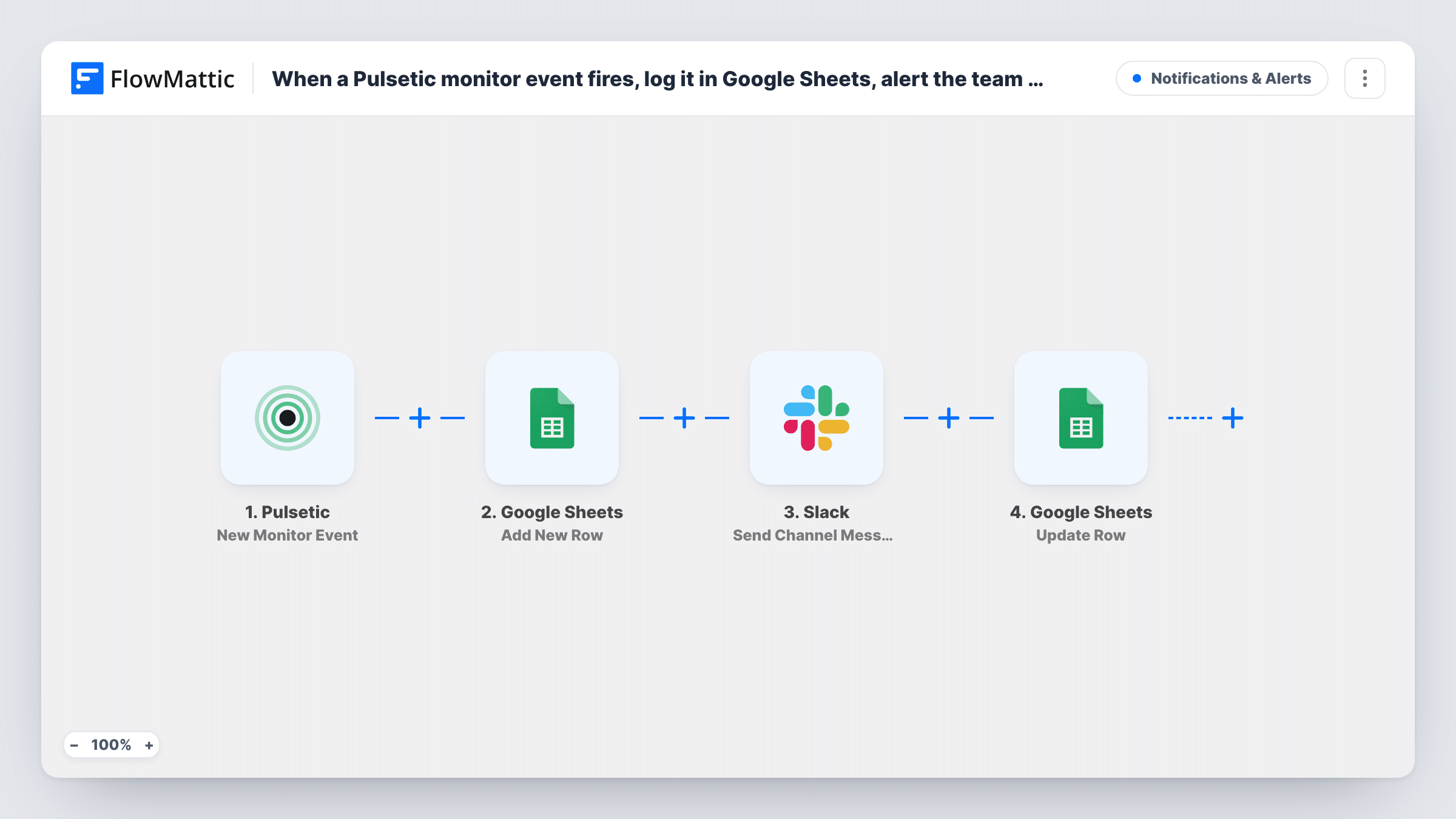
Each Pulsetic monitor event is written to a new Google Sheets row, posted to a Slack channel, and then the same row is updated, so your incident log and your team hear about it in one run.
 Pulsetic
 Google Sheets
 Slack
4 steps Setup ~8 min Used on 1.3k sites Free to import
What this workflow does
When a monitor changes state, two things usually need to happen: the team has to hear about it, and someone should record it for later review. Doing both by hand during an outage is easy to forget. This workflow handles both every time Pulsetic reports an event.
The Pulsetic trigger fires on each new monitor event. FlowMattic first adds a row to your Google Sheets incident log with the event details you map. Next, a message goes to a Slack channel so the people on duty see it. The last step updates the row that was just added, which lets you write back details only known after the alert, such as the Slack message reference or an "alerted" status.
Every event runs all four steps, as there is no Filter in the template. Use the update step to point at the row from step two by mapping the row reference that step returns; a test run shows what it gives you. Task History lists each run, and if Slack or Sheets returns an error you will see it on that step.
Uptime log for monthly client reports
An agency keeps one sheet per client. Each Pulsetic event becomes a row, giving a dated record to pull from when writing the monthly report.
On-call channel alerts
The Slack message lands in your on-call channel, and the row update marks that the alert was posted, so the log shows who was told and when.
Post-incident reviews
After an outage, the team reads the incident rows in the sheet to rebuild the timeline of monitor events.
How this workflow runs
What happens at each step once the workflow is on, and what you need before you import it.
 Pulsetic New Monitor Event
Runs when Pulsetic reports a new monitor event. The event data is passed on, so you can map it into the sheet and the Slack message.
- Google Sheets Add New Row
Adds a row to the Google Sheets spreadsheet you choose, holding the event details you map to its columns. This is the row the last step updates.
- Slack Send Channel Message
Sends an alert to whichever Slack channel you select. Write the alert text and insert details from the Pulsetic event that a test run shows you.
- Google Sheets Update Row
Updates the row added in step two with values you map, for example a status column or details returned by the Slack step. Map the row reference from step two and confirm it in a test run.
What you need
- FlowMatticCore
- Pulsetic AccountAccount
- Google Sheets AccountAccount
- Slack AccountAccount
After importing, map your own data. To keep the template universal, not every step is pre-filled. Open each step in the builder and connect your accounts and fields (channels, lists, sheets, recipients) before you switch the workflow on.
Make it yours
Changes worth making after you import it.
- If only some event types should reach the sheet and Slack, add a Filter between the Pulsetic trigger and the Add New Row step. Check the event data in a test run to see which value to filter on.
- Map the Slack step's response into the Update Row step so the sheet records that the alert was posted for that event.
- To alert different Slack channels per monitor, add a Router between Add New Row and the Slack step, with conditions that can't both match and a Slack step on each route. Close the routes with a Join so Update Row runs once after them.
- Trigger a test event in Pulsetic after import so FlowMattic captures the fields, then map them in all three action steps.
Questions about this workflow
Why does the Pulsetic workflow update the Google Sheets row it just added?
Some details only exist after the Slack message is sent. The Update Row step writes those back to the row created at the start, so one row holds the full record for that event.
Does every Pulsetic monitor event post to Slack?
Yes, as imported. There is no Filter, so each monitor event adds a row, posts a message and updates the row. A Filter between the Pulsetic trigger and the Add New Row step can limit all three actions to the events you care about.
How does Update Row find the row for the Pulsetic event?
Add New Row returns the number of the row it adds. Map that number into the Update Row step and it writes to the same event's row. Check it once with a test event.
Does the sheet need a header row before I import this?
Set up the columns you want in your spreadsheet first. FlowMattic maps data to them in the Add New Row and Update Row steps.
More Notifications & Alerts workflows
Other ready-to-import templates from the same category.



Import this workflow into your WordPress site
Download the JSON, import it from the Workflows screen and connect your accounts. Every run stays on your server, with no per-task fees.
30-day money-back guarantee Unlimited workflows and runs Self-hosted