

Send a Slack notification when a Retainr order is accepted
When an order is accepted in Retainr, this workflow posts a message to the Slack channel you choose, so the people who deliver the work see it in the place they already talk instead of waiting for someone to pass it on.
 Retainr
 Slack
2 steps Setup ~5 min Used on 1.3k sites Free to import
What this workflow does
An accepted order in Retainr means work is about to start. If your team lives in Slack, they shouldn't have to check another dashboard to find out. This workflow posts to a Slack channel the moment Retainr reports an accepted order.
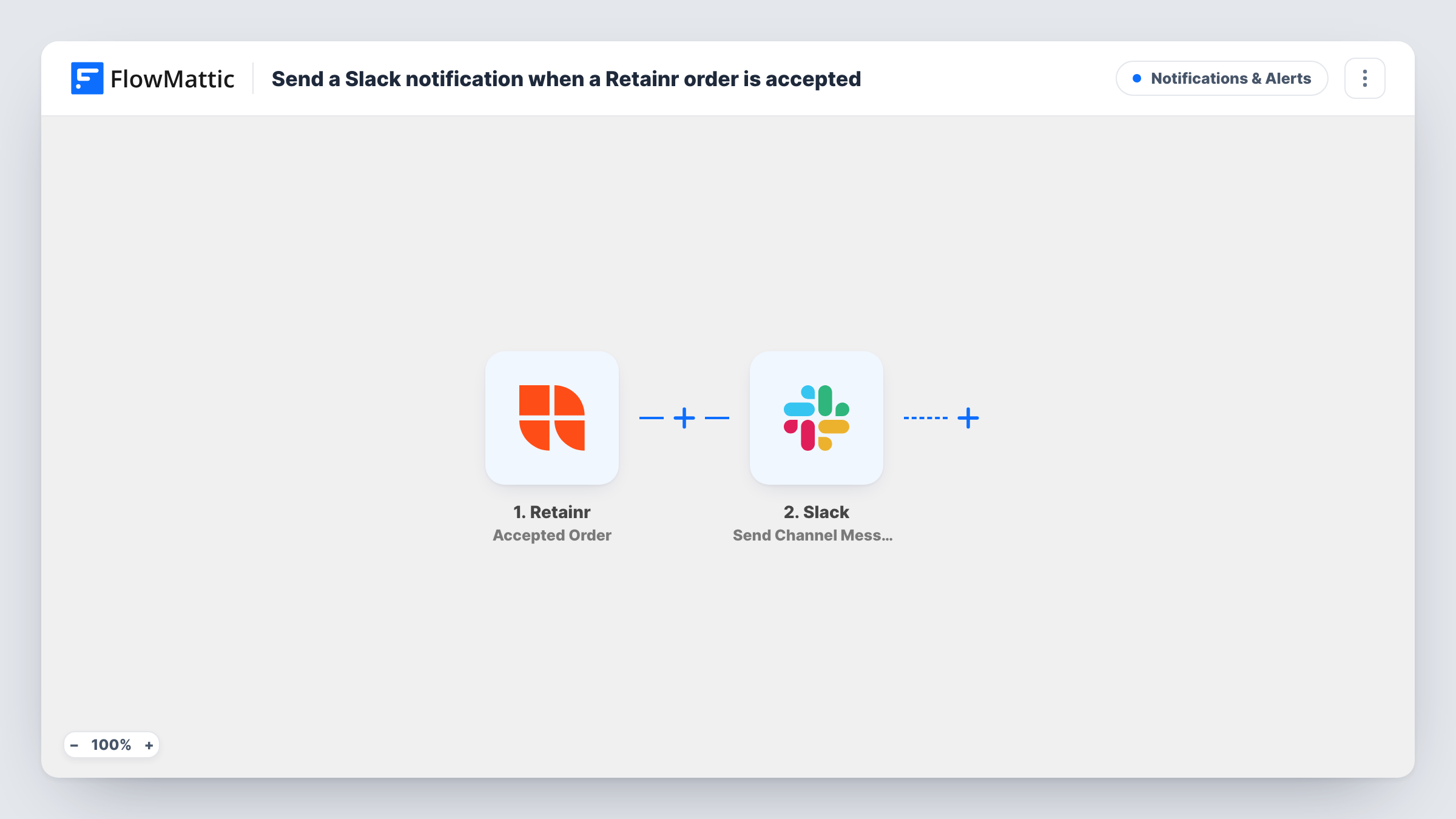
The Retainr trigger fires when an order is accepted, and the order's details arrive in FlowMattic as fields. The Slack step then uses Send Channel Message to post into the channel you pick. You write the message text and place the order details in it, so the post says what was ordered and for whom.
Only accepted orders start this workflow. New orders and declined orders are separate Retainr triggers in FlowMattic, so they don't post here. Each run is listed in Task History with the data Retainr sent and Slack's reply.
Kick-off for a productized service
A design subscription business accepts an order in Retainr, and the #production channel gets a post so the next free designer can claim it.
Keeping account managers informed
Account managers follow a #client-orders channel and see every accepted order without logging in to Retainr.
A record of accepted work
A dedicated Slack channel becomes a running list of accepted orders, easy to scroll back through when you plan the week's capacity.
How this workflow runs
What happens at each step once the workflow is on, and what you need before you import it.
 Retainr Accepted Order
Fires when an order is accepted in your Retainr account. The order's details become available to put in the Slack message.
- Slack Send Channel Message
Sends your message into a Slack channel of your choice. Connect your Slack workspace, pick the channel and write the text with the Retainr order details mapped in.
What you need
- FlowMatticCore
- Retainr AccountAccount
- Slack AccountAccount
After importing, map your own data. To keep the template universal, not every step is pre-filled. Open each step in the builder and connect your accounts and fields (channels, lists, sheets, recipients) before you switch the workflow on.
Make it yours
Changes worth making after you import it.
- Accept one test order in Retainr after import so FlowMattic captures its fields, then place the client and order details in the Slack message.
- Want declined orders in Slack too? Build a second workflow on Retainr's Declined Order trigger and send it to the same channel with different wording.
- Add a Google Sheets step after Slack to keep a log of accepted orders you can total by month.
Questions about this workflow
Does a new Retainr order post to Slack before it's accepted?
No. The trigger is Accepted Order, so only orders that have been accepted start a run. Retainr's New Order trigger is a separate option if you want earlier notice.
Which Slack channel receives the Retainr order message?
Retainr orders post to the one channel picked in the Slack step. Swap it for another channel later in FlowMattic; Retainr itself needs no change.
What does the Slack post contain?
Whatever you write in the message, plus the Retainr order details you map into it. Check a test run to see which details Retainr sends.
Are orders accepted before the import posted?
No. Only orders accepted after you switch the workflow on reach Slack.
More Notifications & Alerts workflows
Other ready-to-import templates from the same category.




Import this workflow into your WordPress site
Download the JSON, import it from the Workflows screen and connect your accounts. Every run stays on your server, with no per-task fees.
30-day money-back guarantee Unlimited workflows and runs Self-hosted