

Send a welcome email via Gmail to new Keka HR employees
When Keka HR reports a new employee to FlowMattic, this workflow sends that person a welcome email from your Gmail account, written with their name and the details you map from the Keka event.
 Keka HR
 Gmail
Gmail2 steps Setup ~5 min Used on 3.0k sites Free to import
What this workflow does
A new hire's first message from the company often depends on someone remembering to write it. If your employee records start in Keka HR, the record itself can set off that first email. This workflow sends a welcome message through Gmail when Keka tells FlowMattic about a new employee.
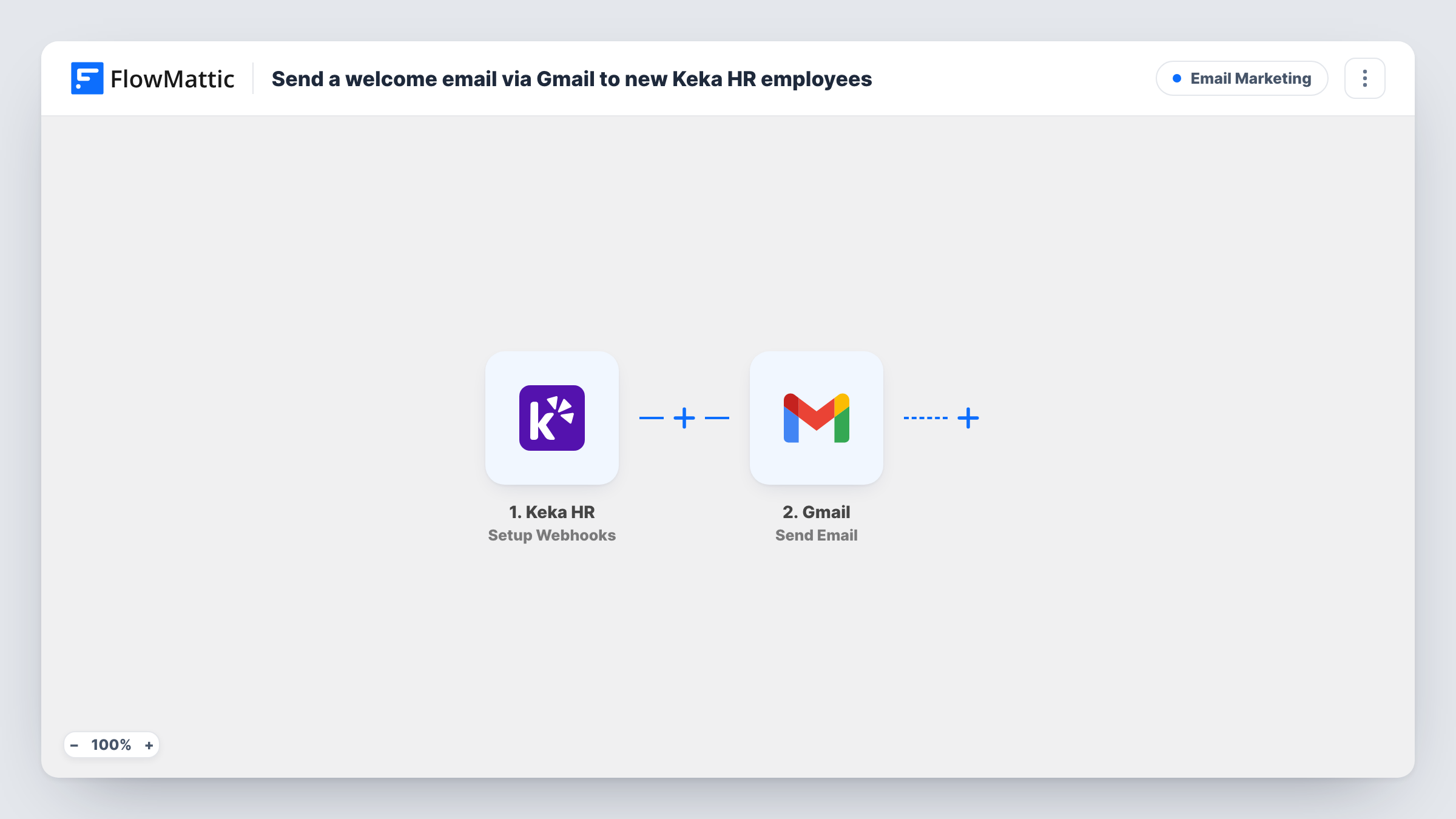
The Keka HR trigger, Setup Webhooks, fires for the events you choose in Keka. Pick only the event for a newly added employee, so the email goes out once per hire and not on other HR changes. FlowMattic then uses the Gmail Send Email action to send a message from the account you connect, with the employee's name and other fields placed in the subject and body.
The email can only reach the new hire if the Keka event includes an address for them, so check a test run before you switch the workflow on. Every event Keka sends runs the email step, and Task History lists each run with what was sent.
A first-day welcome from HR
HR adds the hire in Keka a week before the start date. The new employee gets a welcome note from the HR Gmail inbox with the start details your template text covers.
Founder notes at a small company
A founder connects their own Gmail, so each new team member gets a personal-looking welcome from them as soon as HR creates the Keka record.
Onboarding links for remote staff
The welcome email lists the links a remote hire needs on day one, such as the handbook and a calendar link, written once in the Gmail step.
How this workflow runs
What happens at each step once the workflow is on, and what you need before you import it.
 Keka HR Setup Webhooks
Receives the events you choose in Keka HR's webhook setup. Send only the new-employee event here, so the workflow runs once for each hire and passes their record on.
- Gmail Send Email
Emails the new hire through the Gmail account you link. Map the employee's email from the Keka event as the recipient and write a subject and message that use their name.
What you need
- FlowMatticCore
- Keka HR AccountAccount
- Gmail AccountAccount
After importing, map your own data. To keep the template universal, not every step is pre-filled. Open each step in the builder and connect your accounts and fields (channels, lists, sheets, recipients) before you switch the workflow on.
Make it yours
Changes worth making after you import it.
- Check that the Keka event carries the hire's email before you go live. If it carries only a work address that doesn't exist yet, map a personal email field instead, if Keka sends one.
- Add a Delay before the Gmail step if you want the email to arrive later, for example a day after the record is created instead of the same minute.
- Add a Filter after the trigger if Keka also sends other events to this webhook, continuing only when the event type is the one for a new employee.
Questions about this workflow
Which Keka HR event should I send to this workflow?
Only the one for a new employee. The trigger fires for whichever events you select in Keka, so sending more, such as employee updates, would email the person again each time.
Which address does the Keka welcome message come from?
The Send Email step uses the Gmail account you connect in FlowMattic, so the message comes from that address and appears in its Sent folder.
What if the Keka record has no email address?
Gmail has no recipient, so the step fails and Task History shows the error for that run. Add the missing address in Keka; that edit won't resend the email, since only the new-employee event starts a run.
Are employees added before setup emailed?
No. Only events Keka sends after you connect the webhook start a run, so people already in Keka HR don't get a welcome email.
More Email Marketing workflows
Other ready-to-import templates from the same category.






Import this workflow into your WordPress site
Download the JSON, import it from the Workflows screen and connect your accounts. Every run stays on your server, with no per-task fees.
30-day money-back guarantee Unlimited workflows and runs Self-hosted