

Subscribe new Closely contacts to a Mailchimp audience for nurturing
When Closely sends a contact’s email and phone details, FlowMattic adds that person to the Mailchimp audience you choose, or updates them if they are already a member, ready for the emails you send there.
 Closely
 Mailchimp
2 steps Setup ~5 min Used on 2.1k sites Free to import
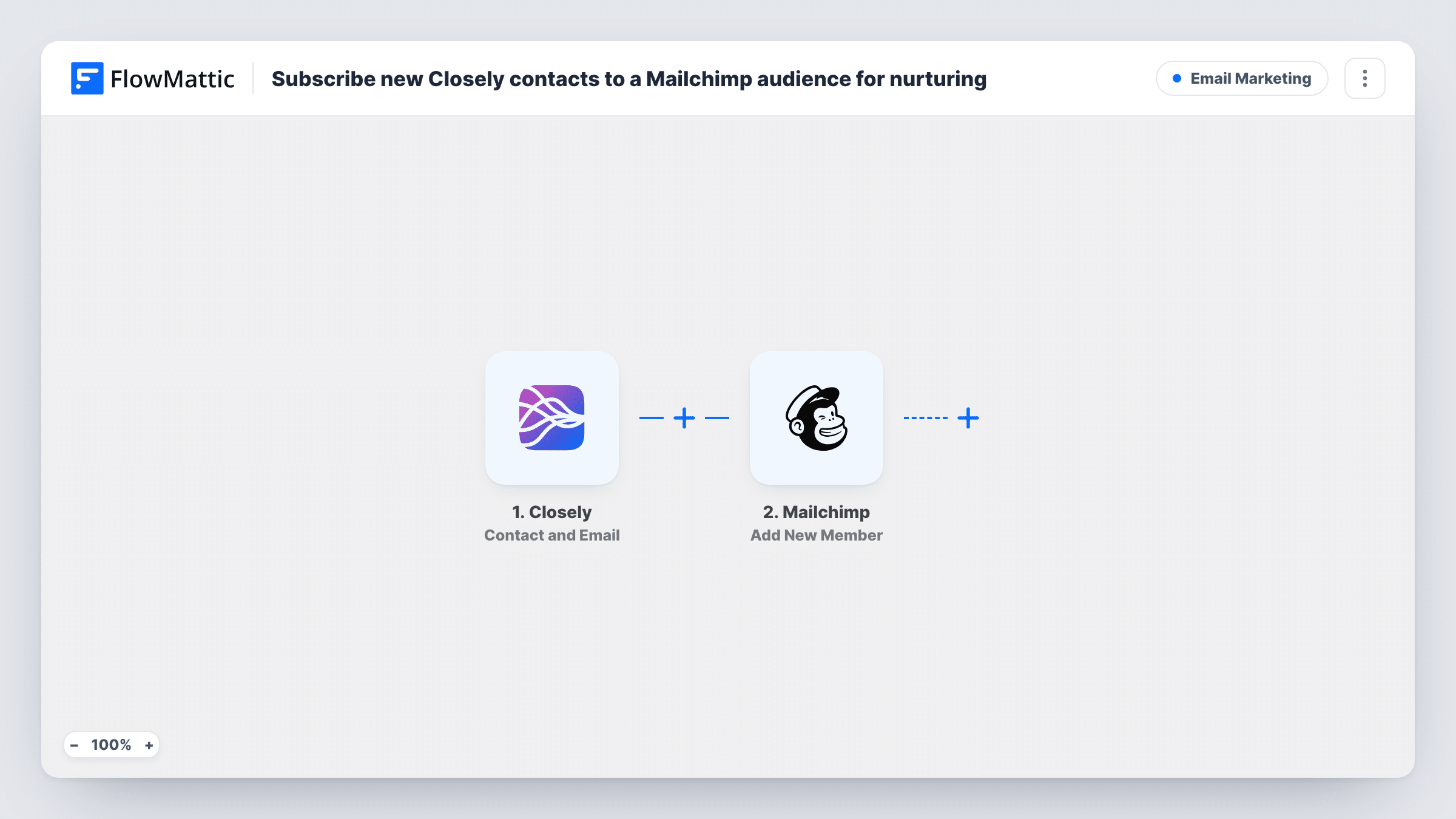
What this workflow does
Closely helps you find and work LinkedIn leads, but your email campaigns run in Mailchimp. Exporting a CSV from one and uploading it to the other every week is a chore that tends to slip. This workflow passes each contact across as Closely reports their details.
The Closely trigger is Contact and Email, which fires for a contact's emails and phone numbers. FlowMattic takes that data and sends it to Mailchimp. The Add New Member action adds the person to the audience you select. If the address is already in that audience, Mailchimp updates the existing member instead of adding a second one.
What happens next is up to you in Mailchimp. A customer journey or a tag-based campaign can pick up the new members, but this workflow only handles the subscribe step. Make sure you have permission to email the people you add, and use a test run to see which Closely fields arrive. Each run is logged in Task History together with what Mailchimp sent back.
LinkedIn outreach followed by email
You connect with prospects on LinkedIn through Closely. Once their email is known to Closely, they join a Mailchimp audience you use for product updates.
Agency lead lists by client
An agency runs Closely campaigns for a client. Each contact who comes through is added to that client's Mailchimp audience for the newsletter they agreed to receive.
Webinar invitations to prospects
Prospects found in Closely are added to an audience you use for event invitations, so your next webinar announcement reaches them by email.
How this workflow runs
What happens at each step once the workflow is on, and what you need before you import it.
 Closely Contact and Email
Fires when Closely sends the emails and phone numbers for a contact. Those details are passed on for mapping into Mailchimp.
- Mailchimp Add New Member
Subscribes the Closely contact to your chosen Mailchimp audience, refreshing their record when the address is already listed. Connect Mailchimp, choose the audience, and map the Closely email field.
What you need
- FlowMatticCore
- Closely AccountAccount
- Mailchimp AccountAccount
After importing, map your own data. To keep the template universal, not every step is pre-filled. Open each step in the builder and connect your accounts and fields (channels, lists, sheets, recipients) before you switch the workflow on.
Make it yours
Changes worth making after you import it.
- Add a Filter after the trigger that continues only when the email field is not empty, so contacts Closely has no address for never reach Mailchimp.
- If a test run shows Closely sending the contact's name, map it into the Mailchimp step too, so your campaigns can greet people by name.
- Swap in Closely's Tag Added/Removed trigger in a copy of this workflow if you would rather subscribe only contacts you tag in Closely.
Questions about this workflow
What happens if the Closely contact is already in my Mailchimp audience?
Mailchimp keeps one record per address, so Add New Member refreshes that person rather than adding them twice. Their details are refreshed with the values you map.
Does this start a Mailchimp email sequence?
Not by itself. The workflow stops once the Closely contact is in the audience. Set up a customer journey or campaign in Mailchimp that targets the audience, and new members are included from there.
Which Closely contacts are sent to Mailchimp?
Each one the Contact and Email trigger fires for. There is no Filter as imported, so add one if you want to limit which contacts are subscribed.
More Email Marketing workflows
Other ready-to-import templates from the same category.






Import this workflow into your WordPress site
Download the JSON, import it from the Workflows screen and connect your accounts. Every run stays on your server, with no per-task fees.
30-day money-back guarantee Unlimited workflows and runs Self-hosted