

Send new RSS feed entries via email
When a new entry appears in an RSS feed you follow, FlowMattic emails it to the recipients you set through WordPress mail or your SMTP account, with the entry’s title and link in the message.
 RSS Feed
 Email
Email2 steps Setup ~5 min Used on 2.9k sites Free to import
What this workflow does
Plenty of useful sources still publish an RSS feed: industry blogs, release notes, government notices, job boards. Checking a feed reader is one more habit to keep. This workflow turns each new feed entry into an email instead, so updates arrive where you already read.
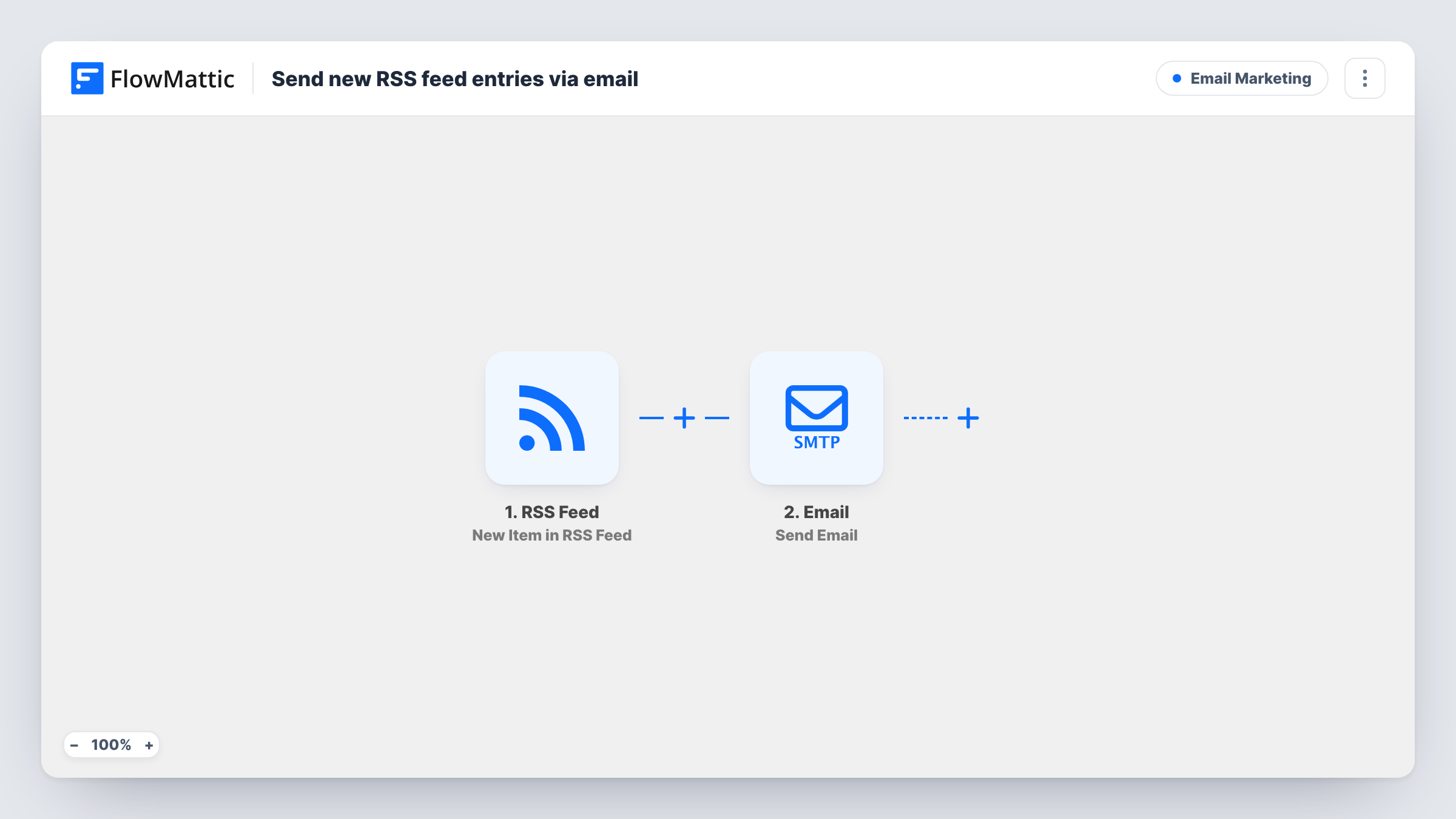
The RSS Feed trigger New Item in RSS Feed watches the feed address you give it and starts a run for each new item. The item's details, such as its title, link and summary, become values you can place in a message. The Email step Send Email then sends that message using WordPress's built-in mail function or a custom SMTP account.
You decide who receives it by entering the addresses in the step, and you write the subject and body around the feed values. Each new entry sends one email. The workflow does not manage a subscriber list, so it suits personal alerts or a small fixed group. Task History records every entry that was sent.
Competitor blog watch
Point the trigger at a competitor's blog feed and get an email with the headline and link whenever they publish a new post.
Release notes for a support team
Send each new entry from a vendor's changelog feed to your support team's shared inbox, so agents hear about product changes as they ship.
Job board alerts
Many job boards offer a feed for a saved search. Each new listing arrives as an email with the job title and a link to apply.
How this workflow runs
What happens at each step once the workflow is on, and what you need before you import it.
 RSS Feed New Item in RSS Feed
Watches the RSS feed address you enter and starts a run for each new item it finds. The item's title, link and other feed values are passed on for the email.
 Email Send Email
Sends one email per feed item using WordPress mail or your SMTP account. Enter the recipients, write the subject and body, and place the feed item's values in them.
What you need
- FlowMatticCore
After importing, map your own data. To keep the template universal, not every step is pre-filled. Open each step in the builder and connect your accounts and fields (channels, lists, sheets, recipients) before you switch the workflow on.
Make it yours
Changes worth making after you import it.
- Only interested in some entries? Add a Filter after the trigger that continues when the item title contains a keyword, such as a product name or a city.
- Put the item link in both the subject and the body, so readers can open the source from a mobile preview without scrolling.
- For busy feeds, replace Send Email with a step that adds each item to Google Sheets, then read the sheet once a day instead of getting dozens of emails.
Questions about this workflow
Will older items already in the RSS feed be emailed when I turn this on?
The trigger is built for new items. Turn the workflow on and watch Task History over the first check to confirm that only new entries are sent.
Can I send the RSS emails through Gmail?
This step is FlowMattic's Email module, so it sends through WordPress mail or the SMTP account you set. Enter Gmail's SMTP details there, or replace it with the Gmail app's Send Email action.
Can people subscribe themselves to these RSS emails?
No. The Email step sends to the addresses typed into it. For a list people join and leave, use an email marketing tool and its own RSS campaign features instead.
Does this work with any RSS or Atom feed URL?
It works with a feed the trigger can read. Paste the address after import and run a test to see which item details FlowMattic picks up.
More Email Marketing workflows
Other ready-to-import templates from the same category.






Import this workflow into your WordPress site
Download the JSON, import it from the Workflows screen and connect your accounts. Every run stays on your server, with no per-task fees.
30-day money-back guarantee Unlimited workflows and runs Self-hosted