

Send webhooks with new items in RSS feeds
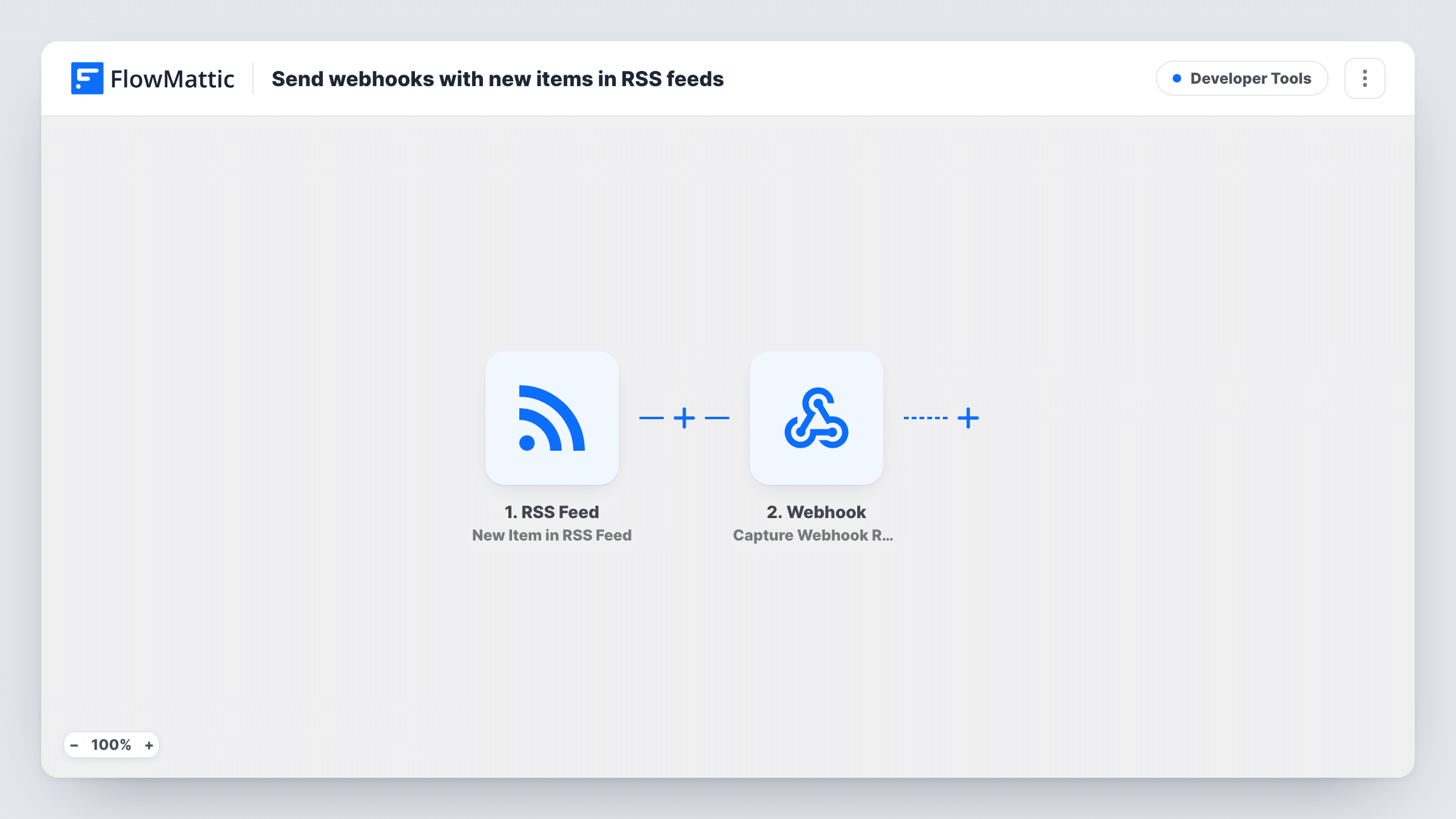
When an RSS feed you follow publishes a new item, FlowMattic sends that item’s details as JSON to a webhook URL you set, so another app, script or service can act on fresh content without polling the feed itself.
 RSS Feed
 Webhook Outgoing
2 steps Setup ~5 min Used on 2.8k sites Free to import
What this workflow does
Plenty of tools can receive a webhook but can't read an RSS feed. This workflow bridges the two: FlowMattic watches the feed, and each new entry is pushed to the endpoint of your choice, whether that is your own API, a no-code tool, or a chat or CMS system that accepts incoming data.
The RSS Feed trigger runs on new items in the feed you enter after import. Each new item starts its own run and carries what the feed publishes for it, typically the title, link, description and date. A test run shows the exact fields for your feed.
The Webhook Outgoing step sends data to a webhook URL using the POST method in JSON format. It ships unmapped: add your endpoint URL and choose which item fields go into the JSON body and under which names, so the receiving system gets the keys it expects.
Check Task History after the first runs to see what the receiving server answered for each item.
Feed a custom content pipeline
A developer sends each new post from an industry blog to an internal API that tags it and stores it in the team's research database.
Trigger another automation tool
A team that runs most automations in a separate platform uses its catch-hook URL as the endpoint, so new podcast episodes from an RSS feed start those flows.
Watch a status page feed
An operations team points the trigger at a vendor's incident RSS feed and posts each new entry to its own alerting service's webhook.
How this workflow runs
What happens at each step once the workflow is on, and what you need before you import it.
 RSS Feed New Item in RSS Feed
Checks the RSS feed URL you enter and starts a run for each new item it finds. The item's fields, such as its title, link and summary, are passed to the webhook step.
- Webhook Outgoing Submit Data to Webhook
Sends a POST request with a JSON body to the webhook URL you set. The template leaves the URL and body empty, so add your endpoint and map the RSS item fields under the key names your receiver expects.
What you need
- FlowMatticCore
After importing, map your own data. To keep the template universal, not every step is pre-filled. Open each step in the builder and connect your accounts and fields (channels, lists, sheets, recipients) before you switch the workflow on.
Make it yours
Changes worth making after you import it.
- Put a Filter between the RSS Feed trigger and the Webhook Outgoing step that continues only when the item title contains a keyword you care about, so the endpoint receives just matching entries.
- To follow several feeds with one workflow, switch the trigger to FlowMattic's New Item in Multiple RSS Feeds event and keep the webhook step as it is.
- Include a fixed field in the JSON body, such as the feed's name, so the receiving system can tell where each item came from when several workflows post to it.
Questions about this workflow
What does the webhook receive for each RSS item?
A POST request with a JSON body made of the fields you map in the Webhook Outgoing step. The template doesn't fill the body, so choose the title, link, description and any other item fields you need.
How do I know which RSS items were posted to my webhook?
Task History lists every run with the item the RSS Feed trigger picked up and the reply from your endpoint. Look there after the first new entries appear in the feed to confirm the JSON arrived as expected.
Can the webhook endpoint require authentication?
That depends on what the receiving system expects. Run a test against your endpoint and check Task History for its response before you rely on the workflow.
More Developer Tools workflows
Other ready-to-import templates from the same category.




Import this workflow into your WordPress site
Download the JSON, import it from the Workflows screen and connect your accounts. Every run stays on your server, with no per-task fees.
30-day money-back guarantee Unlimited workflows and runs Self-hosted