

Add a Google Sheets row when an Encharge user is tagged with webinar-attended
When a person in Encharge is tagged webinar-attended, FlowMattic adds a row for them to your Google Sheets spreadsheet, building an attendance list you can sort, share and score.
 Encharge
 Google Sheets
2 steps Setup ~5 min Used on 2.4k sites Free to import
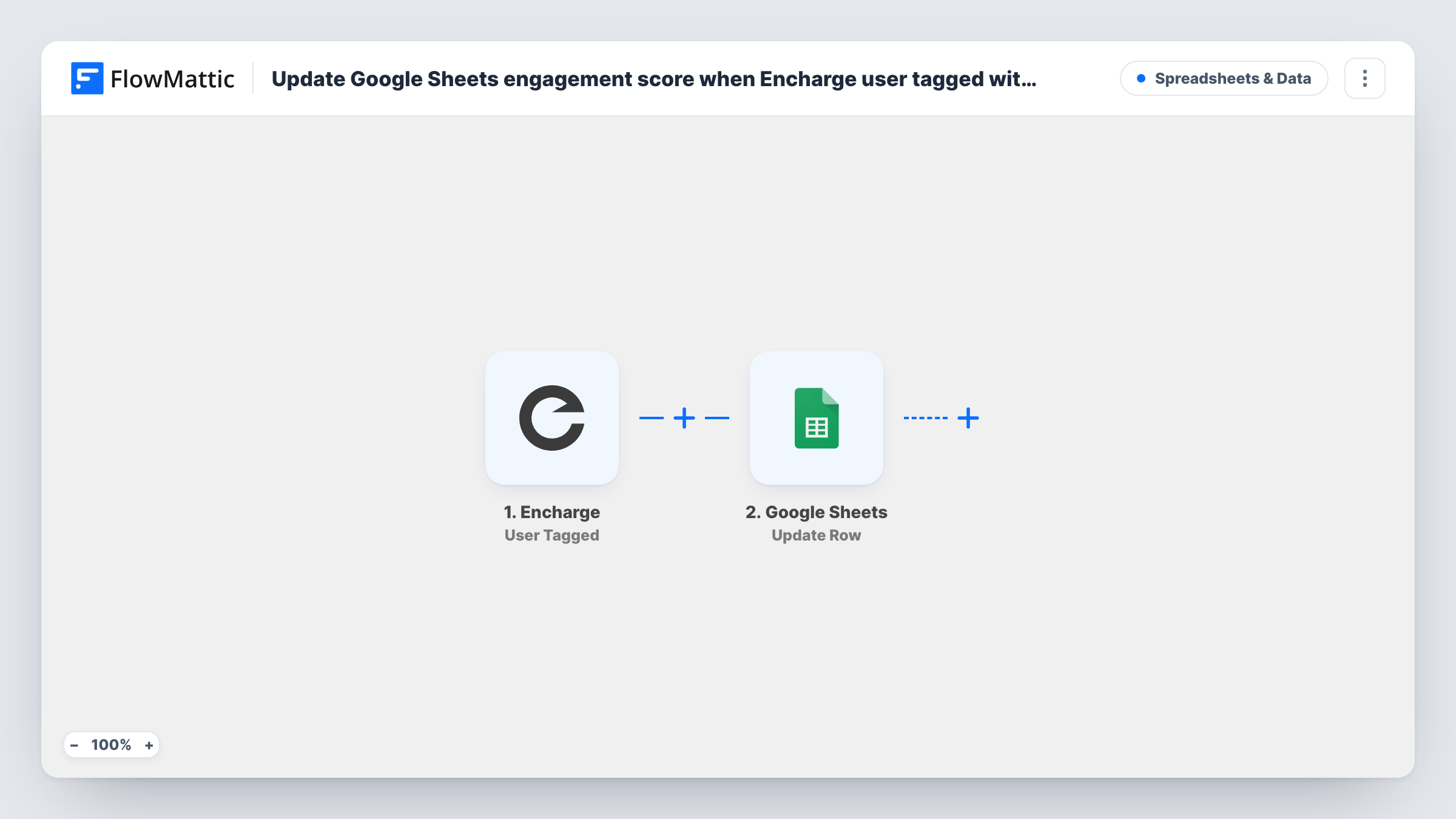
What this workflow does
If your webinar platform or your own Encharge flows tag attendees, that tag is the cleanest signal of who actually showed up. This workflow copies each tagged person into a spreadsheet, so sales, marketing or your host can see the attendance list without logging in to Encharge.
The Encharge User Tagged trigger fires when a person is tagged with the tag you enter in the trigger. The template doesn't fill that in, so type webinar-attended, or whatever your attendance tag is called, when you set up the trigger. The person's details are then passed on.
The Google Sheets Add New Row step adds one row for that person. It ships unmapped: pick the spreadsheet and sheet, then map the email, name and any other Encharge fields into your columns. Adding a date column is useful if you run more than one webinar.
Each time the tag is applied, a row is added. If the same person is tagged again later, for example after the tag was removed and re-added for a new session, they get a second row. Nothing in the template calculates an engagement score; you can build one in the sheet with formulas over the rows.
Attendance list for the sales team
A B2B company's account managers open a shared sheet after each webinar to see which of their contacts attended and call them the next day.
Engagement scoring in a spreadsheet
A marketer counts each person's attendance rows with a formula to see who has joined the most sessions this quarter.
Certificates for attendees
A training provider uses the sheet of tagged attendees as the list for sending certificates of attendance.
How this workflow runs
What happens at each step once the workflow is on, and what you need before you import it.
 Encharge User Tagged
Fires when a person in Encharge receives the tag entered in the trigger. Enter webinar-attended, or your own attendance tag, after import, since the template leaves it blank.
- Google Sheets Add New Row
Adds a row to the Google Sheets spreadsheet you choose for the tagged person. No columns are mapped in the template, so pick the sheet and map the person's email, name and other fields.
What you need
- FlowMatticCore
- Encharge AccountAccount
- Google Sheets AccountAccount
After importing, map your own data. To keep the template universal, not every step is pre-filled. Open each step in the builder and connect your accounts and fields (channels, lists, sheets, recipients) before you switch the workflow on.
Make it yours
Changes worth making after you import it.
- Add a column for the date, mapped from the time of the run if available, so you can tell attendance at different webinars apart.
- Use the same tag name in Encharge and in the trigger, spelled exactly the same way, so the trigger picks up the people you expect.
- Keep a summary tab in the same spreadsheet that counts rows per email, which gives you a simple attendance score without changing the workflow.
- Tag one test person in Encharge after import and check that their row appears with the columns you mapped.
Questions about this workflow
Does this workflow calculate an engagement score in Google Sheets?
No. It adds one row per tagging. Any score comes from formulas you add in the sheet, such as counting how many rows each email has.
Where do I set the webinar-attended tag?
In the Encharge User Tagged trigger. The template leaves the tag empty, so enter the exact tag name your attendance flow applies.
What if the same Encharge person attends two webinars?
If the tag is applied again, for example after being removed between sessions, a second row is added. If the person still has the tag from last time, Encharge may not count a second tagging, so test how your attendance flow behaves.
Does the workflow tag people in Encharge?
No. Another part of your setup, such as an Encharge flow or your webinar integration, applies the tag. This workflow reacts to it.
More Spreadsheets & Data workflows
Other ready-to-import templates from the same category.




Import this workflow into your WordPress site
Download the JSON, import it from the Workflows screen and connect your accounts. Every run stays on your server, with no per-task fees.
30-day money-back guarantee Unlimited workflows and runs Self-hosted