

Publish new videos from the media library as Facebook Page Reels
When you upload an MP4 video to your WordPress media library, FlowMattic uploads it to your Facebook Page as a Reel and publishes it, using the media title as the Reel description.
 WordPress
 Filter
 Facebook Pages
4 steps Setup ~8 min Used on 2.6k sites Free to import
What this workflow does
If you already put short videos on your WordPress site, posting them again as Facebook Reels is one more manual upload. This workflow turns the media library into the starting point: add an MP4 there and it goes out as a Reel on your Facebook Page.
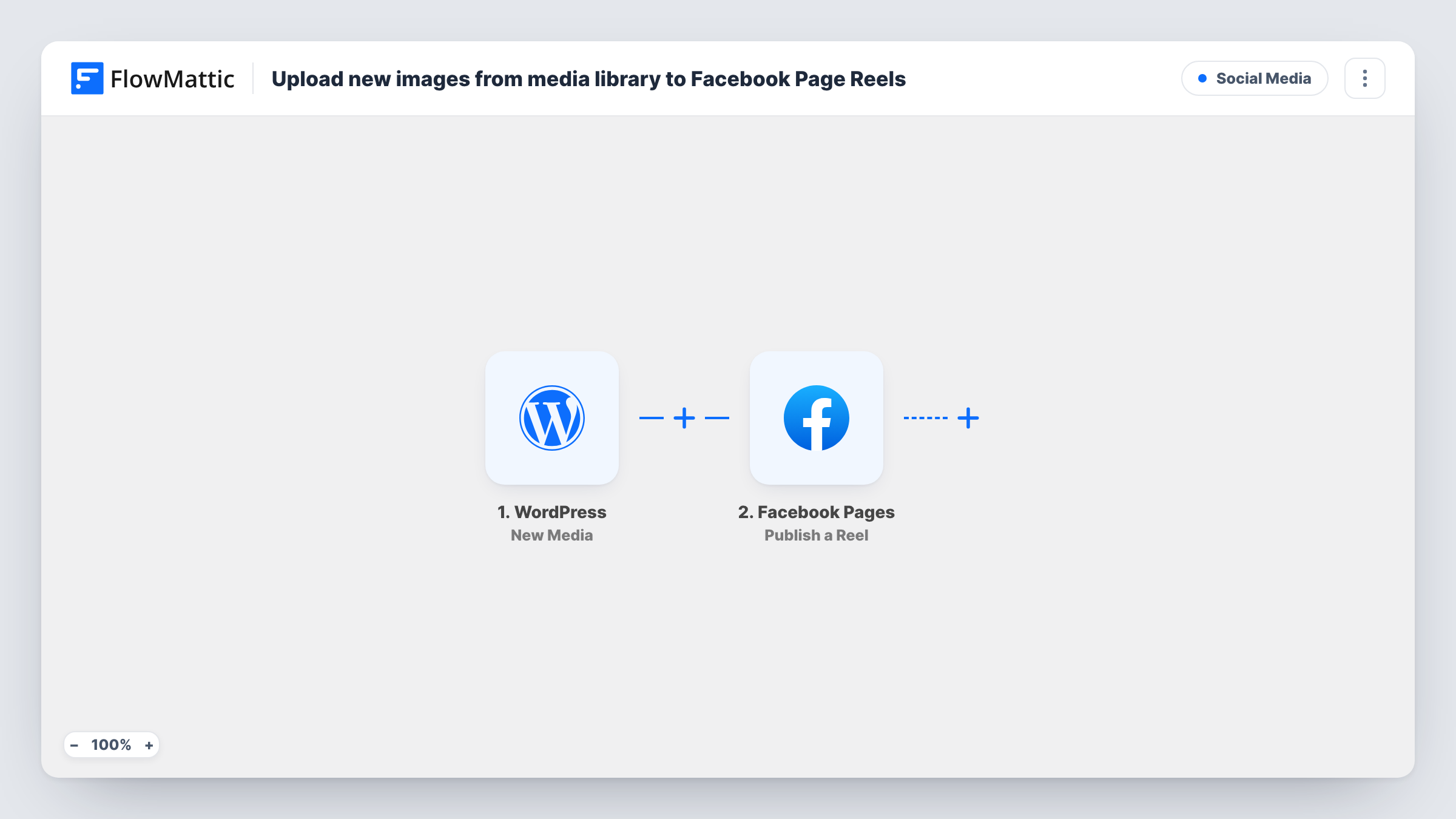
The WordPress trigger is New Media, which fires when a file is uploaded to the media library. It sends the file's URL and title, among other details. A Filter then checks the file URL and continues only if it contains .mp4. The check ignores upper and lower case, so .MP4 files pass too. Images, PDFs and other video formats, such as MOV, stop at the Filter.
Two Facebook Pages steps follow. Upload a Reel sends the video by its media library URL. Publish a Reel then publishes that upload, using the reel ID from the previous step and the media title as the description. These are already mapped, so after import you mainly connect your Facebook account and pick the Page.
Facebook needs to fetch the file from that URL, so the site must be reachable from the internet, and Facebook applies its own rules to what it accepts as a Reel. Test with a short vertical video and check Task History to see each step's response.
Recipe clips from a food blog
A food blogger uploads a short MP4 for each new recipe to WordPress, and the same clip goes out as a Reel on the blog's Facebook Page.
Product demos for a small shop
A store owner adds quick demo videos to the media library for product pages, and each one is also published as a Facebook Reel.
Event highlights from a venue
A venue's marketing team uploads short highlight videos after each event and lets them appear as Reels on the venue's Page.
How this workflow runs
What happens at each step once the workflow is on, and what you need before you import it.
 WordPress New Media
Fires when a file is uploaded to your WordPress media library. The file's URL and title are passed on, along with its caption and other details.
- Filter Continue If Condition Meet
Continues only when the file URL contains .mp4, ignoring case. Other file types stop here, so only MP4 videos reach Facebook.
- Facebook Pages Upload a Reel
Uploads the video to your Facebook Page as a Reel, using the media library URL from the trigger. Connect your Facebook account and choose the Page after import.
- Facebook Pages Publish a Reel
Publishes the uploaded Reel on your Page, using the reel ID returned by the upload step and the media title as the description.
What you need
- FlowMatticCore
- Facebook Pages AccountAccount
After importing, map your own data. To keep the template universal, not every step is pre-filled. Open each step in the builder and connect your accounts and fields (channels, lists, sheets, recipients) before you switch the workflow on.
Make it yours
Changes worth making after you import it.
- Give each video a clear title in the media library before or right after upload, since the title becomes the Reel's description. Edit the Publish a Reel step to use the caption instead if you prefer.
- To also post MOV files, give the existing Filter between the New Media trigger and the Upload a Reel step an OR condition that checks for .mov, if Facebook accepts that format.
- If you also upload MP4s that shouldn't go to Facebook, add a condition to that same Filter before Upload a Reel, for example on a word you put in the title of videos meant for Reels.
Questions about this workflow
Do images uploaded to the WordPress media library go to Facebook?
No. The Filter only lets files whose URL contains .mp4 continue, so images and other files stop before either Facebook step.
Is every MP4 in the media library published as a Facebook Reel?
Every MP4 uploaded while the workflow is on starts a run and reaches the Facebook steps. Videos already in the library before you turn it on are not sent.
What does the Reel description say?
The media item's title from WordPress. WordPress usually fills it from the file name, so rename the item if you want a readable description.
Will Facebook accept any MP4 as a Reel?
Facebook decides what it accepts as a Reel. Test with a short vertical clip and read the upload and publish responses in Task History.
More Social Media workflows
Other ready-to-import templates from the same category.





Import this workflow into your WordPress site
Download the JSON, import it from the Workflows screen and connect your accounts. Every run stays on your server, with no per-task fees.
30-day money-back guarantee Unlimited workflows and runs Self-hosted