

When a bank account is updated in Employment Hero, update the record in Google Sheets
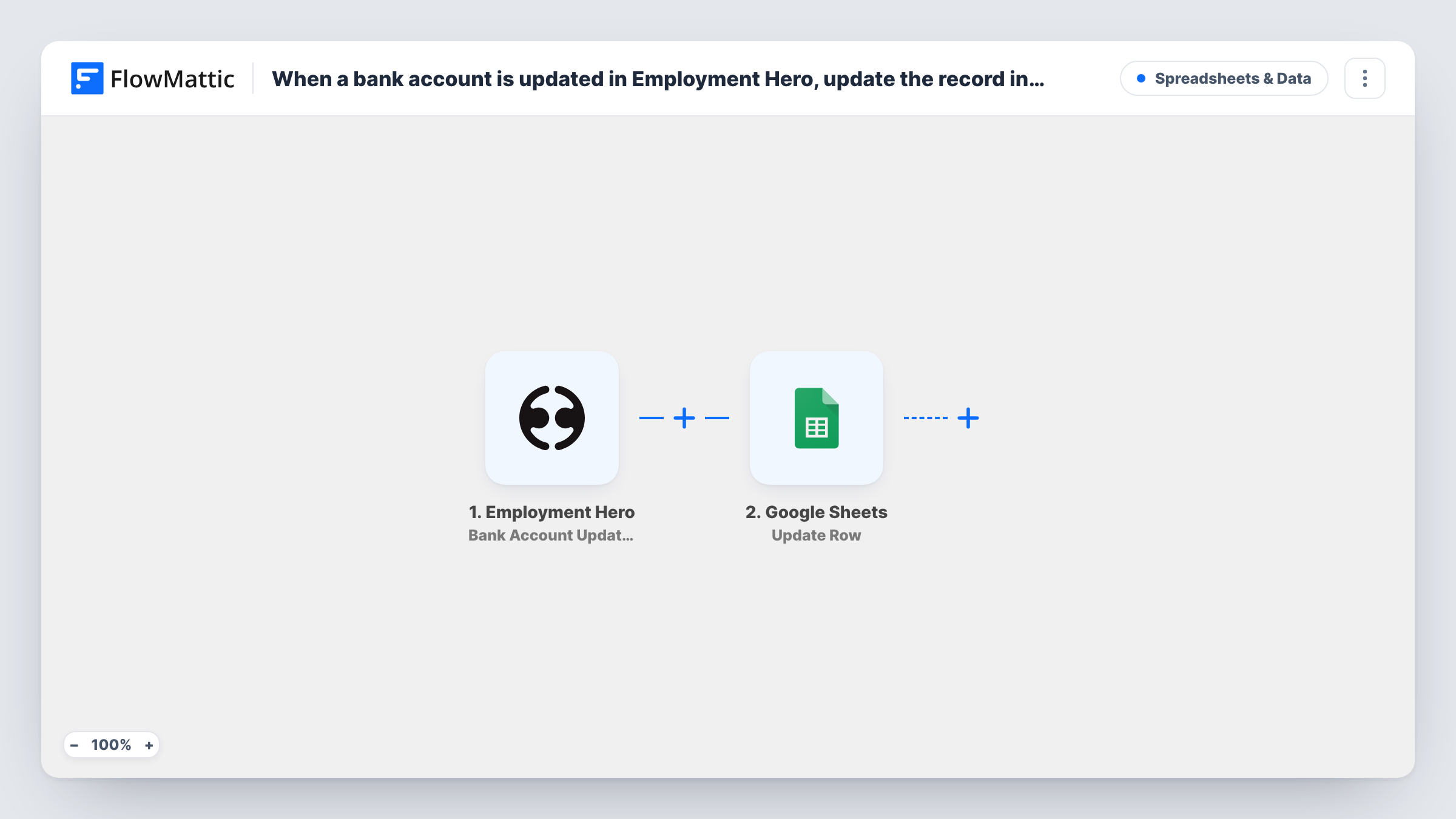
When an employee’s bank account is updated in Employment Hero, FlowMattic looks up that employee’s row in your Google Sheets spreadsheet and updates it with the new details you map.
 Employment Hero
 Google Sheets
3 steps Setup ~5 min Used on 3.1k sites Free to import
What this workflow does
Payroll and finance teams sometimes keep a spreadsheet next to their HR system, for reconciliations, approvals or a payments checklist. When an employee changes their bank account in Employment Hero, that sheet goes out of date unless someone remembers to edit it. This workflow updates the employee's existing row instead.
The Employment Hero trigger is Bank Account Updated, which FlowMattic describes as firing when a bank account is updated. Bank accounts that are added or deleted are separate Employment Hero events and don't start this workflow.
Two Google Sheets steps do the work. Lookup Row Data searches your sheet for a value from the event, such as the employee ID kept in its own column. Update Row then changes that existing row with the data you map, so map the row found by the lookup and choose which columns get the new values. Both steps ship unmapped, and your sheet needs a column that holds a value Employment Hero also sends, or the lookup has nothing to match.
Only rows that already exist are updated; the workflow never adds one. Test with an employee who is in the sheet, and check Task History to see which row the lookup returned.
Payroll reconciliation sheet
A payroll officer keeps a sheet of employees and payment details for the monthly check, and changes made in Employment Hero show up on the right row.
Change log for finance approvals
A finance team adds a last-changed date column that this workflow fills, so they can review recent bank detail changes before the next pay run.
Contractor payment tracker
An agency that pays staff through Employment Hero keeps its payments tracker sheet aligned when someone switches banks.
How this workflow runs
What happens at each step once the workflow is on, and what you need before you import it.
 Employment Hero Bank Account Updated
Fires when a bank account is updated in Employment Hero. The event's details, including which employee it belongs to, are passed on for the lookup.
- Google Sheets Lookup Row Data
Searches your sheet for the employee's row. The step ships unmapped: pick the spreadsheet, the column that holds the employee identifier, and map that value from the trigger.
- Google Sheets Update Row
Writes the new details into the row the lookup found. Map that row from the previous step and choose which columns receive the updated values.
What you need
- FlowMatticCore
- Employment Hero AccountAccount
- Google Sheets AccountAccount
After importing, map your own data. To keep the template universal, not every step is pre-filled. Open each step in the builder and connect your accounts and fields (channels, lists, sheets, recipients) before you switch the workflow on.
Make it yours
Changes worth making after you import it.
- Keep each employee's Employment Hero ID in its own column, so the lookup matches on a value that never changes rather than on a name.
- Map only the columns your team needs into Update Row. Bank details are sensitive, so a date-changed column may be enough for many sheets, and you can limit who can open the spreadsheet.
- Import a second copy on the Bank Account Created trigger with an Add New Row step, writing to the same sheet, so new accounts get a row the update workflow can find later.
Questions about this workflow
How does Google Sheets know which row belongs to the Employment Hero employee?
The Lookup Row Data step searches a column you choose for a value from the event, such as an employee ID. That value has to be in your sheet already for the row to be found.
Does it add a row for an employee who isn't in the sheet yet?
No. It only looks up and updates existing rows. Check Task History for any run where the lookup found nothing, and add that employee to the sheet.
Which bank details are written to the sheet?
Only what you map into Update Row. Run a test change in Employment Hero first to see which values the trigger sends, then decide what belongs in the sheet.
More Spreadsheets & Data workflows
Other ready-to-import templates from the same category.



Import this workflow into your WordPress site
Download the JSON, import it from the Workflows screen and connect your accounts. Every run stays on your server, with no per-task fees.
30-day money-back guarantee Unlimited workflows and runs Self-hosted