

When a contact form 7 form is submitted, create a Replug link from a url field in the form
When a visitor submits a Contact Form 7 form that includes a URL field, this workflow creates a short Replug link for that URL in your Replug account.
 Contact Form 7
 Replug
2 steps Setup ~5 min Used on 1.5k sites Free to import
What this workflow does
Some forms collect links: a submitted article, a product page, a portfolio. If you share those links later, you probably want them short and tracked in Replug. Creating each one by hand means copying from the email and pasting into Replug. This workflow does it for every submission.
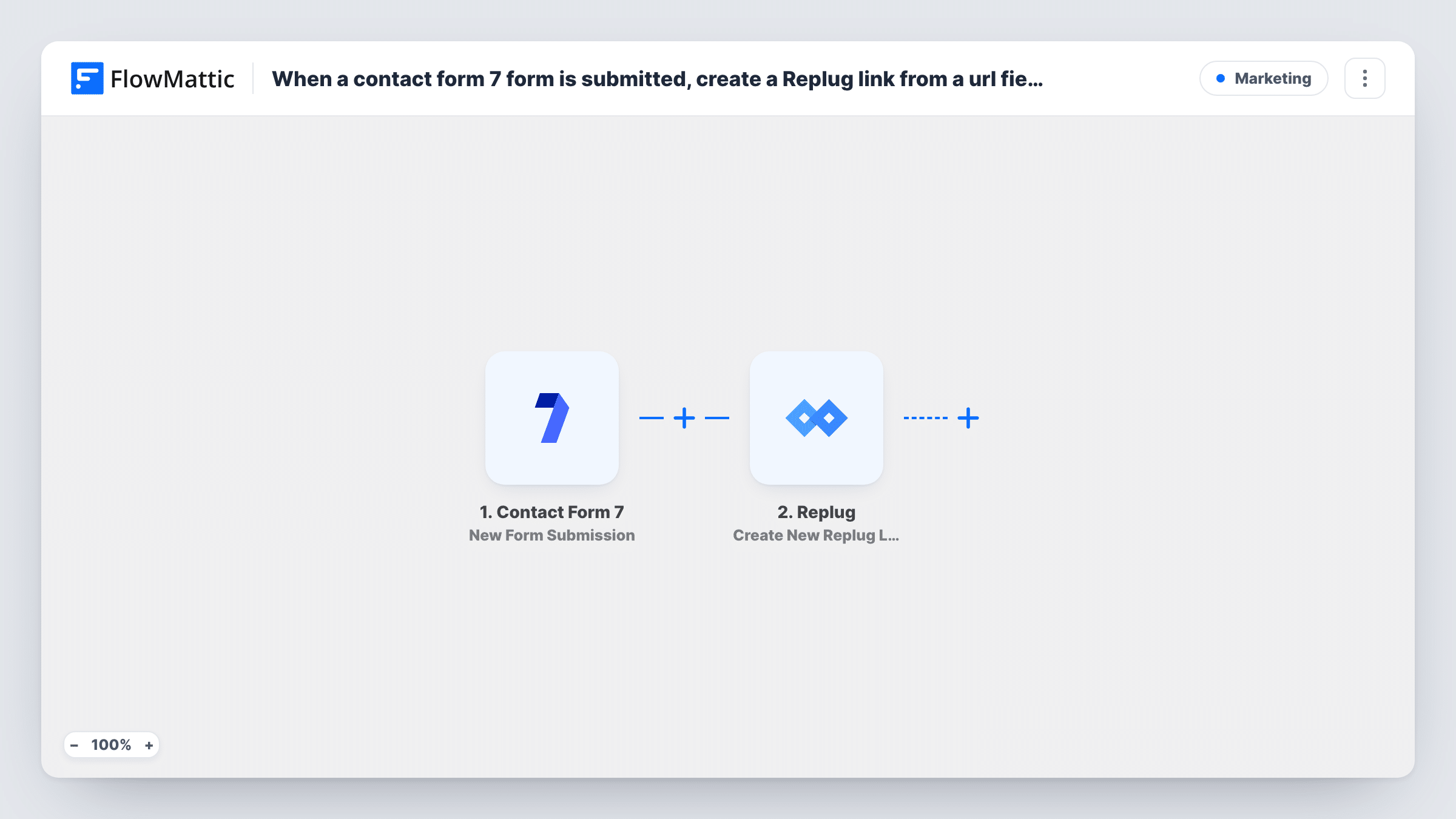
The Contact Form 7 trigger runs each time someone submits a form on your site. Every field, including the URL field, is available to map. The Replug step creates a new Replug link, and you map the submitted URL into it.
The workflow stops after the link is created. Nothing sends the short link back to the visitor or to your team, so add a step for that if you need it, such as an email or a row in a sheet. Each run, with Replug's response, appears in Task History.
Community link submissions
Members suggest articles for a weekly roundup through a form. Each URL gets a Replug link, ready to drop into the newsletter.
Affiliate or partner links
Partners submit their landing page through Contact Form 7, and you have a Replug link created for each one to use in campaigns.
Portfolio links from applicants
Applicants paste a portfolio URL into a form. A short Replug link is created for each, which you can share with the hiring panel.
How this workflow runs
What happens at each step once the workflow is on, and what you need before you import it.
 Contact Form 7 New Form Submission
Runs each time a visitor submits a Contact Form 7 form. Every field is passed on, including the URL field you want to shorten.
- Replug Create New Replug Link
Creates a new Replug link in your account. Map the URL field from the form into this step, then run a test to check the link it creates.
What you need
- FlowMatticCore
- Contact Form 7 PluginPlugin
- Replug AccountAccount
After importing, map your own data. To keep the template universal, not every step is pre-filled. Open each step in the builder and connect your accounts and fields (channels, lists, sheets, recipients) before you switch the workflow on.
Make it yours
Changes worth making after you import it.
- Use the url* tag in Contact Form 7 for the link field. It makes the field required and asks for a valid URL format.
- Add a Gmail or Google Sheets step after Replug and map the short link from its response, so the link reaches you or a sheet.
- Add a Filter after the trigger if only one of your Contact Form 7 forms collects URLs, so other forms don't create empty links.
Questions about this workflow
Does the visitor receive the Replug short link?
No. The template creates the link in Replug and ends there. Add an email step after Replug if you want to send it to the visitor.
What if the Contact Form 7 URL field is empty?
Replug has no URL to shorten for that run, and Task History will show its response on the Replug step. Making the field required avoids this.
Do I need a Replug account?
Yes. The link is created in the Replug account you connect when you import the workflow.
Will Contact Form 7 keep sending its notification email after I add the Replug workflow?
Yes. The workflow doesn't touch the form's mail settings, so your notification email is sent as normal.
More Marketing workflows
Other ready-to-import templates from the same category.






Import this workflow into your WordPress site
Download the JSON, import it from the Workflows screen and connect your accounts. Every run stays on your server, with no per-task fees.
30-day money-back guarantee Unlimited workflows and runs Self-hosted