

When a Dux-Soup scan is created, log the lead in Airtable and notify sales in Slack
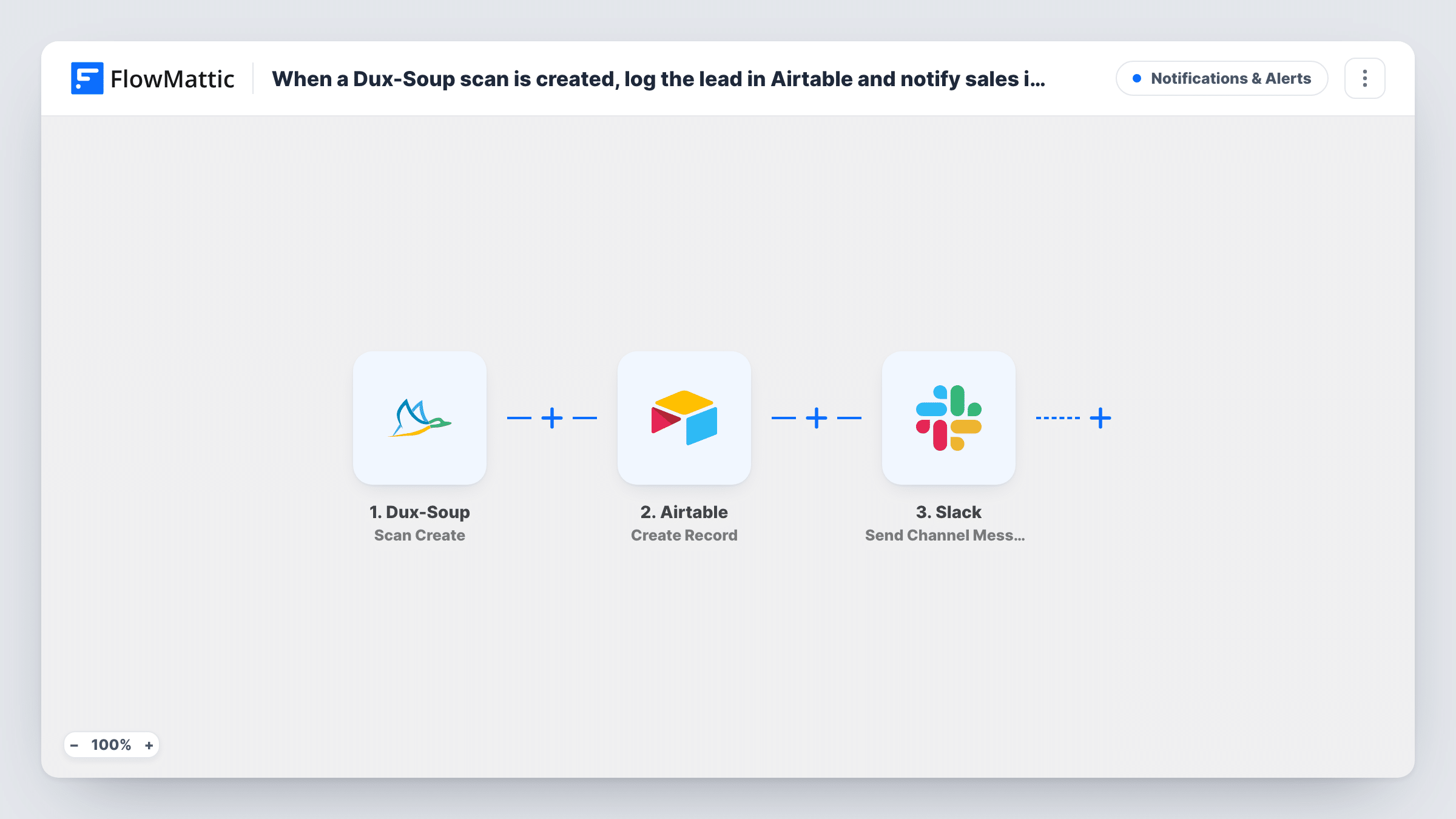
Each time Dux-Soup scans a LinkedIn profile, this workflow saves the lead as a new Airtable record and posts a message about them in your sales team’s Slack channel.
 Dux-Soup
 Airtable
 Slack
3 steps Setup ~5 min Used on 329 sites Free to import
What this workflow does
Dux-Soup gathers profile details while it works through LinkedIn for you. Those scans are only useful once they reach the place your sales team tracks prospects and the people who follow them up. This workflow sends each scanned profile to both.
The Dux-Soup trigger is Scan Create, which fires when a profile is scanned. FlowMattic takes the profile data from that event and creates a record in your Airtable base, with each field filled from a value you map, such as the person's name, title or company. A Slack message then goes to the channel you choose, so the team sees who was just added.
The Airtable step always creates a record. If Dux-Soup scans the same profile again, you get a second record and a second message. Task History logs every run, so you can check what each scan carried.
Outbound prospecting campaigns
A rep runs Dux-Soup over a LinkedIn search for target job titles. Each scanned profile becomes an Airtable lead, and the sales channel sees it as it lands.
Recruiting pipelines
Recruiters scan candidate profiles with Dux-Soup, building an Airtable table of prospects that the hiring channel in Slack hears about one by one.
Event attendee research
Before a trade show you scan the profiles of people who plan to attend, and the base becomes your meeting list for the event.
How this workflow runs
What happens at each step once the workflow is on, and what you need before you import it.
 Dux-Soup Scan Create
Runs when Dux-Soup scans a LinkedIn profile. The profile details from the scan are passed on to the Airtable and Slack steps for mapping.
- Airtable Create Record
Adds the scanned lead as a fresh Airtable record in a base and table you pick. Connect Airtable and map the scanned profile's details to the table's fields.
- Slack Send Channel Message
Posts a message in a Slack channel of your choice. Write the text and map the lead's name or profile link from the scan, or details from the new Airtable record, into it.
What you need
- FlowMatticCore
- Dux-Soup AccountAccount
- Airtable AccountAccount
- Slack AccountAccount
After importing, map your own data. To keep the template universal, not every step is pre-filled. Open each step in the builder and connect your accounts and fields (channels, lists, sheets, recipients) before you switch the workflow on.
Make it yours
Changes worth making after you import it.
- Add a Filter after the trigger that continues only when the scanned profile's title or company matches your target, so only qualified leads reach Airtable and Slack.
- Run one scan in Dux-Soup after import so FlowMattic captures the profile fields, then map them into your Airtable columns.
- Use Slack's Send Private Channel Message action instead if your sales channel is private.
Questions about this workflow
Does scanning the same LinkedIn profile twice create duplicate Airtable records?
Yes, as imported. Create Record adds a new record on every scan and nothing checks for an existing one first. Avoid rescanning, or add Airtable's Search Record step and a Filter before the create step.
Which Dux-Soup event starts the workflow?
Scan Create, which fires when a profile is scanned. Profile visits and messages have their own Dux-Soup triggers in FlowMattic and don't start this workflow.
What profile data can go into Airtable from Dux-Soup?
Whatever the scan event sends. Run a test scan and look at the captured data in the trigger to see the fields before you map them.
Can the Slack message link to the new Airtable record?
Data returned by the Airtable step can be mapped into the message. Check a test run to see which fields Airtable sends back.
More Notifications & Alerts workflows
Other ready-to-import templates from the same category.




Import this workflow into your WordPress site
Download the JSON, import it from the Workflows screen and connect your accounts. Every run stays on your server, with no per-task fees.
30-day money-back guarantee Unlimited workflows and runs Self-hosted