

When a Magic Link is clicked, submit a new entry in Google Sheets
Every click on your FlowMattic Magic Link adds a new row to a Google Sheets spreadsheet, giving you a running log of clicks you can count, sort and share without building a form.
 Magic Link
 Google Sheets
2 steps Setup ~5 min Used on 2.9k sites Free to import
What this workflow does
Sometimes you want people to tell you something with one click: yes, I'm coming; send me the guide; this task is done. A form is more than that job needs. A Magic Link is a custom link that starts a workflow when someone clicks it, and this template writes each of those clicks into a spreadsheet.
The Magic Link trigger fires on each click. FlowMattic passes along whatever data the link provides, and the Google Sheets step adds one row to the sheet you pick, with columns filled from the values you map. What the link provides depends on how you set it up, so click it once after import and look at the captured data before you map columns.
Nothing checks for repeats. If the same person clicks twice, the sheet gets two rows, which suits a click count but not a list of unique people. You can place one link in many emails or pages, and every click from any of them lands in the same sheet. Task History records each run, so you can match a row to the click that made it.
One-click RSVP in an invitation email
Put the Magic Link behind an I'll be there button. Each click adds a row, and the sheet becomes your rough headcount for the event.
Task done buttons for field staff
Give a crew a link to tap when a job is finished. The sheet collects a row per tap that a coordinator can review at the end of the day.
Gauging interest before a launch
Add the link to a teaser post with a Notify me label. The number of rows tells you how many clicks the post drew before you commit to the product.
How this workflow runs
What happens at each step once the workflow is on, and what you need before you import it.
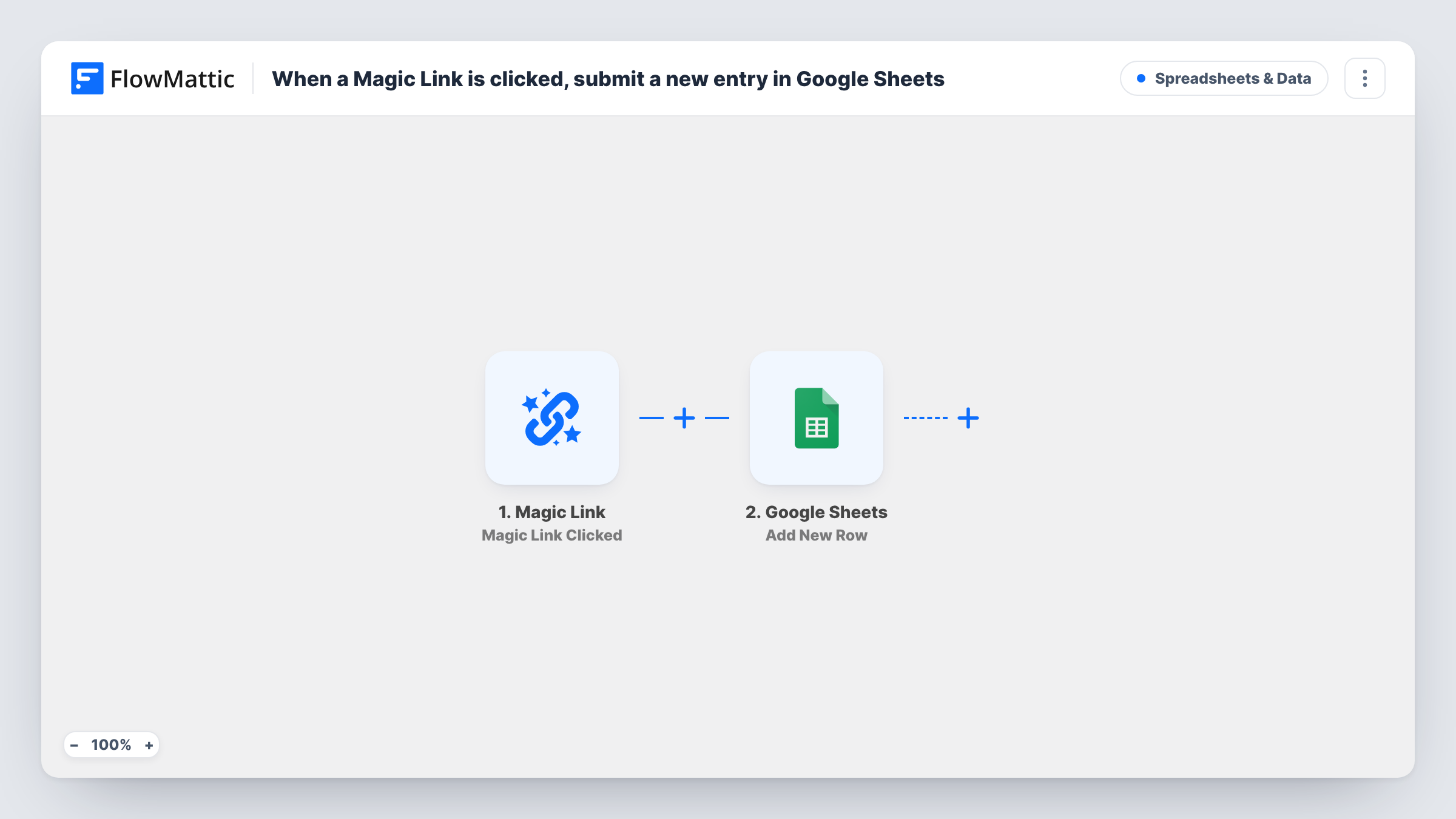
 Magic Link Magic Link Clicked
Fires each time someone clicks your Magic Link. The data the click provides is passed to the Google Sheets step; do one test click after import to see what is available.
- Google Sheets Add New Row
Appends one row per click to the spreadsheet and tab you select. Connect your Google account and map the click data to your columns, adding fixed text where a column needs a label.
What you need
- FlowMatticCore
- Google Sheets AccountAccount
After importing, map your own data. To keep the template universal, not every step is pre-filled. Open each step in the builder and connect your accounts and fields (channels, lists, sheets, recipients) before you switch the workflow on.
Make it yours
Changes worth making after you import it.
- Use one Magic Link and one workflow per campaign or button, each writing to its own tab, so clicks from different emails are easy to tell apart.
- Type a fixed label into a spare column, such as the name of the email the link sits in, so every row records where the click came from.
- After the Google Sheets step, add an Email step that notifies you of each click, if you want to hear about responses as well as log them.
Questions about this workflow
Does the sheet show who clicked the Magic Link?
Only if the click provides that data. Click the link once after import and check the captured values. If no name or email comes through, the row records the click itself and any fixed text you add.
What if someone clicks the Magic Link more than once?
Each click is a new run, so each one adds its own row. The workflow does not check for earlier clicks from the same person.
Do I need a form plugin or a landing page for this?
No. The Magic Link trigger is part of FlowMattic, so the link itself starts the workflow. You only need a Google account for the spreadsheet.
Can I share the Google Sheets log with my team?
Yes. It is an ordinary Google Sheets file, so share it the way you share any spreadsheet. The workflow only adds rows to it.
More Spreadsheets & Data workflows
Other ready-to-import templates from the same category.




Import this workflow into your WordPress site
Download the JSON, import it from the Workflows screen and connect your accounts. Every run stays on your server, with no per-task fees.
30-day money-back guarantee Unlimited workflows and runs Self-hosted