

When a Magic Link is clicked, update the user's progress in LearnDash
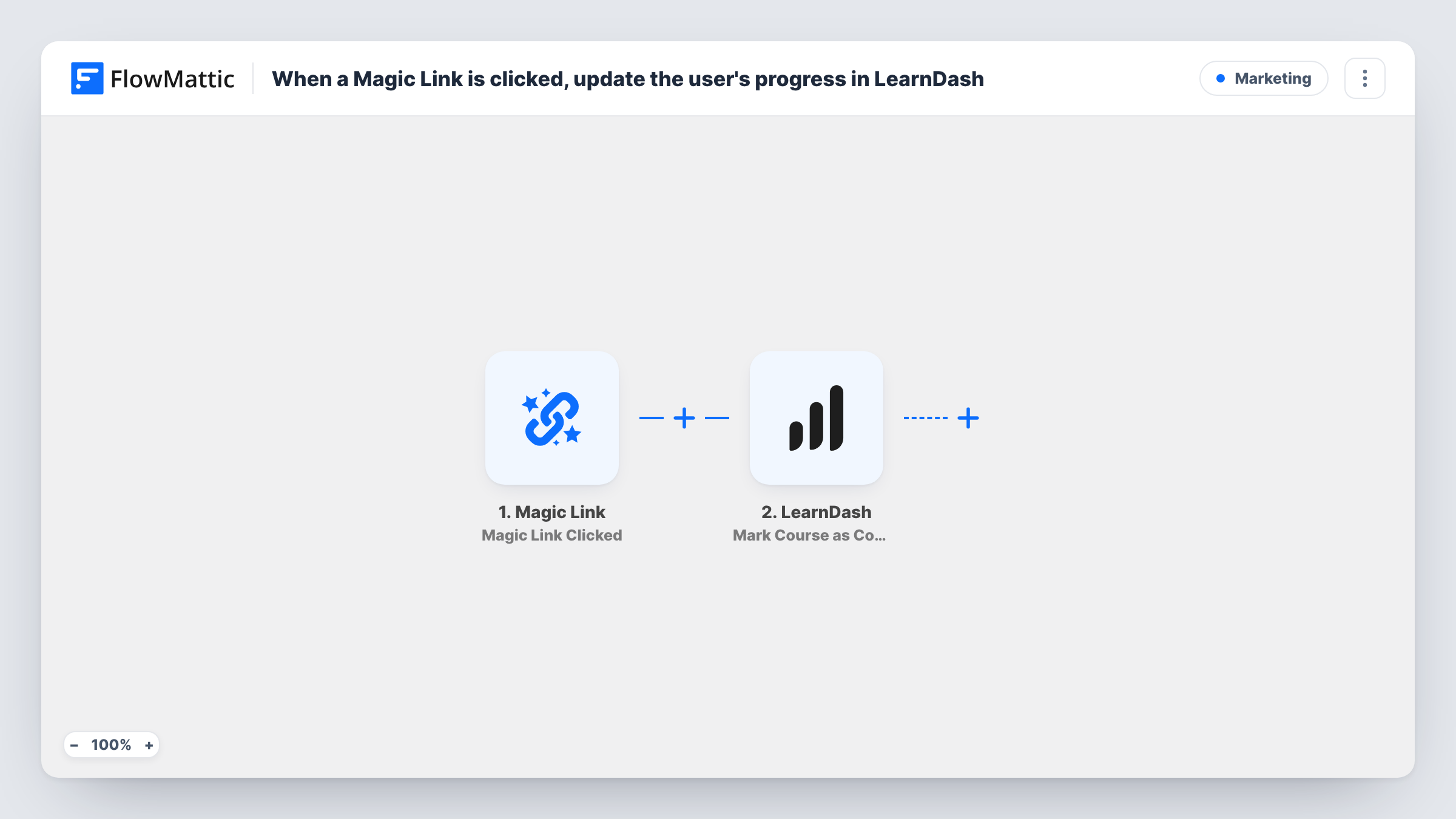
When someone clicks your FlowMattic Magic Link, a Filter checks that the click carries a WordPress user ID, and LearnDash marks the course you choose as complete for that user.
 Magic Link
 Filter
 LearnDash
3 steps Setup ~5 min Used on 1.9k sites Free to import
What this workflow does
Some courses end outside the lesson player: a live session, an offline assignment, a final call with the instructor. This workflow lets a single link close the course for the learner, so you don't have to mark completions by hand in LearnDash.
The Magic Link trigger runs the workflow when someone clicks the link FlowMattic gives you, which you can place in an email, a page or a lesson. The click's data includes a user ID when FlowMattic can tell which WordPress user clicked.
A Filter then continues only when that user ID is not empty. Clicks without one, such as from a visitor who isn't logged in, stop there. The LearnDash step marks the course as complete for the user ID from the click, which is already mapped in the template.
The course itself isn't set, so pick it in the Mark Course as Complete step after import. Every click by a known user marks that course complete, so use one link per course and share it only where learners should reach it. Click the link yourself while logged in as a test user and check Task History before you send it out.
Finish a course after a live session
An instructor puts the link on the thank-you page of a live workshop, and attendees who click it while logged in get the LearnDash course marked complete.
Completion link in a final email
A compliance trainer emails learners a confirmation link at the end of a policy course, and clicking it closes the course in LearnDash for them.
Sign-off for offline assignments
A craft school places the link on a members-only page that students reach after submitting their project, which records the course as done.
How this workflow runs
What happens at each step once the workflow is on, and what you need before you import it.
 Magic Link Magic Link Clicked
Fires when someone clicks your Magic Link. The click's details, including the WordPress user ID when the person is known, are passed to the Filter and the LearnDash step.
- Filter Continue If Condition Meet
Continues only when the user ID from the Magic Link click is not empty. Clicks without a known WordPress user end here, so LearnDash is never asked to update an anonymous visitor.
- LearnDash Mark Course as Complete
Marks a LearnDash course as complete for the user ID from the click, which the template already maps. Choose the course after import; the template doesn't select one.
What you need
- FlowMatticCore
- LearnDash PluginPlugin
After importing, map your own data. To keep the template universal, not every step is pre-filled. Open each step in the builder and connect your accounts and fields (channels, lists, sheets, recipients) before you switch the workflow on.
Make it yours
Changes worth making after you import it.
- Import one copy of the workflow per course, each with its own Magic Link and course setting, so a link can only complete the course it belongs to.
- Place the link where only enrolled learners can reach it, such as a protected lesson or a members-only page, because any logged-in user who clicks it is marked complete.
- Add an email step after Mark Course as Complete and map the learner's details from the click if you want them to get a confirmation once the course is closed.
Questions about this workflow
What happens when a logged-out visitor clicks the Magic Link?
The click starts a run, but the Filter only continues when a user ID is present. Without one, the run stops at the Filter and LearnDash isn't touched.
Which LearnDash course is marked complete?
The course you pick in the Mark Course as Complete step. The template maps the user but leaves the course empty, so set it before you turn the workflow on.
Does the learner need to be enrolled in the LearnDash course first?
The step marks the course complete for whichever user ID it receives. Test with an enrolled and an unenrolled account and check Task History and the learner's profile to see how your LearnDash site records it.
More Marketing workflows
Other ready-to-import templates from the same category.







Import this workflow into your WordPress site
Download the JSON, import it from the Workflows screen and connect your accounts. Every run stays on your server, with no per-task fees.
30-day money-back guarantee Unlimited workflows and runs Self-hosted