

When a new conversation is recorded in Tars, send a follow-up reminder in Todoist
Every new conversation your Tars chatbot records creates a task in Todoist, carrying the details the visitor gave, so a person on your team has a to-do to follow up on that chat.
 Tars
Tars
 Todoist
2 steps Setup ~5 min Used on 1.5k sites Productivity Free to import
What this workflow does
A Tars chatbot can talk to visitors around the clock, but the answers it collects sit in Tars until somebody goes looking. If your team plans its day in Todoist, the simplest way to make sure a chat gets a reply is to turn it into a task there. This workflow does that for each conversation.
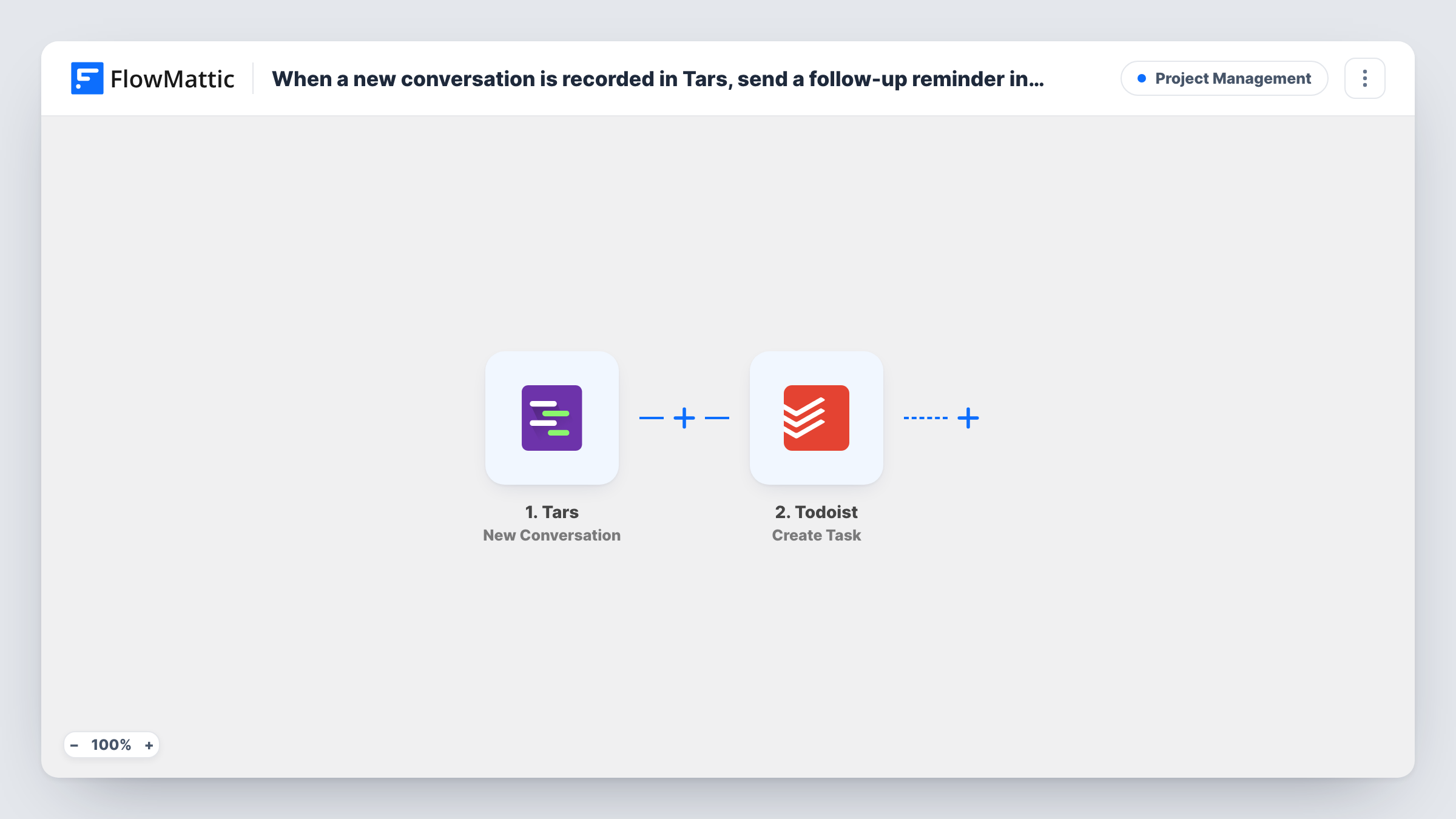
The Tars trigger fires when a new conversation is recorded. FlowMattic receives the conversation data, such as the answers the visitor typed into the bot. The Todoist Create Task action then adds a new task, and you map the conversation fields into it so the task says who to contact and what they asked about.
Every recorded conversation makes one task, because the template has no Filter. Chats where the visitor left after one question create tasks too. Each run appears in Task History with the data Tars sent, which helps you pick fields while you set up the task text.
Call back chatbot leads
A Tars bot on a landing page asks for a name, phone number and service. Each finished chat becomes a Todoist task for the sales rep to call that person.
Support questions after hours
Visitors ask questions through Tars at night. In the morning, each conversation is waiting as a Todoist task, so the support lead works through them in order.
Quote follow-ups for a trade business
A plumber's Tars bot collects job details. Every chat lands in the owner's Todoist list as a task to send a quote.
How this workflow runs
What happens at each step once the workflow is on, and what you need before you import it.
 Tars New Conversation
Fires when Tars records a new conversation from your chatbot. The visitor's answers are passed on so you can place them in the Todoist task.
- Todoist Create Task
Creates a new task in Todoist from the Tars conversation. Map the visitor's name and answers into the task, connect your Todoist account, and check the result with a test chat.
What you need
- FlowMatticCore
- Tars AccountAccount
- Todoist AccountAccount
After importing, map your own data. To keep the template universal, not every step is pre-filled. Open each step in the builder and connect your accounts and fields (channels, lists, sheets, recipients) before you switch the workflow on.
Make it yours
Changes worth making after you import it.
- Put the visitor's contact detail, such as email or phone, in the task name so whoever picks it up can reply without opening Tars. Check a test run first to see which contact fields your bot sends.
- Add a Filter after the trigger that continues only when a contact field is not empty. Chats where the visitor left before sharing a way to reach them then create no task.
- If two kinds of chat need different owners, add a Router with a Todoist step on each route, each matching a distinct answer such as Sales or Support.
Questions about this workflow
Does every Tars conversation create a Todoist task?
Yes, as imported. Each new conversation Tars records runs the workflow once and adds one task. Add a Filter after the trigger if you want only some chats to become tasks.
What Tars data ends up in the Todoist task?
Whatever you map. The trigger passes the conversation data Tars sends, and you choose which values go into the task. A test chat shows the fields your bot provides.
Will older Tars chats become tasks?
No. Only conversations recorded after you turn the workflow on reach Todoist. Earlier chats stay in your Tars account.
Can the task land in a shared Todoist project?
Set up the Create Task step and use a test run to see where the task is added. If you share that project with teammates in Todoist, they all see each new chat task.
More Project Management workflows
Other ready-to-import templates from the same category.






Import this workflow into your WordPress site
Download the JSON, import it from the Workflows screen and connect your accounts. Every run stays on your server, with no per-task fees.
30-day money-back guarantee Unlimited workflows and runs Self-hosted