

When a new form submission is received in Fluent Forms, remove background in BackgroundCut
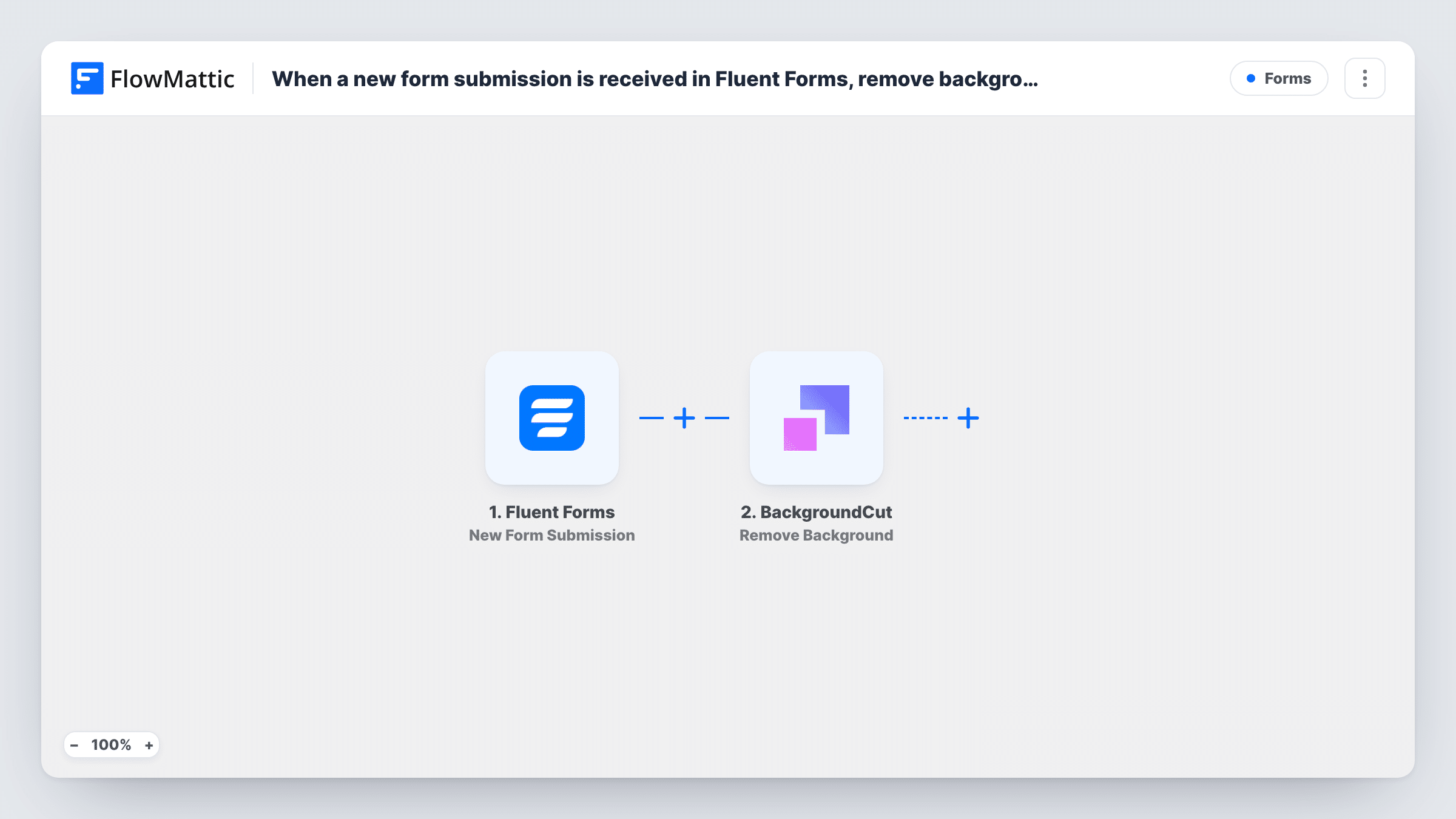
Each time a Fluent Forms form is submitted, this workflow passes the uploaded image to BackgroundCut to strip its background. Use it as the starting point for handling product photos, headshots or listing images sent in through your site.
 Fluent Forms
 BackgroundCut
2 steps Setup ~5 min Used on 387 sites Free to import
What this workflow does
When people send you photos through a form, the background is rarely what you want. Product shots come in on kitchen tables and headshots come in against busy walls, and cutting each one out by hand takes time. This workflow hands the image to BackgroundCut the moment the form is sent.
The Fluent Forms trigger runs on every new submission and passes all of the answers on, including the file upload field. In the BackgroundCut step you map that upload to the image the Remove Background action works on. BackgroundCut returns its result to FlowMattic, where it becomes data that later steps can use.
The template stops after BackgroundCut, so nothing is saved or sent anywhere yet. Most people add one more step after import, such as an email to the person who uploaded, a Google Drive upload, or a row in a sheet that records the result. Run a test submission with a real photo so you can see what BackgroundCut sends back before you map it onward.
Product photos from sellers on a marketplace
Sellers upload a product photo through a Fluent Forms listing form, and BackgroundCut removes the background so the images look alike before you add them to the catalogue.
Staff or speaker headshots
Speakers for an event submit a headshot through a form. BackgroundCut cuts out the person so every profile photo can sit on the same plain backdrop on your site.
Print or merch orders with customer artwork
Customers upload a photo of a pet or logo for a custom print, and the background is removed before your designer opens the file.
How this workflow runs
What happens at each step once the workflow is on, and what you need before you import it.
 Fluent Forms New Form Submission
Starts the workflow whenever a new entry comes in on your chosen Fluent Forms form. All answers move on, including the upload field holding the image for BackgroundCut.
- BackgroundCut Remove Background
Sends the uploaded image to BackgroundCut to remove its background. Map the form's upload field here and connect your BackgroundCut account. The response is then available to any step you add after it.
What you need
- FlowMatticCore
- Fluent Forms PluginPlugin
- BackgroundCut AccountAccount
After importing, map your own data. To keep the template universal, not every step is pre-filled. Open each step in the builder and connect your accounts and fields (channels, lists, sheets, recipients) before you switch the workflow on.
Make it yours
Changes worth making after you import it.
- Add a step after BackgroundCut to put the result to use, for example a Gmail email back to the submitter or a Google Drive upload into a shared folder.
- If the form's image upload is optional, add a Filter after the trigger that continues only when the upload field is not empty, so BackgroundCut is called only for entries that include a photo.
- The trigger listens to the form you pick, so point it at the one form that collects images rather than your general contact form.
Questions about this workflow
Where does the BackgroundCut image end up after the background is removed?
As imported, nowhere outside the run. The result is returned to FlowMattic and shown in Task History. Add a step after BackgroundCut to email, upload or store it.
What happens when a Fluent Forms entry has no image attached?
The BackgroundCut step has nothing to work on and will likely return an error, which Task History shows on that step. A Filter that checks the upload field avoids those runs.
Do I need a BackgroundCut account to use this workflow?
Yes. The Remove Background action runs through your own BackgroundCut account, which you connect in FlowMattic when you import the template.
Does Fluent Forms still keep the original uploaded photo?
Yes. The workflow starts after the entry is submitted, so Fluent Forms stores the entry and its upload as usual. BackgroundCut works on the image separately.
More Forms workflows
Other ready-to-import templates from the same category.







Import this workflow into your WordPress site
Download the JSON, import it from the Workflows screen and connect your accounts. Every run stays on your server, with no per-task fees.
30-day money-back guarantee Unlimited workflows and runs Self-hosted