

When new submission captured in Jotform, check if username and email is provided, and create a new WordPress account
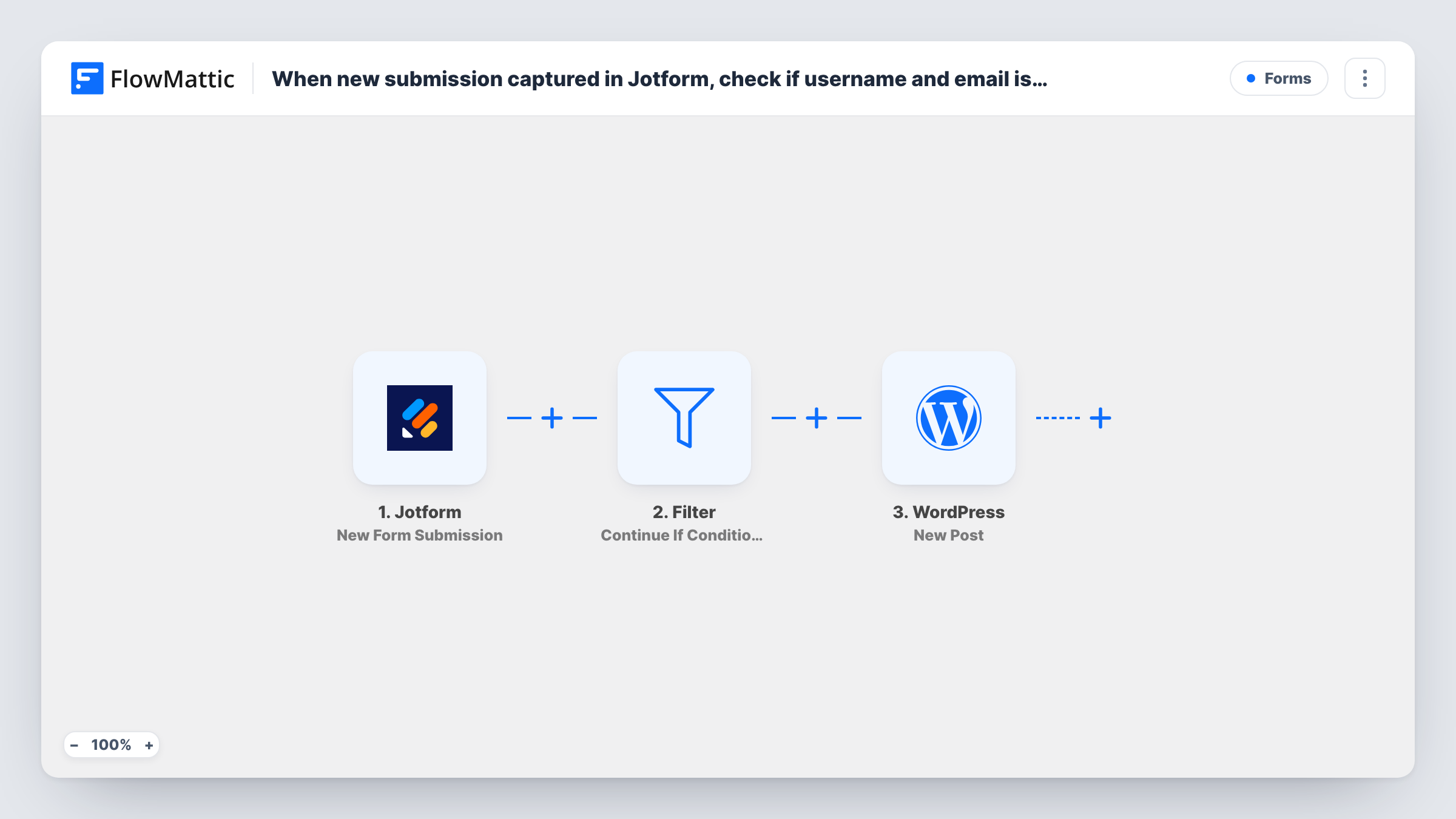
When a Jotform submission arrives, a Filter checks that both a username and an email were provided, and only then FlowMattic creates a new WordPress user account from the form.
 Jotform
 Filter
 WordPress
3 steps Setup ~5 min Used on 1.3k sites Free to import
What this workflow does
Jotform is a convenient place to collect sign-ups, applications or member requests, but the person still needs an account on your WordPress site. This workflow creates that account from the submission, and it refuses to try when the two details an account needs are missing.
The Jotform trigger fires on each new submission of the form you connect, and passes all the answers on.
A Filter then checks two conditions, and both must hold: the username answer is not empty, and the email answer is not empty. The template reads them from Jotform fields named username and email. Those names are an example: if your form calls them something else, edit both conditions to point at your own fields. Submissions missing either value stop at the Filter.
Account creation happens in the WordPress New User step. It ships unmapped, so map the username and email from the form, plus any name or role you want set. If the email already belongs to a user, WordPress keeps that one account rather than adding another, and Task History shows the user ID the step handed back.
Member applications that become accounts
A professional association collects member applications in Jotform, and each complete application gets a WordPress login for the members area.
Student sign-ups from a Jotform intake
A tutoring business keeps its detailed intake questions in Jotform and creates the student's WordPress account from the same submission.
Event portal access
A conference organiser gives every registrant who picked a username on the Jotform form an account for the attendee portal.
How this workflow runs
What happens at each step once the workflow is on, and what you need before you import it.
 Jotform New Form Submission
Fires when the connected Jotform form receives a new submission. Every answer, including the username and email the visitor entered, is passed to the Filter and the WordPress step.
- Filter Continue If Condition Meet
Continues only when both the username and the email answers are not empty. The fields are read as username and email; change them to your own Jotform field names if they differ.
- WordPress New User
Registers the person as a user on your WordPress site. Nothing is mapped in the template, so map the username and email from the Jotform submission, and any other details you want on the account, after import.
What you need
- FlowMatticCore
- Jotform AccountAccount
After importing, map your own data. To keep the template universal, not every step is pre-filled. Open each step in the builder and connect your accounts and fields (channels, lists, sheets, recipients) before you switch the workflow on.
Make it yours
Changes worth making after you import it.
- Mark the username and email questions as required in Jotform as well, so visitors can't send the form without them.
- If you map a role in the New User step, pick the lowest one that fits, such as subscriber, so form sign-ups never get editing rights.
- Run a test submission and open Task History to confirm the Filter reads your username and email fields before relying on the workflow.
Questions about this workflow
What happens when the Jotform email already has a WordPress account?
You won't get a duplicate account for that address. The step reports the existing user's ID instead, and if you mapped a role, that account gets the role too. Check Task History to see which ID came back.
My Jotform fields aren't called username and email. Will the Filter still work?
Not until you edit it. Point both Filter conditions at the Jotform fields that hold the username and email in your form, then test with a submission.
Does the Filter check that the email address is valid?
No. It only checks that both answers are not empty. Jotform's own email question type can enforce a valid format on the form.
More Forms workflows
Other ready-to-import templates from the same category.






Import this workflow into your WordPress site
Download the JSON, import it from the Workflows screen and connect your accounts. Every run stays on your server, with no per-task fees.
30-day money-back guarantee Unlimited workflows and runs Self-hosted