

When a new form submission received in Unbounce, check if a field has a word, and add submission details to Google Spreadsheet
Check each Unbounce form submission for a word in a field you choose, using a Filter you set up after import, and add the entries that match as new rows in a Google Sheets spreadsheet.
 Unbounce
 Filter
 Google Sheets
3 steps Setup ~5 min Used on 3.2k sites Free to import
What this workflow does
An Unbounce landing page can collect many kinds of replies through one form, and the person reading the spreadsheet may want only some of them. This workflow looks for a word in a field before anything is written, so the sheet holds only the entries that mention it.
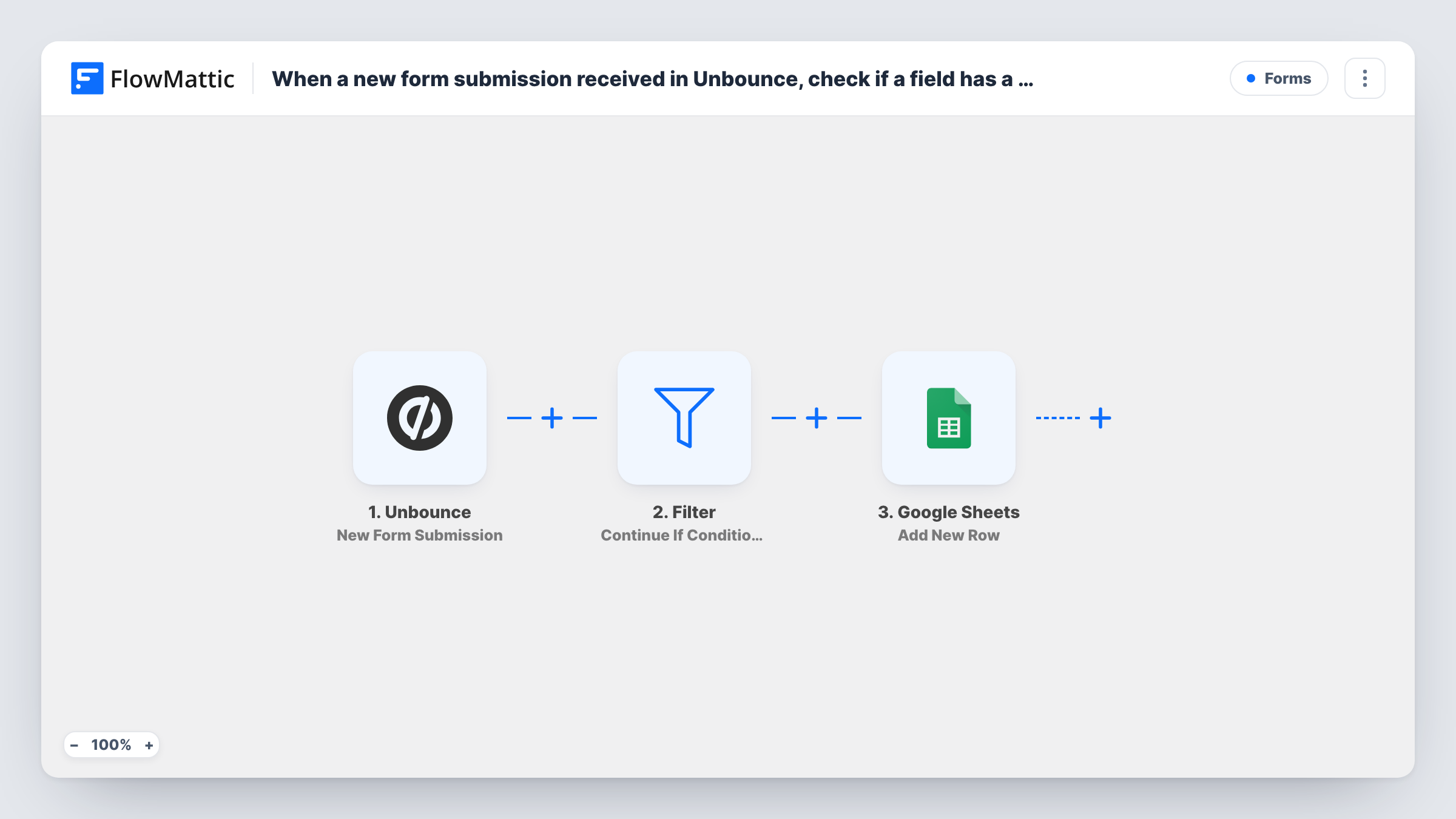
When a visitor submits a form on an Unbounce page, the trigger passes the answers to a Filter. Entries that meet its condition go on to Google Sheets, where Add New Row writes them to the spreadsheet you pick. Entries that don't match end at the Filter.
The template doesn't include the word check itself. Its Filter is empty, and an empty Filter stops every run, so no row is written until you add a condition, such as the message field containing the word you are watching for. Send a test entry afterwards to make sure the rule behaves as you expect.
Partnership enquiries from a launch page
A product launch page has one contact form. Entries whose message contains the word partner go to the sheet the partnerships lead reads each morning.
Demo requests among general questions
Only Unbounce submissions where a dropdown field contains Demo are added, so the sales team's sheet lists people asking for a demo.
Spotting a promo code
Visitors can type a referral code in a field. Rows are added only when the field contains your partner's code, giving that partner a clean list.
How this workflow runs
What happens at each step once the workflow is on, and what you need before you import it.
 Unbounce New Form Submission
Fires when a visitor submits a form on one of your Unbounce landing pages. Each answer from that form is passed on to the Filter and Google Sheets.
- Filter Continue If Condition Meet
Ships empty and stops every run until you add a rule. Set it to continue when your chosen Unbounce field contains the word you care about.
- Google Sheets Add New Row
Writes each matching Unbounce entry into a new row of the Google Sheets spreadsheet you pick. Map form answers to the sheet's columns and connect Google.
What you need
- FlowMatticCore
- Unbounce AccountAccount
- Google Sheets AccountAccount
After importing, map your own data. To keep the template universal, not every step is pre-filled. Open each step in the builder and connect your accounts and fields (channels, lists, sheets, recipients) before you switch the workflow on.
Make it yours
Changes worth making after you import it.
- Test the Filter with two entries, one with the word and one without, then check Task History to confirm only the first reaches Google Sheets.
- Want to catch two different words? Add a second condition group to the Filter so an entry with either word passes.
- To keep the non-matching entries as well, replace the Filter with a Router and send the other route to a second sheet.
Questions about this workflow
Why are no Unbounce entries reaching my sheet after import?
As shipped, the Filter step is blank, which halts every Unbounce run before Google Sheets. Add the word check and matching entries will start creating rows.
Is the Unbounce word check case-sensitive?
Try it out first. Send entries with the word in upper and lower case, then see in Task History which ones the Filter lets through.
What happens to Unbounce submissions that don't contain the word?
Their run stops at the Filter and no row is added.
Does Unbounce still store the lead if the Filter stops it?
Yes. The workflow only reads the submission after it happens. Your Unbounce leads list is not changed by anything in this flow.
More Forms workflows
Other ready-to-import templates from the same category.





Import this workflow into your WordPress site
Download the JSON, import it from the Workflows screen and connect your accounts. Every run stays on your server, with no per-task fees.
30-day money-back guarantee Unlimited workflows and runs Self-hosted