

When a new submission is captured in NoCodeForm, send an SMS notification via Twilio
Each new NoCodeForm submission sends a text message through your Twilio number, so you or a teammate hear about it on your phone without watching an inbox.
 NoCodeForm
 Twilio
2 steps Setup ~5 min Used on 2.8k sites Free to import
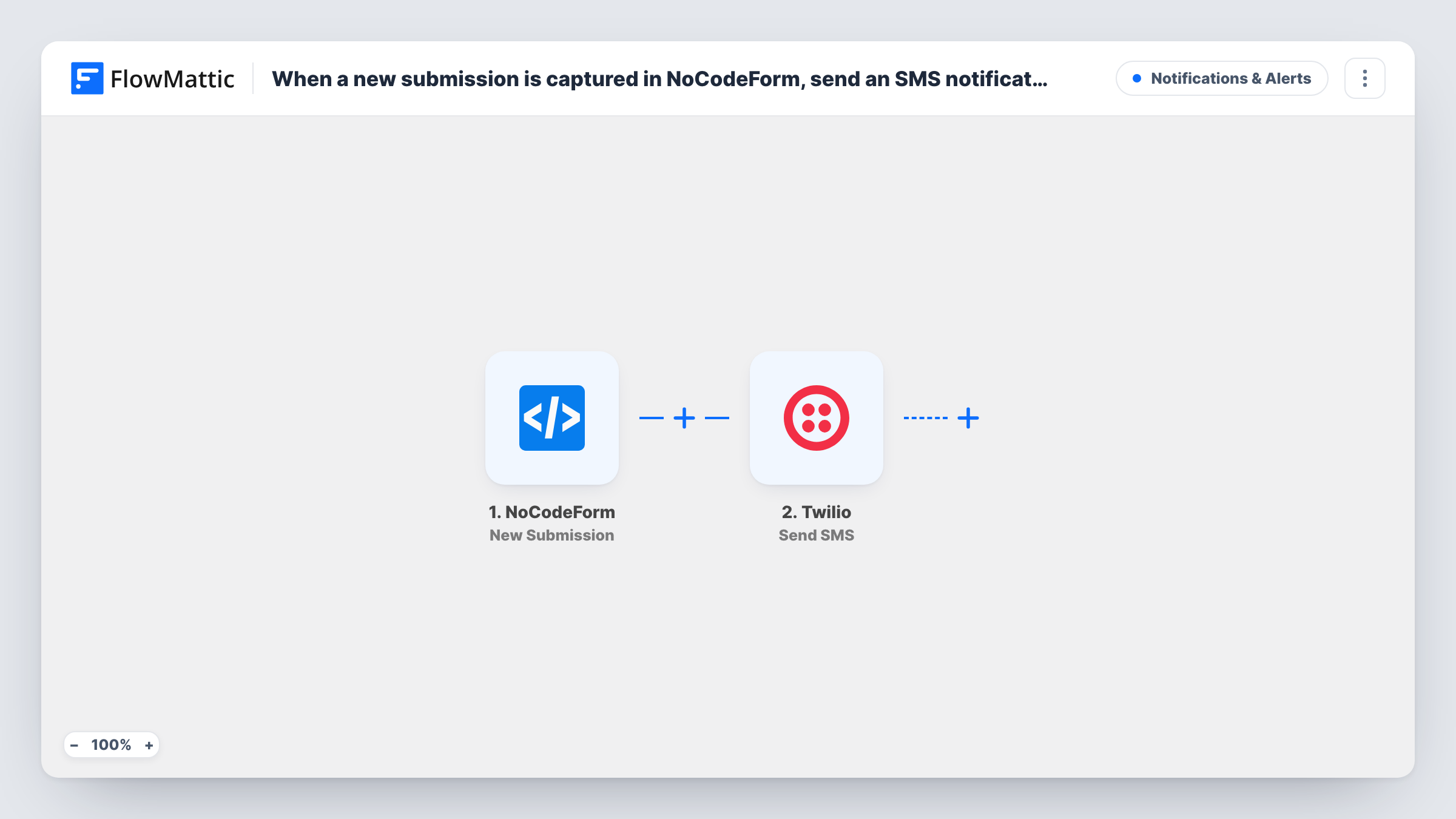
What this workflow does
Some form entries need a quick response: a callback request, an urgent booking, a service call. Email alerts get buried, and not everyone on the team has the form dashboard open. This workflow sends an SMS through Twilio for every NoCodeForm submission.
Each run starts when NoCodeForm records a fresh entry on your form. FlowMattic passes the answers to Twilio, where Send SMS sends a text to the number you set, from your Twilio account. You write the message and insert answers from the form, such as the person's name and what they asked for.
The text can go to a fixed number, such as the person on call, or to a number taken from the form. Keep messages short, since SMS splits long text into several parts. Every submission sends one SMS, as no Filter is included.
Callback requests for a local business
A plumber's website form sends each callback request to the owner's phone by SMS, with the caller's name and number in the text.
Confirming receipt to the person who applied
Map the phone answer from the form as the recipient, and each applicant gets a short text saying their entry arrived.
After-hours enquiries
An on-call staff member gets a text for every form entry, so urgent requests are seen outside office hours.
How this workflow runs
What happens at each step once the workflow is on, and what you need before you import it.
 NoCodeForm New Submission
Runs once for every entry NoCodeForm captures. Every answer in the submission is available to put into the SMS.
- Twilio Send SMS
Sends an SMS from your Twilio account to the number you choose. Write the text with NoCodeForm answers in it, and send a test to confirm it arrives.
What you need
- FlowMatticCore
- NoCodeForm AccountAccount
- Twilio AccountAccount
After importing, map your own data. To keep the template universal, not every step is pre-filled. Open each step in the builder and connect your accounts and fields (channels, lists, sheets, recipients) before you switch the workflow on.
Make it yours
Changes worth making after you import it.
- Add a Filter after the trigger so only submissions marked urgent, or of a certain type, send a text.
- If the recipient comes from the form, ask for numbers in international format, since Twilio sends to full phone numbers.
- Add a Google Sheets step after the SMS to log each submission alongside the alert.
Questions about this workflow
Who receives the Twilio SMS for each NoCodeForm entry?
The number you enter in the Send SMS step. Use a fixed number for internal alerts, or map a phone answer from the form to text the person who submitted it.
Does Twilio charge for these messages?
Messages are sent through your own Twilio account, so they are billed by Twilio on your account's terms.
Are earlier NoCodeForm entries texted when I turn this on?
No. Only submissions captured after the workflow is active send an SMS.
More Notifications & Alerts workflows
Other ready-to-import templates from the same category.




Import this workflow into your WordPress site
Download the JSON, import it from the Workflows screen and connect your accounts. Every run stays on your server, with no per-task fees.
30-day money-back guarantee Unlimited workflows and runs Self-hosted