

When a new submission is received in WPForms, check if the email is valid with Emailable, and add details to Google Spreadsheet
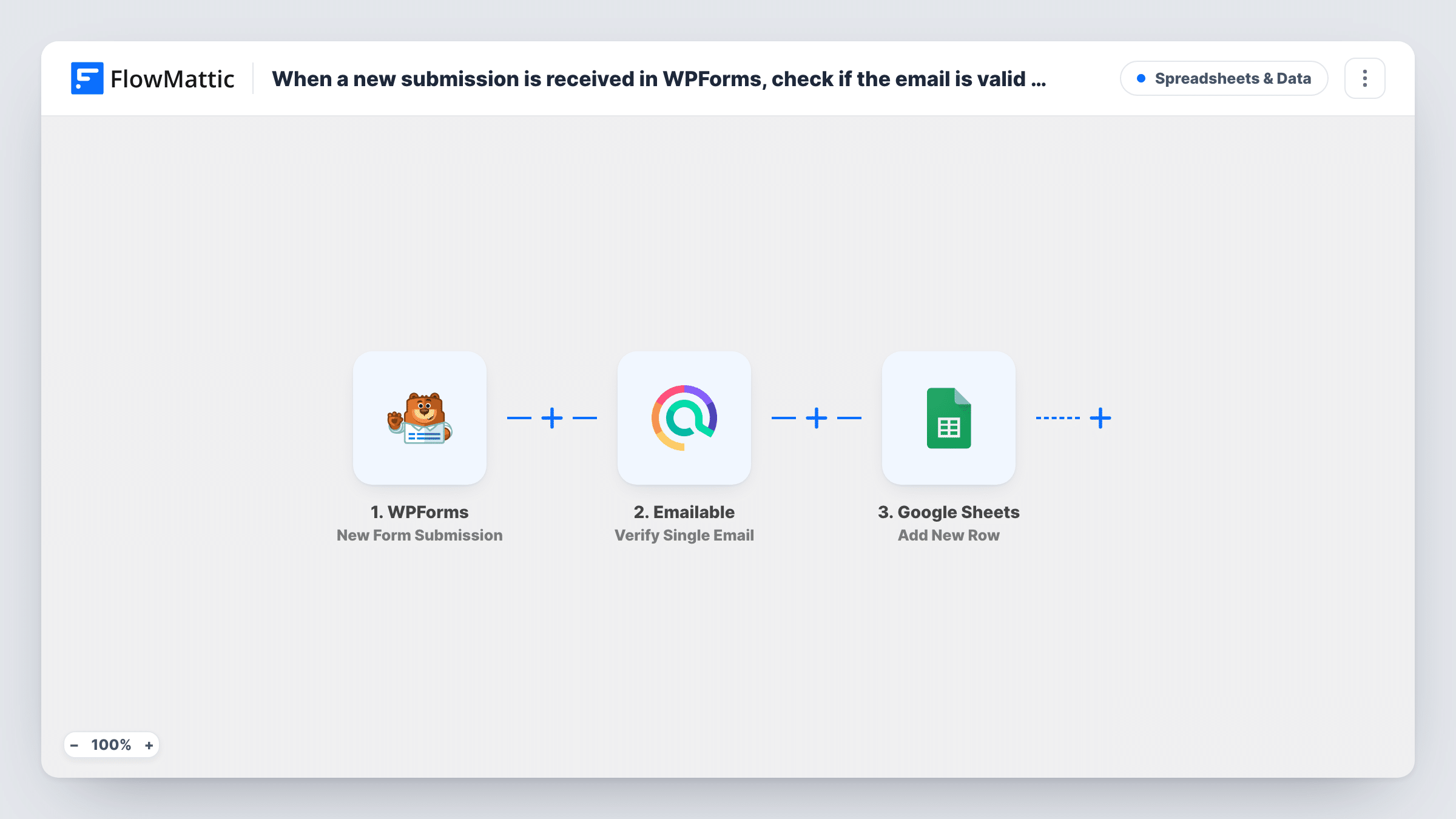
Every WPForms submission has its email address checked by Emailable, then the entry and the check’s result go to a new Google Sheets row, giving you a log where each address shows how it verified.
 WPForms
 Emailable
 Google Sheets
3 steps Setup ~5 min Used on 1.8k sites Free to import
What this workflow does
Mistyped and fake addresses slip into WPForms entries all the time. When some are mistyped or fake, you find out later through bounces. This workflow checks each WPForms address with Emailable and writes the entry to Google Sheets, so the result can sit beside the lead.
When someone submits a WPForms form, FlowMattic passes the email field to Emailable using Verify Single Email. Emailable's response becomes mappable data. The Google Sheets step then adds a new row with the form answers and whichever parts of the response you map into columns.
Nothing in the template acts on the result. Every submission reaches the sheet, valid or not, and the check only tells you which is which. If you want a sheet of verified addresses only, add a Filter between Emailable and Google Sheets; the tips cover it. Task History lists every run with the Emailable response, which helps when a row looks wrong.
Webinar registrations on a WPForms page
Registrants fill in a WPForms form. Each address is checked, and the sheet's result column tells you which ones can receive the joining link before you send it.
Sales leads passed to a call team
A quote form logs every lead in a shared sheet. Callers sort by the verification column and start with leads whose address passed.
Auditing a contest entry form
Competition entries go to a spreadsheet with their check result, so you can see at a glance which entries used addresses that failed.
How this workflow runs
What happens at each step once the workflow is on, and what you need before you import it.
 WPForms New Form Submission
Runs each time WPForms saves a new submission on your site, carrying the email field and the rest of the answers forward.
- Emailable Verify Single Email
Asks Emailable to verify the submitted address. Map the WPForms email field and connect your Emailable account. The response is ready to map in the Google Sheets step or to test in a Filter.
- Google Sheets Add New Row
Adds a row to the Google Sheets spreadsheet you choose for every submission. Map form answers to columns and give one column to the Emailable result.
What you need
- FlowMatticCore
- WPForms PluginPlugin
- Emailable AccountAccount
- Google Sheets AccountAccount
After importing, map your own data. To keep the template universal, not every step is pre-filled. Open each step in the builder and connect your accounts and fields (channels, lists, sheets, recipients) before you switch the workflow on.
Make it yours
Changes worth making after you import it.
- To keep failed addresses out, add a Filter after Emailable that continues only when the result matches the value Emailable gives a deliverable address. Submit one test entry to see what Emailable sends back.
- Keep both lists by adding a Router after Emailable, with one route for passing addresses and one for the rest. Move the existing Google Sheets step into the first route and give the second its own copy pointed at another sheet.
- Make the WPForms email field required so Emailable always has an address to verify. An empty email gives the check nothing to work on.
Questions about this workflow
Are WPForms entries with invalid emails left out of the sheet?
No, not as imported. Each submission gets a row whatever Emailable returns. Put a Filter between the Emailable and Google Sheets steps if you only want valid addresses logged.
Does WPForms still store and email the entry?
Yes. The workflow runs after the form is submitted, so your WPForms notifications and settings stay as they are.
Which Emailable result should I put in the spreadsheet?
Send a test entry and open the Emailable step in Task History. Its response shows the values you can map; pick the one that states whether the address is deliverable.
What happens to the row if Emailable is unreachable?
The Google Sheets step still runs, so the entry is logged, but the result column may be blank. Task History shows the error on the Emailable step.
More Spreadsheets & Data workflows
Other ready-to-import templates from the same category.





Import this workflow into your WordPress site
Download the JSON, import it from the Workflows screen and connect your accounts. Every run stays on your server, with no per-task fees.
30-day money-back guarantee Unlimited workflows and runs Self-hosted