

Log every new Nimbata call in a Google Sheets spreadsheet
Each completed inbound call to one of your Nimbata tracking numbers is written to a new Google Sheets row, giving you a running call log you can sort, chart and share outside Nimbata.
 Nimbata
 Google Sheets
2 steps Setup ~5 min Used on 302 sites Free to import
What this workflow does
Call tracking shows which ads and pages make the phone ring, but the numbers often stay inside the tracking tool. A spreadsheet lets you compare calls with other data, build your own reports, or give a client a view without a Nimbata login. This workflow adds each new call to one for you.
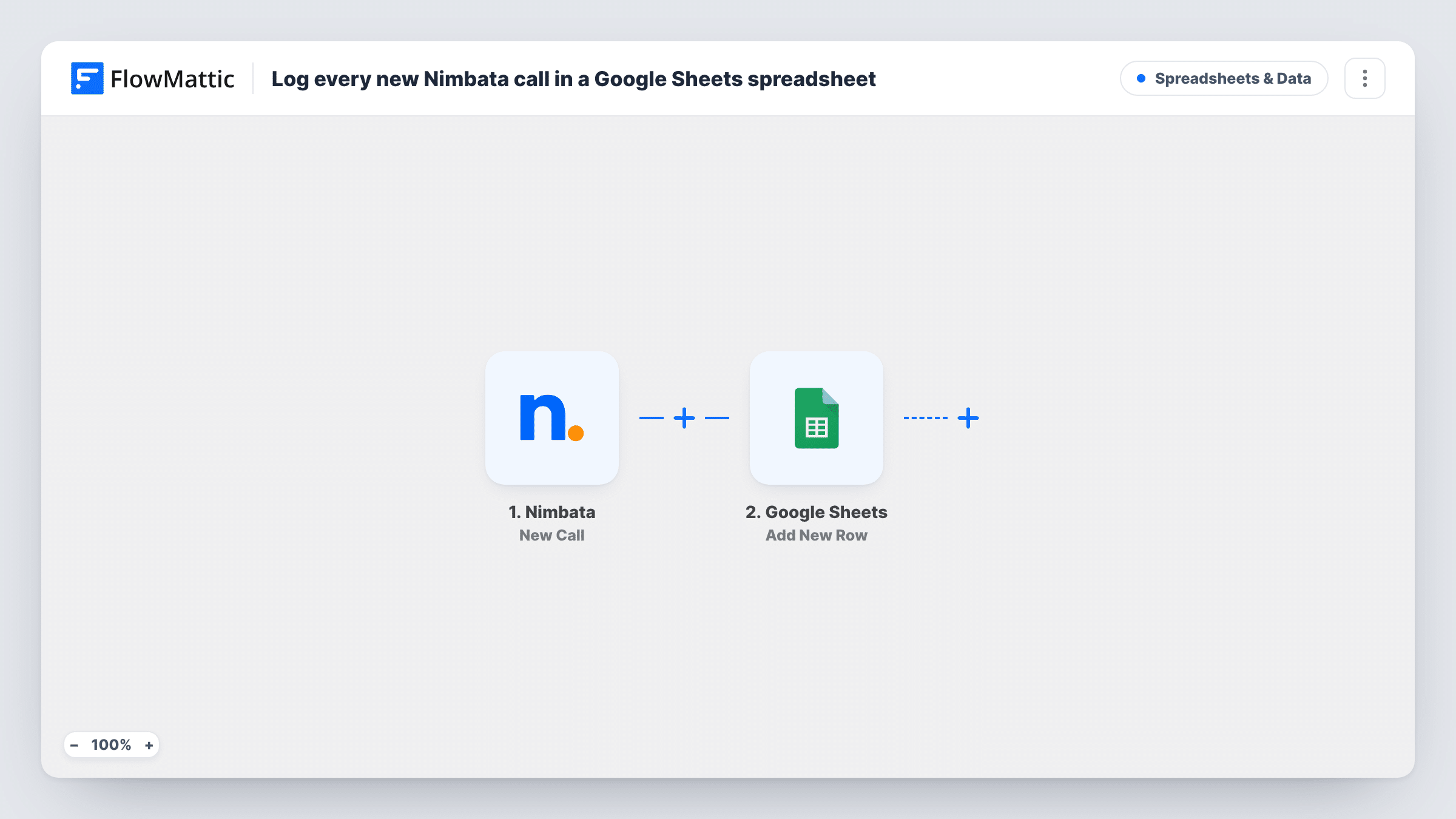
The Nimbata New Call trigger fires when an inbound call to one of your tracking numbers is completed, and passes the call's details to FlowMattic. The Google Sheets Add New Row action then appends a row to the sheet you choose, with each call detail you mapped in its own column.
Only inbound calls to tracking numbers start a run, and each one adds exactly one row. Nothing is filtered out, so short or missed calls are logged too if Nimbata reports them as completed. Task History lists every run with the data that went to the sheet.
Monthly call reports for agency clients
An agency runs call tracking for several clients. The sheet becomes the source for a monthly report or chart of calls by source.
Matching calls to ad spend
Put call rows next to campaign costs in the same spreadsheet and see which channel brings in the most phone enquiries.
Shared call log for a front desk
Reception staff check the sheet to see who called and when, and add their own notes in an extra column.
How this workflow runs
What happens at each step once the workflow is on, and what you need before you import it.
 Nimbata New Call
Fires when an inbound call to one of your Nimbata tracking numbers is completed. The call's details are handed on so you can choose which go into the sheet.
- Google Sheets Add New Row
Appends one row per call to the Google Sheets spreadsheet you select. Connect your Google account, pick the sheet and tab, then map call details to the columns.
What you need
- FlowMatticCore
- Nimbata AccountAccount
- Google Sheets AccountAccount
After importing, map your own data. To keep the template universal, not every step is pre-filled. Open each step in the builder and connect your accounts and fields (channels, lists, sheets, recipients) before you switch the workflow on.
Make it yours
Changes worth making after you import it.
- Set up the sheet's header row before mapping. Columns for date, caller number and source make the log easy to filter later.
- Make a test call to a tracking number after import, so FlowMattic captures the real call data and you can see which details Nimbata sends.
- If you only want certain calls in the sheet, add a Filter after the trigger on a value from the call data, checked against a test run first.
Questions about this workflow
Are outbound calls logged in the Google Sheets spreadsheet?
No. Nimbata's New Call trigger covers completed inbound calls to your tracking numbers, so calls your team makes are not logged.
Which Nimbata call details can go into the sheet?
Any value the trigger delivers. Run a test call and look at the captured data in FlowMattic, then map the ones you want to columns.
Will Nimbata calls from before import be added?
No. The trigger only reacts to calls that finish after the workflow is turned on. Export older calls from Nimbata if you need them in the sheet.
Can I add my own columns next to the call data?
Yes. Columns you don't map stay empty in new rows, so you can use them for notes or outcomes without the workflow overwriting them.
More Spreadsheets & Data workflows
Other ready-to-import templates from the same category.




Import this workflow into your WordPress site
Download the JSON, import it from the Workflows screen and connect your accounts. Every run stays on your server, with no per-task fees.
30-day money-back guarantee Unlimited workflows and runs Self-hosted