

When a note is created in Freelo, add the note content to a Google Sheet
Each note created in Freelo is copied into a new Google Sheets row, so project notes from across your Freelo projects collect in one spreadsheet you can search, sort and share.
 Freelo
 Google Sheets
2 steps Setup ~5 min Used on 683 sites Free to import
What this workflow does
Notes in Freelo live inside the project they belong to. When you want to look across projects, or share notes with someone outside Freelo, you end up opening each project in turn. This workflow keeps a running copy of new notes in Google Sheets instead.
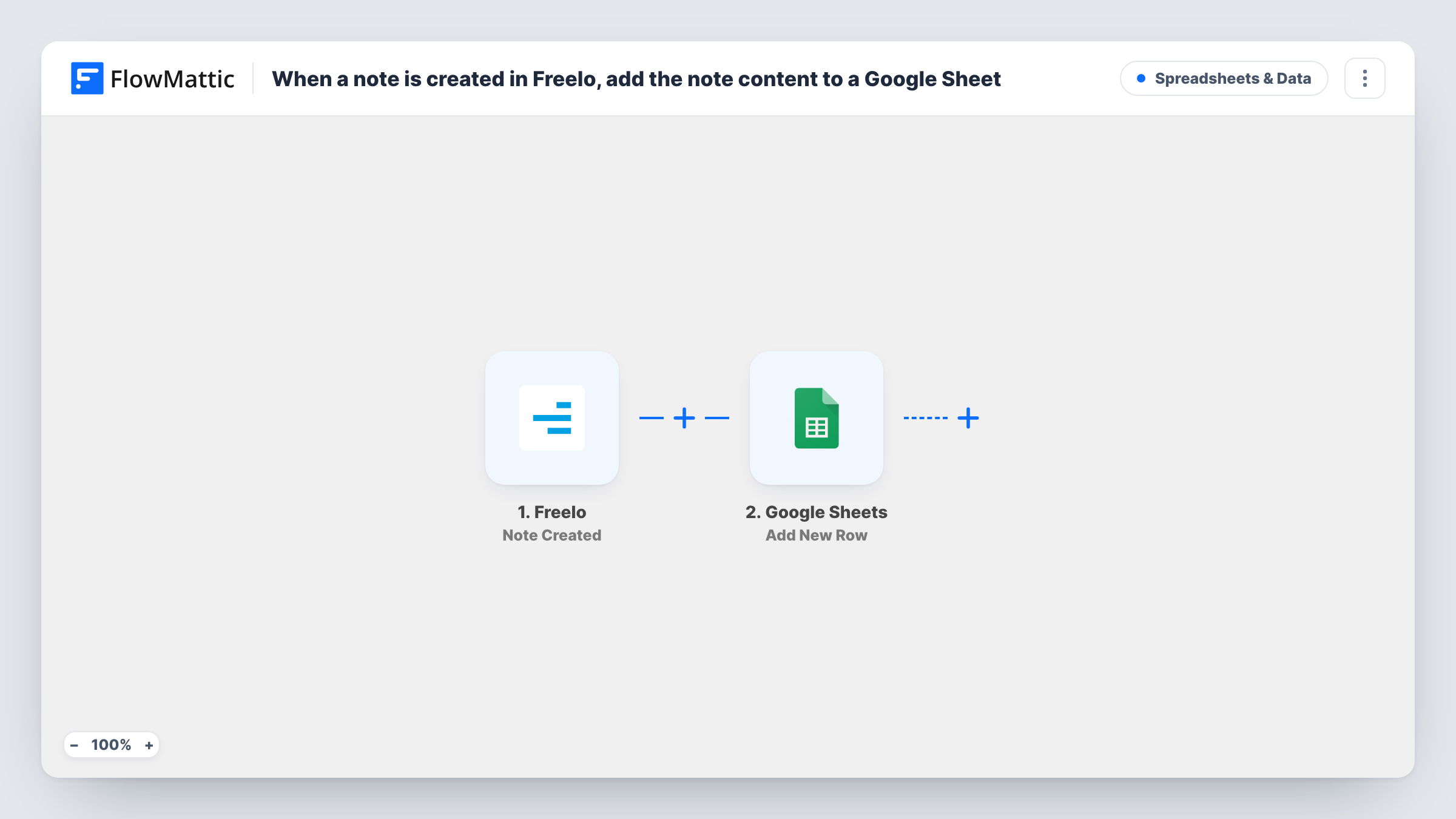
The Freelo trigger fires when a new note is created. FlowMattic receives the note's data from Freelo, which you can map into the next step. The Google Sheets step adds a new row to the spreadsheet you pick, with the note content and any other details Freelo sends placed in the columns you choose.
The row is a snapshot taken when the note is created. Edits made to the note afterwards are not copied, and deleting the note in Freelo leaves its row in the sheet. A test note after import shows you which Freelo fields are available. Task History lists each note that was added.
Meeting notes across several client projects
Each meeting note your team writes in Freelo gets a row in one sheet, so an account manager can scan the latest notes for every client in one place.
Sharing notes with a stakeholder
A client or partner who doesn't use Freelo gets view access to the Google Sheet and reads new project notes there.
Archive of decisions
Notes recording decisions are kept in a spreadsheet you can search and filter when someone asks why something was done.
How this workflow runs
What happens at each step once the workflow is on, and what you need before you import it.
 Freelo Note Created
Fires when a new note is created in Freelo. The note's content and related details are passed on for mapping into the sheet.
- Google Sheets Add New Row
Writes each new Freelo note into its own row in the spreadsheet you choose. Map the Freelo note content and details to your columns, then connect your Google account.
What you need
- FlowMatticCore
- Freelo AccountAccount
- Google Sheets AccountAccount
After importing, map your own data. To keep the template universal, not every step is pre-filled. Open each step in the builder and connect your accounts and fields (channels, lists, sheets, recipients) before you switch the workflow on.
Make it yours
Changes worth making after you import it.
- Add a date column and map a date value from the Freelo data if the test run shows one, so you can sort the sheet by when notes were written.
- Clone the workflow with Freelo's Note Edited trigger and send it to a second tab, so changes to notes are logged as separate rows.
- If the trigger data names the project, add a Filter after the trigger that continues only for the projects you want logged in the sheet.
Questions about this workflow
Are edits to a Freelo note copied to the sheet?
No. The trigger fires when a note is created, so the row shows the note as it was then. Freelo has a separate Note Edited trigger if you want to track changes.
Does deleting a Freelo note remove its row?
No. Nothing in this template removes rows, so a deleted note's row stays in the sheet until you remove it.
Are notes written before I import the workflow included?
No. Only notes created after the workflow is on reach Google Sheets. Older notes stay in Freelo.
More Spreadsheets & Data workflows
Other ready-to-import templates from the same category.





Import this workflow into your WordPress site
Download the JSON, import it from the Workflows screen and connect your accounts. Every run stays on your server, with no per-task fees.
30-day money-back guarantee Unlimited workflows and runs Self-hosted