

When a poll is submitted by user in WP-Polls, add the data to Google Sheet
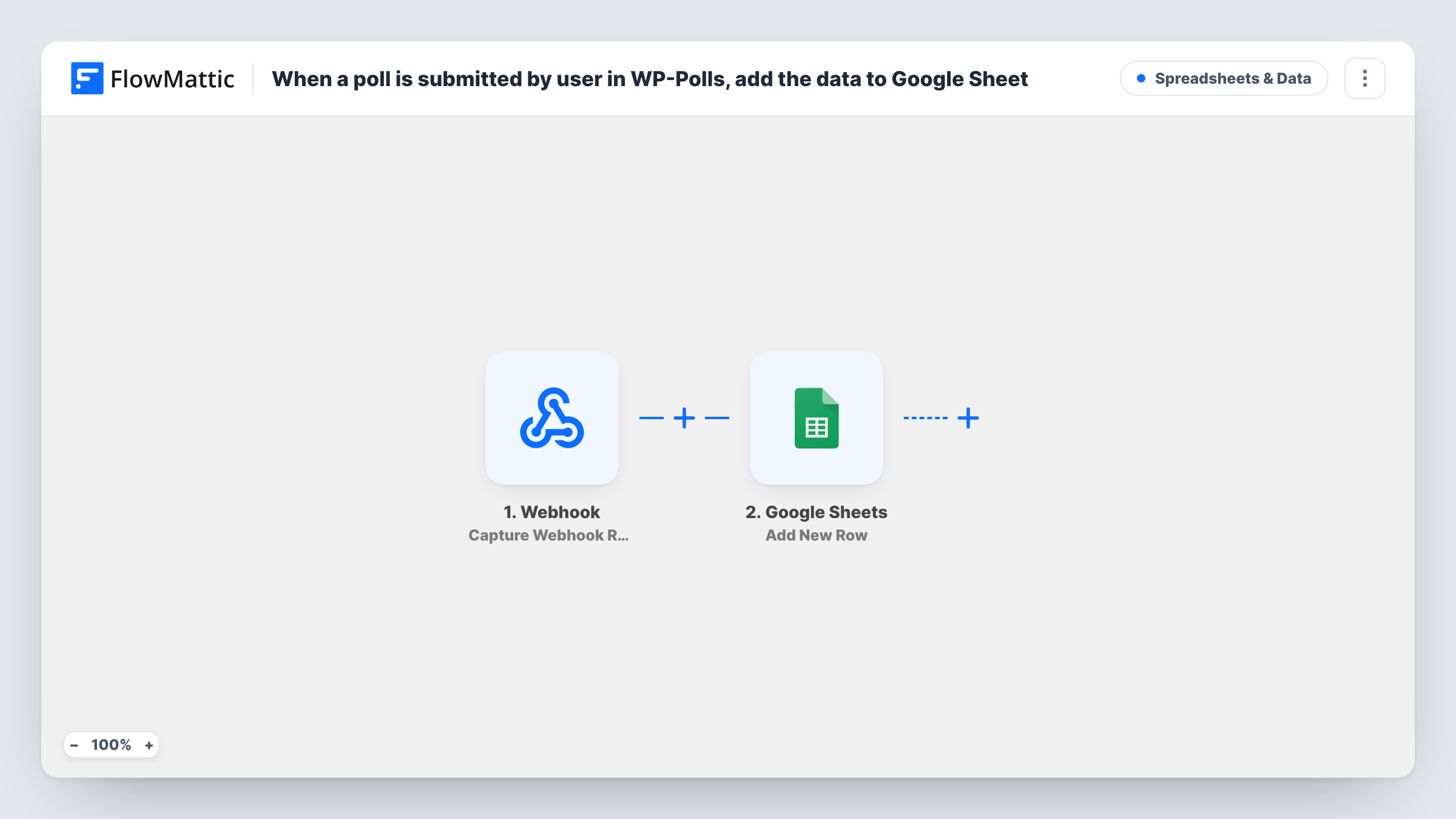
Each time a visitor votes in a WP-Polls poll on your WordPress site, FlowMattic adds the vote details as a new row in your Google Sheets spreadsheet, building a log you can sort and chart.
 WP Polls
 Google Sheets
2 steps Setup ~5 min Used on 1.9k sites Free to import
What this workflow does
WP-Polls shows totals on your site, but sometimes you want the individual votes somewhere you can work with them: to chart answers by date, share results with a client, or combine several polls in one place. This workflow sends each submitted vote to Google Sheets as its own row.
The WP-Polls trigger is User Submits a Poll, which FlowMattic describes as firing when a poll is submitted by a user. It runs on your WordPress site, so there is no outside account to connect for it. The vote data from that submission is passed on for mapping.
Each vote then goes to Google Sheets through Add New Row, which ships unmapped, so after import you connect your Google account, pick the spreadsheet and sheet, and match the poll values to your column headers. Submit a test vote first and look at the run in Task History to see exactly which values arrive, such as the poll question and the chosen answer.
Every vote is one run and one row. The sheet only holds votes cast after the workflow is turned on, so earlier results stay in WP-Polls.
Reader poll results for an editorial team
A blog runs a weekly WP-Polls question and the editors chart the answers from the Google Sheet in their Monday meeting.
Client report for a sponsored poll
An agency runs a poll for a sponsor on a client's WordPress site and shares a view-only sheet of the vote log at the end of the campaign.
Comparing answers across several polls
A community site keeps votes from every poll in one sheet, with a column for the poll question, and filters by question to compare results.
How this workflow runs
What happens at each step once the workflow is on, and what you need before you import it.
 WP Polls User Submits a Poll
Fires when a visitor submits a vote in a WP-Polls poll on your site. The submission's details are passed on; a test vote shows which values you can map.
- Google Sheets Add New Row
Records the vote on a fresh row of the spreadsheet you select. Nothing is mapped in the template, so connect Google, choose the sheet and match the poll values to your headers.
What you need
- FlowMatticCore
- WP-Polls PluginPlugin
- Google Sheets AccountAccount
After importing, map your own data. To keep the template universal, not every step is pre-filled. Open each step in the builder and connect your accounts and fields (channels, lists, sheets, recipients) before you switch the workflow on.
Make it yours
Changes worth making after you import it.
- If the trigger data includes the time of the vote, map it into a date column so you can chart votes by day.
- Use a separate tab per poll if your polls ask very different questions, and import one copy of the workflow per tab with a Filter on the poll between the trigger and the Google Sheets step.
- Create the column headers before you set up the Google Sheets step, so they show up as fields to map.
Questions about this workflow
Are WP-Polls votes cast before I turn this on added to Google Sheets?
No. Only votes submitted while the workflow is active start a run. Older totals stay in WP-Polls.
Does each WP-Polls vote get its own row?
Yes. Every submitted poll starts one run, and the Add New Row step adds one row for it.
Which poll details reach the spreadsheet?
The ones you map. Cast a test vote, look at the trigger data in Task History, and map the values you need, such as the question and the answer, to your columns.
More Spreadsheets & Data workflows
Other ready-to-import templates from the same category.




Import this workflow into your WordPress site
Download the JSON, import it from the Workflows screen and connect your accounts. Every run stays on your server, with no per-task fees.
30-day money-back guarantee Unlimited workflows and runs Self-hosted