

When a product purchase is completed in Groove Sales, add the product details to Google Spreadsheet
Each product purchase in Groove Sales adds a row to a Google Sheets spreadsheet with the product and buyer details you map, giving you a sales log you can sort, total and share.
 Groove Sales
 Google Sheets
2 steps Setup ~5 min Used on 2.7k sites Free to import
What this workflow does
Groove Sales shows your sales inside its own dashboard. When you want to total them your way, share them with a partner, or keep a record outside the platform, a spreadsheet is easier to work with. This workflow writes each purchase into one.
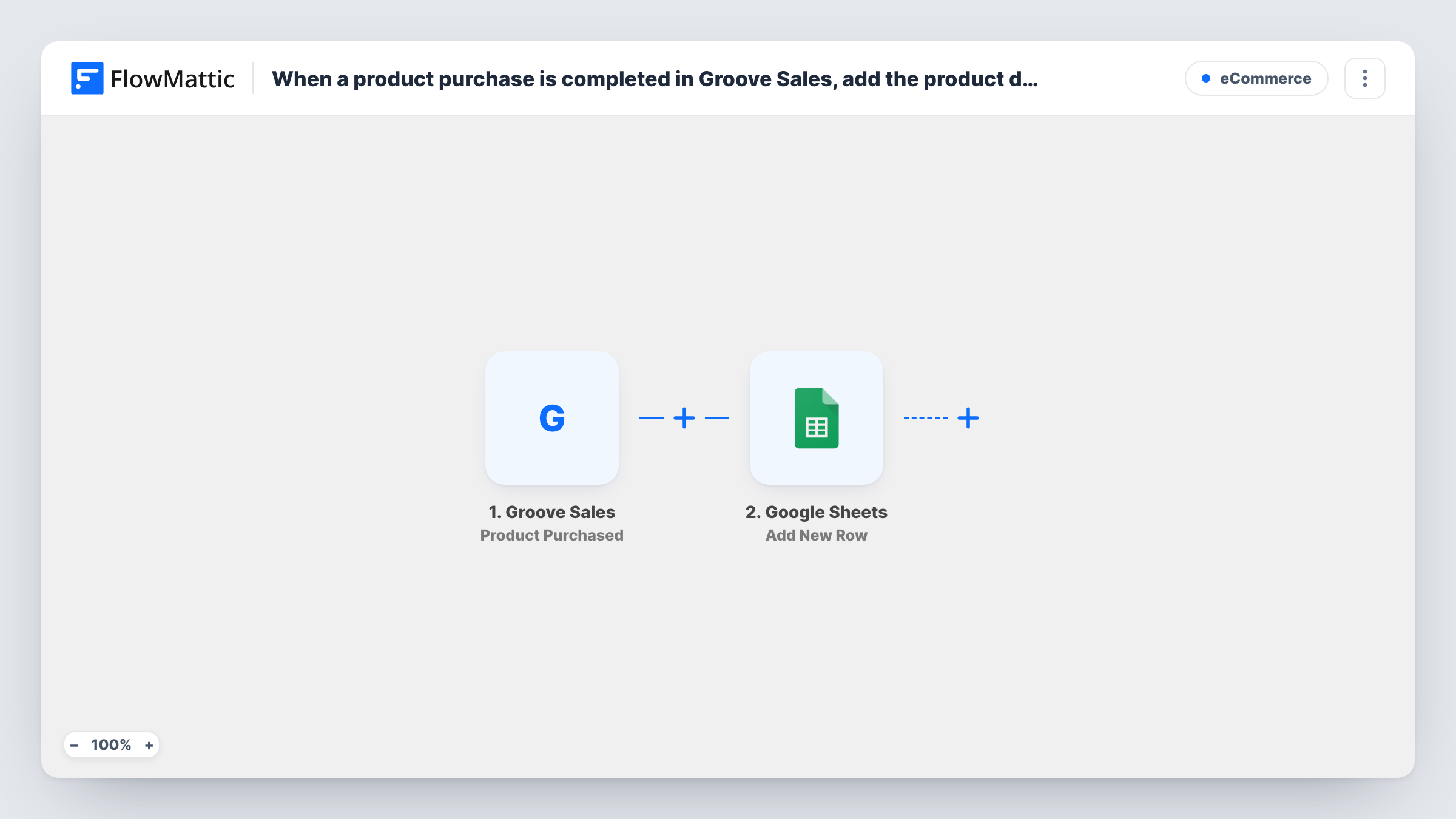
The Groove Sales trigger starts a run for each sale your Groove Sales account records. FlowMattic passes the purchase data to Google Sheets, where the Add New Row step writes a row to the spreadsheet and sheet you choose. You map which purchase values go in which column, for example the product name, price, buyer email and date.
Every purchase adds one row, and rows are only ever added, never changed. If a sale is later refunded, the row stays as it was. Only purchases made after you turn the workflow on are logged. Task History shows every run with the data sent to the sheet.
Revenue split with a joint venture partner
You sell a course with a partner through Groove Sales. A shared Google Sheet lists each sale so you both see the same numbers when you settle up.
Monthly totals for your bookkeeper
Your accountant works from spreadsheets. The sheet holds every Groove Sales purchase with price and date, ready to total by month.
Product launch tracking
During a launch, a team watches the sheet fill with purchases and uses a pivot table to see which product or tier is selling.
How this workflow runs
What happens at each step once the workflow is on, and what you need before you import it.
 Groove Sales Product Purchased
Starts whenever a buyer completes a Groove Sales purchase. That sale's data, such as the product and buyer details, is passed on for mapping.
- Google Sheets Add New Row
Writes one new line per sale into your chosen spreadsheet. Set up a header row first, then map Groove Sales purchase values into each column and connect your Google account.
What you need
- FlowMatticCore
- Groove Sales AccountAccount
- Google Sheets AccountAccount
After importing, map your own data. To keep the template universal, not every step is pre-filled. Open each step in the builder and connect your accounts and fields (channels, lists, sheets, recipients) before you switch the workflow on.
Make it yours
Changes worth making after you import it.
- If the purchase data carries a date, add a Date/Time Formatter step before Google Sheets to write it in the format your reports expect.
- Add a Filter after the trigger if one sheet should only hold sales of a single product, using the product name or ID from the purchase data.
- Run a test purchase or wait for a real one before mapping, so FlowMattic has the actual fields Groove Sales sends.
Questions about this workflow
Are Groove Sales refunds removed from the Google sheet?
No. The workflow only adds rows on purchase. Refunds don't change or delete anything, so mark them in the sheet yourself.
Which Groove Sales purchase details can I log?
Whatever the Product Purchased trigger sends. Check a run in Task History to see the available fields, then map the ones you want into columns.
Can I log Groove Sales purchases to an existing spreadsheet?
Yes. Pick any spreadsheet your connected Google account can edit, and choose the sheet tab the rows should go to.
More E-Commerce workflows
Other ready-to-import templates from the same category.







Import this workflow into your WordPress site
Download the JSON, import it from the Workflows screen and connect your accounts. Every run stays on your server, with no per-task fees.
30-day money-back guarantee Unlimited workflows and runs Self-hosted