

When a TimeRex event is confirmed, add a new row in Google Sheets
When a booking is confirmed in TimeRex, FlowMattic writes its details to a new Google Sheets row, giving you a spreadsheet of confirmed meetings that you can filter, share or report on.
 TimeRex
 Google Sheets
2 steps Setup ~5 min Used on 432 sites Free to import
What this workflow does
TimeRex handles the back-and-forth of picking a meeting time. What it doesn't give you is a simple list of every confirmed booking that a manager, assistant or client can open without a TimeRex login. This workflow keeps that list for you in Google Sheets.
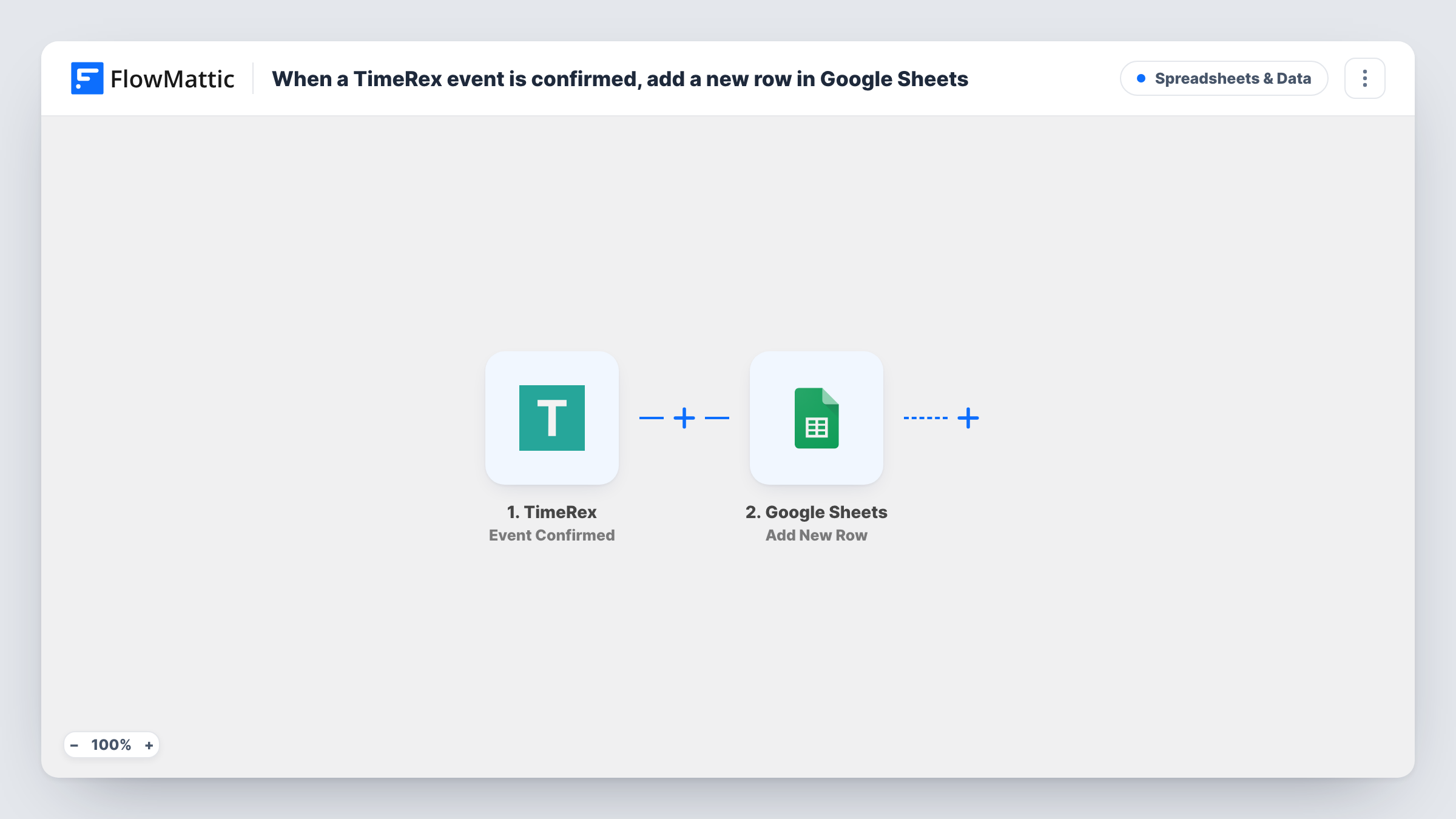
The TimeRex trigger, Event Confirmed, fires when a booking is confirmed. FlowMattic takes the booking data from that event and hands it to Google Sheets. The Add New Row action then adds one row per confirmed booking to the spreadsheet you select, with the TimeRex values in the columns you mapped.
The template has no other steps, so every confirmed booking is written. A booking that is later cancelled or moved stays in the sheet as it was, because this workflow listens only for confirmations. Each confirmed booking shows up as its own run in Task History.
Sales call log for a team lead
Each confirmed TimeRex sales call lands in a shared sheet, so the team lead can count booked calls per week without opening every rep's calendar.
Client sessions for a coach or consultant
Confirmed sessions build a list you can later mark as paid or invoiced, keeping billing notes next to the booking data.
Interview schedule for hiring
Candidates who confirm an interview slot appear in a sheet the hiring panel can read, with a spare column for each interviewer's notes.
How this workflow runs
What happens at each step once the workflow is on, and what you need before you import it.
 TimeRex Event Confirmed
Runs when a booking is confirmed in TimeRex. The booking details sent with that event are passed on for mapping in the Google Sheets step.
- Google Sheets Add New Row
Adds one row to the spreadsheet and sheet you choose. Connect your Google account and map the TimeRex booking values to columns, for example the meeting time and the guest's name.
What you need
- FlowMatticCore
- TimeRex AccountAccount
- Google Sheets AccountAccount
After importing, map your own data. To keep the template universal, not every step is pre-filled. Open each step in the builder and connect your accounts and fields (channels, lists, sheets, recipients) before you switch the workflow on.
Make it yours
Changes worth making after you import it.
- Confirm a test booking in TimeRex after import. FlowMattic then shows the real booking data in the trigger step, so you know which values exist before you map columns.
- Add a Filter after the trigger if you only want certain calendars or meeting types in the sheet, based on a value the TimeRex event carries.
- Keep a column free for manual notes, such as an outcome or follow-up date. The workflow only fills the columns you map, so your notes stay untouched.
Questions about this workflow
Does a cancelled TimeRex booking get removed from the sheet?
No. The workflow only reacts to confirmed bookings and only adds rows. A later cancellation or change in TimeRex doesn't edit or delete the row.
What booking details does TimeRex send to Google Sheets?
The values that come with TimeRex's Event Confirmed event. Confirm a test booking after import and check the trigger step's captured data to see what is available.
Are bookings made before I turn on the workflow included?
No. Only bookings confirmed while the workflow is on start a run, so earlier ones are not copied into the spreadsheet.
Can several TimeRex calendars log to the same sheet?
If they all send the Event Confirmed event to this trigger, yes. If the event carries a value that tells them apart, map it into its own column so you can sort later.
More Spreadsheets & Data workflows
Other ready-to-import templates from the same category.



Import this workflow into your WordPress site
Download the JSON, import it from the Workflows screen and connect your accounts. Every run stays on your server, with no per-task fees.
30-day money-back guarantee Unlimited workflows and runs Self-hosted