

When an internal comment is created in FaceUp, log the comment in Google Sheets
Each internal comment your team adds in FaceUp is written to a new row in Google Sheets, giving case handlers one running log of internal discussion they can sort, search and review.
 FaceUp
 Google Sheets
2 steps Setup ~5 min Used on 1.2k sites Free to import
What this workflow does
FaceUp is used for whistleblowing and anonymous reports, and internal comments are where your team discusses each case. When several people handle reports, it helps to have a running log outside the case view: who commented, on which report and when. This workflow copies each new internal comment into a Google Sheets row.
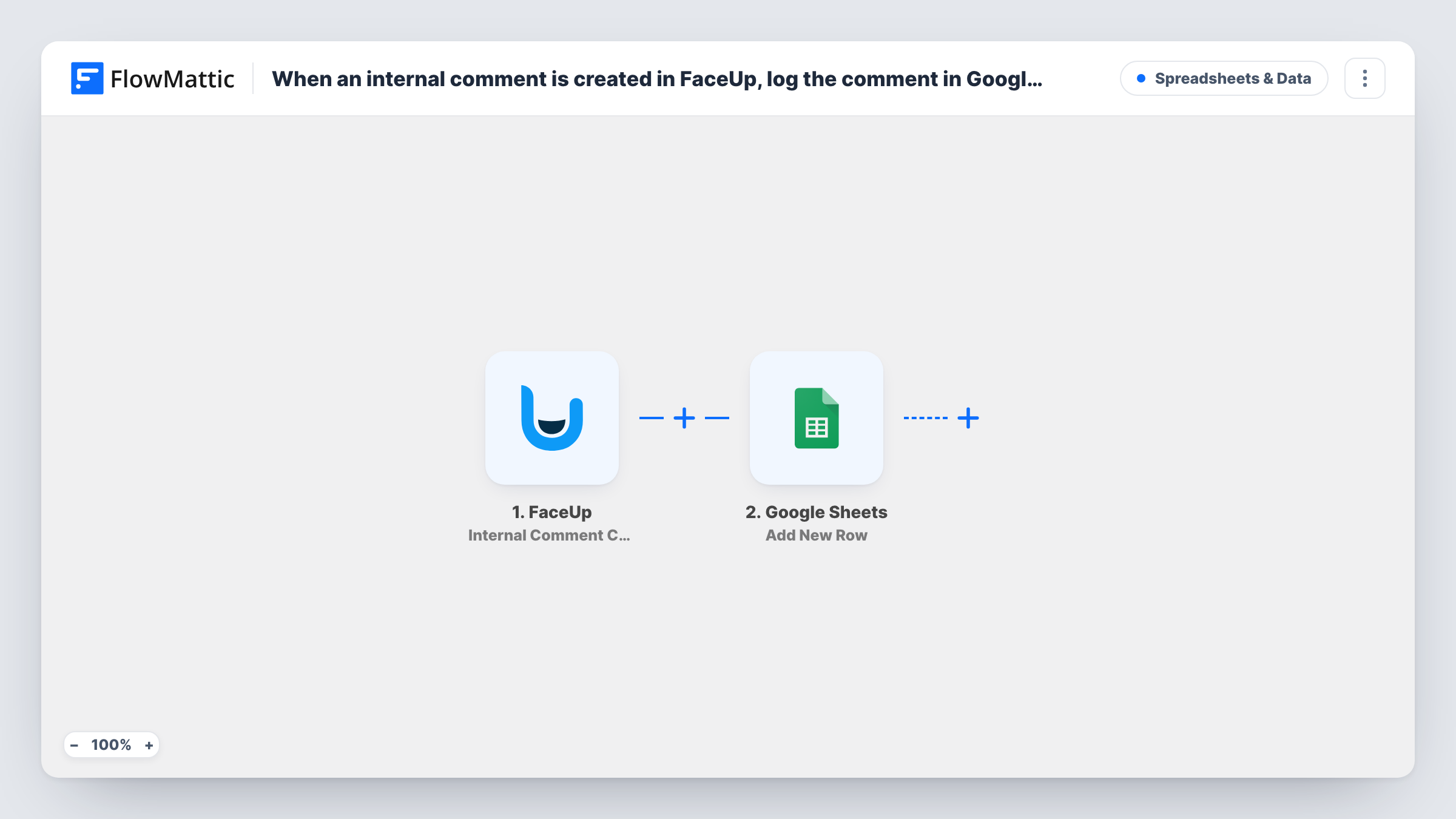
The FaceUp trigger fires when a new internal comment is created. The comment details from that event become values you can map. Google Sheets then runs Add New Row, writing those values into the columns of the sheet you choose.
Comments in FaceUp cases can be sensitive. The sheet holds whatever you map, so share it only with people who already handle reports, and map just the details the log needs. Every internal comment adds a row. Task History records each run with the data that went to Google Sheets.
Compliance officer reviewing case handling
A compliance lead scans the sheet each week to see which reports had internal comments and who added them, without opening each case.
HR team tracking response times
HR sorts the comment rows by date to check how long reports waited before the team first discussed them.
Board or audit reporting
A sheet of internal comment activity helps you prepare a summary of how reports were handled for an audit committee, with sensitive columns left out.
How this workflow runs
What happens at each step once the workflow is on, and what you need before you import it.
 FaceUp Internal Comment Created
Fires when a new internal comment is created in FaceUp. The comment's details become values you can map into the spreadsheet.
- Google Sheets Add New Row
Writes each internal comment to a new row in the Google Sheets file you pick. Create headers first, map each to a FaceUp value, and connect your Google account on import.
What you need
- FlowMatticCore
- FaceUp AccountAccount
- Google Sheets AccountAccount
After importing, map your own data. To keep the template universal, not every step is pre-filled. Open each step in the builder and connect your accounts and fields (channels, lists, sheets, recipients) before you switch the workflow on.
Make it yours
Changes worth making after you import it.
- Map only the details your log needs, such as the report reference, author and date, and leave the comment text out if the sheet is shared more widely.
- Keep the spreadsheet in a restricted Google Drive folder that only your case handlers can open.
- Add an internal comment to a test report after import so FlowMattic captures the FaceUp values, then map them to your columns.
Questions about this workflow
Are FaceUp comments to the reporter logged as well?
No. The trigger is Internal Comment Created, so only internal comments start a run. Other FaceUp events are not used in this template.
Does editing a FaceUp internal comment update its row?
No. Each new internal comment adds a row once. Later changes in FaceUp don't reach the sheet.
Which FaceUp comment details can go into Google Sheets?
Whatever the FaceUp event includes. Add a test comment and look at the captured values in the Google Sheets step to see what you can map.
More Spreadsheets & Data workflows
Other ready-to-import templates from the same category.




Import this workflow into your WordPress site
Download the JSON, import it from the Workflows screen and connect your accounts. Every run stays on your server, with no per-task fees.
30-day money-back guarantee Unlimited workflows and runs Self-hosted