

When an Okta event occurs, log it in Google Sheets and post a notice to Discord
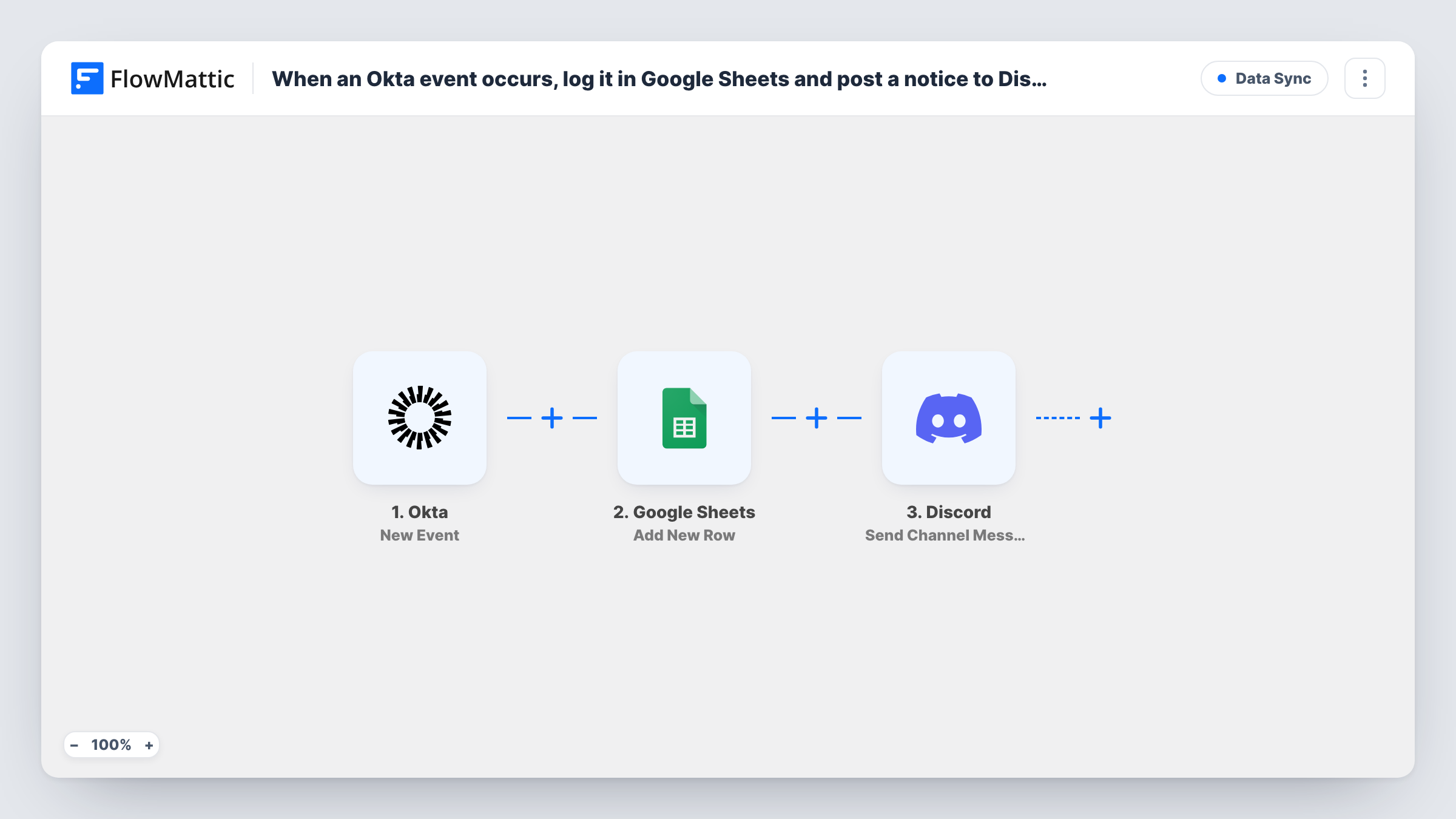
Each event Okta sends to FlowMattic is written to a new Google Sheets row and then announced in a Discord channel, giving your team a spreadsheet record of identity activity and a live feed to watch.
 Okta
Okta
 Google Sheets
 Discord
3 steps Setup ~5 min Used on 1.9k sites Free to import
What this workflow does
Okta records a lot about who signs in and what changes in your organisation, but that activity sits inside the Okta admin console. Teammates who don't have admin access never see it, and keeping your own long-term record means exporting it by hand. This workflow copies each event out to two places your team already uses.
The Okta trigger fires for each new event that occurs in Okta and passes its data to FlowMattic. The first action adds a row to Google Sheets, with the columns filled from the event values you map. The workflow then posts a message to the Discord channel you choose, written by you and filled with values from the same event.
There is no Filter in the template, so every event that reaches FlowMattic gets a row and a Discord post. In a busy Okta organisation that can be a lot of messages. If you want the sheet to keep everything while Discord hears only about selected events, the tips show how. Task History lists each run if you need to trace a row or message back to its event.
Audit log the compliance team can read
Auditors ask for a record of identity changes. The Google Sheet holds one row per Okta event that you can filter by date and hand over without granting Okta admin access.
IT channel that watches account activity
Your IT staff already work in a Discord server. Okta events show up in a dedicated channel, so an unexpected change gets noticed by whoever is online.
Small team without a security tool
A startup with no dedicated security platform uses the sheet as its event history and Discord as its alert feed, both fed by the same Okta events.
How this workflow runs
What happens at each step once the workflow is on, and what you need before you import it.
 Okta New Event
Fires for each new event that occurs in your Okta organisation. The event data is passed on to the Google Sheets and Discord steps; trigger a test event after import to see which values arrive.
- Google Sheets Add New Row
Writes the Okta event into a new spreadsheet row. Connect your Google account, choose the spreadsheet and tab, then map event values such as the time and the user involved to your columns.
- Discord Send Channel Message
Sends a message to the Discord channel you select. Write the text and map in values from the Okta event, so readers can tell at a glance what happened and to whom.
What you need
- FlowMatticCore
- Okta AccountAccount
- Google Sheets AccountAccount
- Discord AccountAccount
After importing, map your own data. To keep the template universal, not every step is pre-filled. Open each step in the builder and connect your accounts and fields (channels, lists, sheets, recipients) before you switch the workflow on.
Make it yours
Changes worth making after you import it.
- Place a Filter between the Google Sheets step and the Discord step that continues only for the event types you care about. The sheet still logs every event, and Discord posts only the important ones.
- To send event types to different Discord channels, add a Router between the Google Sheets step and the Discord step. Give each route its own Discord step and a condition on a distinct type, so one event never posts twice.
- Set up the spreadsheet's header row before mapping, with one column per value you want to keep, so the log stays readable as it grows.
Questions about this workflow
Which Okta events does the workflow pick up?
The trigger fires for new events that occur in Okta, and the template does not narrow them down. Every event that reaches FlowMattic gets logged and posted. To keep only certain Okta events, put a Filter between the Okta trigger and the Google Sheets step. It stops every later step, so filtered events reach neither the sheet nor Discord.
Will the Discord channel get a message for every Okta event?
Yes, as imported. Put a Filter between the Google Sheets step and the Discord step to limit the channel to selected events while the sheet keeps the full record.
Who can read the Okta notices in Discord?
Anyone who can see the channel you pick in the Send Channel Message step. Okta events can name the users involved, so choose a channel limited to your IT or security staff.
Are past Okta events added to the spreadsheet?
No. The trigger handles new events, so the log starts when you turn the workflow on. Older activity stays in Okta's own logs.
More Data Sync workflows
Other ready-to-import templates from the same category.






Import this workflow into your WordPress site
Download the JSON, import it from the Workflows screen and connect your accounts. Every run stays on your server, with no per-task fees.
30-day money-back guarantee Unlimited workflows and runs Self-hosted