

When booking is cancelled in Probooking, add the contact email to a list in Mailchimp for followup
When a client cancels an appointment in Probooking, their email is added to a Mailchimp list you choose, so you can reach cancelled bookings later with a rebooking email or campaign.
 Probooking
 Mailchimp
2 steps Setup ~5 min Used on 3.0k sites Free to import
What this workflow does
A cancelled appointment is a person who wanted your service and then could not make it. If their address stays only inside your booking tool, you have no easy way to send them a note about new dates later. This workflow puts each person who cancels onto a Mailchimp list kept for that purpose.
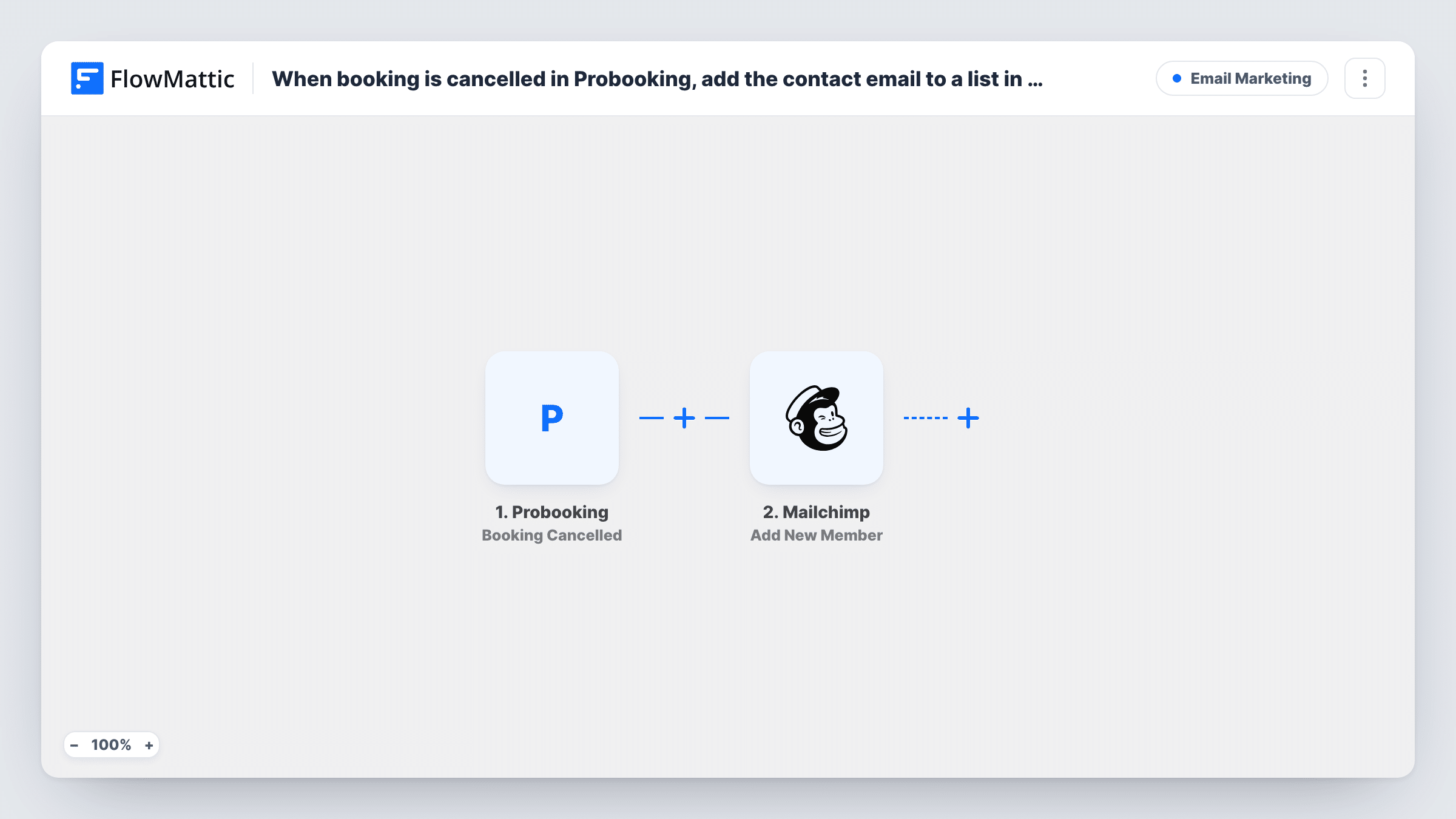
The Probooking trigger fires on the Booking Cancelled event and passes the booking details to FlowMattic. The second step runs the Add New Member action in Mailchimp. You map the client's email from the cancelled booking, plus a name if you want it, and the person is added to the audience you select.
What you send them is up to you. Mailchimp holds the list, and you build the follow-up there: a one-off campaign, or an email that goes to new members of that audience. Only cancellations made after you switch the workflow on are added.
Salon or clinic rebooking list
Clients who cancel a Probooking appointment collect in a Mailchimp list. When you open new slots, you send that list one email with the dates.
Coaching sessions that fell through
A coach keeps cancelled clients on a separate Mailchimp audience and sends them a check-in email a few weeks later, written in Mailchimp.
Reviewing why bookings drop
The Mailchimp list gives you one place to see everyone who cancelled, so you can send them a short survey asking what got in the way.
How this workflow runs
What happens at each step once the workflow is on, and what you need before you import it.
 Probooking Booking Cancelled
Runs each time an appointment is cancelled in Probooking. The details of that booking, including the client's email, are passed on for mapping.
- Mailchimp Add New Member
Adds the client from the cancelled booking as a member of the Mailchimp audience you pick. Map the booking's email into the step, connect your Mailchimp account, and check the result with a test cancellation.
What you need
- FlowMatticCore
- Probooking AccountAccount
- Mailchimp AccountAccount
After importing, map your own data. To keep the template universal, not every step is pre-filled. Open each step in the builder and connect your accounts and fields (channels, lists, sheets, recipients) before you switch the workflow on.
Make it yours
Changes worth making after you import it.
- Use a dedicated Mailchimp audience or segment for cancellations, so your rebooking emails never reach clients who kept their appointments.
- Add a Delay before the Mailchimp step if you would rather the person join the list a few days after cancelling, not straight away.
- Insert a Filter after the trigger to leave out cancellations from your own test bookings, for example by checking that the email does not contain your domain.
Questions about this workflow
Does a cancelled client get an email from Mailchimp straight away?
Not from this workflow. It only adds them to the list. Any email they receive comes from campaigns or automations you set up in Mailchimp for that audience.
What if the Probooking client is already on the Mailchimp list?
FlowMattic's Add New Member action updates a member who already exists instead of adding them twice. Test with an address that is on the list to see how their details change after a cancellation.
Should I ask for consent before adding cancelled clients to Mailchimp?
Yes, if you plan to send them marketing. Mailchimp expects members to have agreed to hear from you, so make sure your booking terms or form cover it.
More Email Marketing workflows
Other ready-to-import templates from the same category.




Import this workflow into your WordPress site
Download the JSON, import it from the Workflows screen and connect your accounts. Every run stays on your server, with no per-task fees.
30-day money-back guarantee Unlimited workflows and runs Self-hosted