

When invoice created in WooCommerce PDF Invoices, get invoice data and create row in Google Sheets with details
Each time WooCommerce PDF Invoices & Packing Slips creates an invoice for an order, FlowMattic reads the invoice’s details and adds them as a row in Google Sheets, building an invoice register as you sell.
 WooCommerce PDF Invoices & Packing Slips
 Google Sheets
3 steps Setup ~5 min Used on 387 sites Free to import
What this workflow does
An invoice number on a PDF is not much use to an accountant who needs a list. Shop owners often end up opening orders one by one to copy the invoice number and date into a spreadsheet at tax time. This workflow keeps that register for you, one row per invoice, as invoices are created.
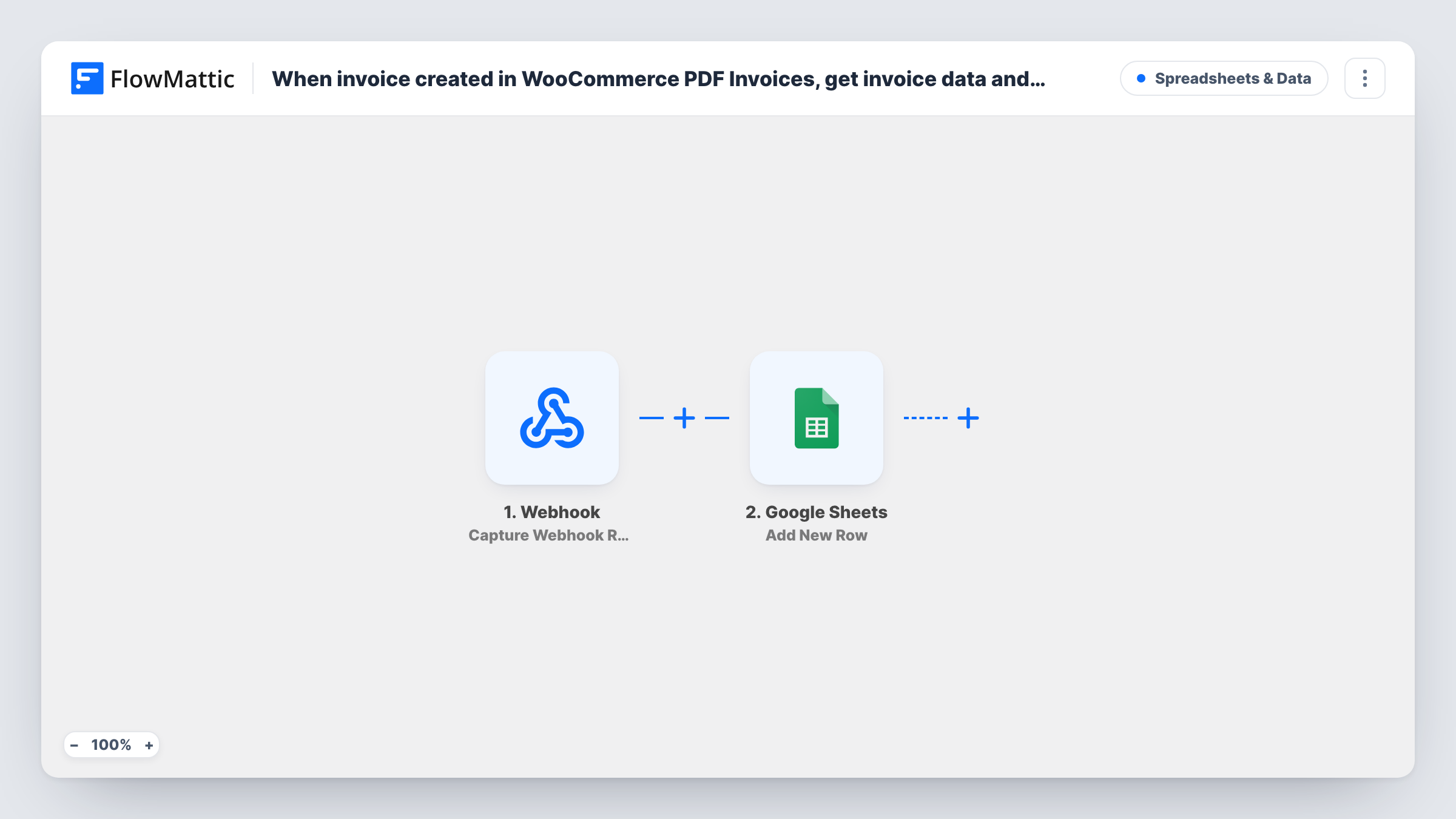
A run starts as soon as the invoicing plugin creates an invoice for an order, through the WooCommerce PDF Invoices & Packing Slips trigger. The second step, Get Invoice Data, then retrieves that invoice's details, which FlowMattic describes as including the number, date and status. It ships unmapped, so after import you map the order from the trigger into it; a test run shows what the trigger and this step return.
The last step adds a new row in Google Sheets. It also ships unmapped: connect your Google account, pick the spreadsheet and sheet, and map the invoice number, date, status and any order values you want into your columns.
Each created invoice adds one row. If you later regenerate or delete an invoice, the row stays as it was, because the plugin reports those as separate events. Create the column headers in the sheet first so they show up while you map.
Invoice register for the accountant
A shop shares a Google Sheet of invoice numbers and dates with its accountant, who checks it against the bank statements without logging in to WooCommerce.
Spotting gaps in invoice numbers
An owner sorts the sheet by invoice number each quarter to make sure no number was skipped before filing the period's returns.
Monthly invoice counts
A wholesaler uses a pivot table on the invoice date column to see how many invoices went out each month.
How this workflow runs
What happens at each step once the workflow is on, and what you need before you import it.
 WooCommerce PDF Invoices & Packing Slips Invoice Created
Fires when WooCommerce PDF Invoices & Packing Slips creates an invoice for an order. The order and invoice information it sends is available to the next steps.
- WooCommerce PDF Invoices & Packing Slips Get Invoice Data
Retrieves the invoice's details, such as its number, date and status. The step ships unmapped, so map the order from the trigger into it and check the output in a test run.
- Google Sheets Add New Row
Writes one row per invoice into the sheet you select. Map the invoice details from the previous step and any order values into your columns after import.
What you need
- FlowMatticCore
- WooCommerce PDF Invoices & Packing Slips PluginPlugin
- Google Sheets AccountAccount
After importing, map your own data. To keep the template universal, not every step is pre-filled. Open each step in the builder and connect your accounts and fields (channels, lists, sheets, recipients) before you switch the workflow on.
Make it yours
Changes worth making after you import it.
- Put the invoice number in the first column. It is unique per invoice, so it works as the key when you look up or match rows later.
- Map the order total and customer name from the trigger alongside the invoice data, so each row is complete without opening the order.
- Build a second workflow on the Invoice Regenerated trigger if you also want a row each time an invoice is rebuilt with new data.
Questions about this workflow
Does each WooCommerce invoice get its own row in Google Sheets?
Yes. Every invoice the plugin creates starts one run, and the Add New Row step adds one row for it.
What happens when I regenerate an invoice?
Nothing in this workflow. Regenerating is a separate event in the plugin, so the existing row isn't changed and no new row is added.
Do I need the WooCommerce PDF Invoices & Packing Slips plugin installed?
Yes. The trigger and the Get Invoice Data step both come from that plugin, so it has to be active on the same WordPress site as FlowMattic.
Will invoices created before I import this be added?
No. Only invoices the plugin creates while the workflow is active start a run. Add older invoice numbers to the sheet by hand or from an export.
More Spreadsheets & Data workflows
Other ready-to-import templates from the same category.



Import this workflow into your WordPress site
Download the JSON, import it from the Workflows screen and connect your accounts. Every run stays on your server, with no per-task fees.
30-day money-back guarantee Unlimited workflows and runs Self-hosted