

When New Attendee Registered in HeySummit, New Row in Google Sheets
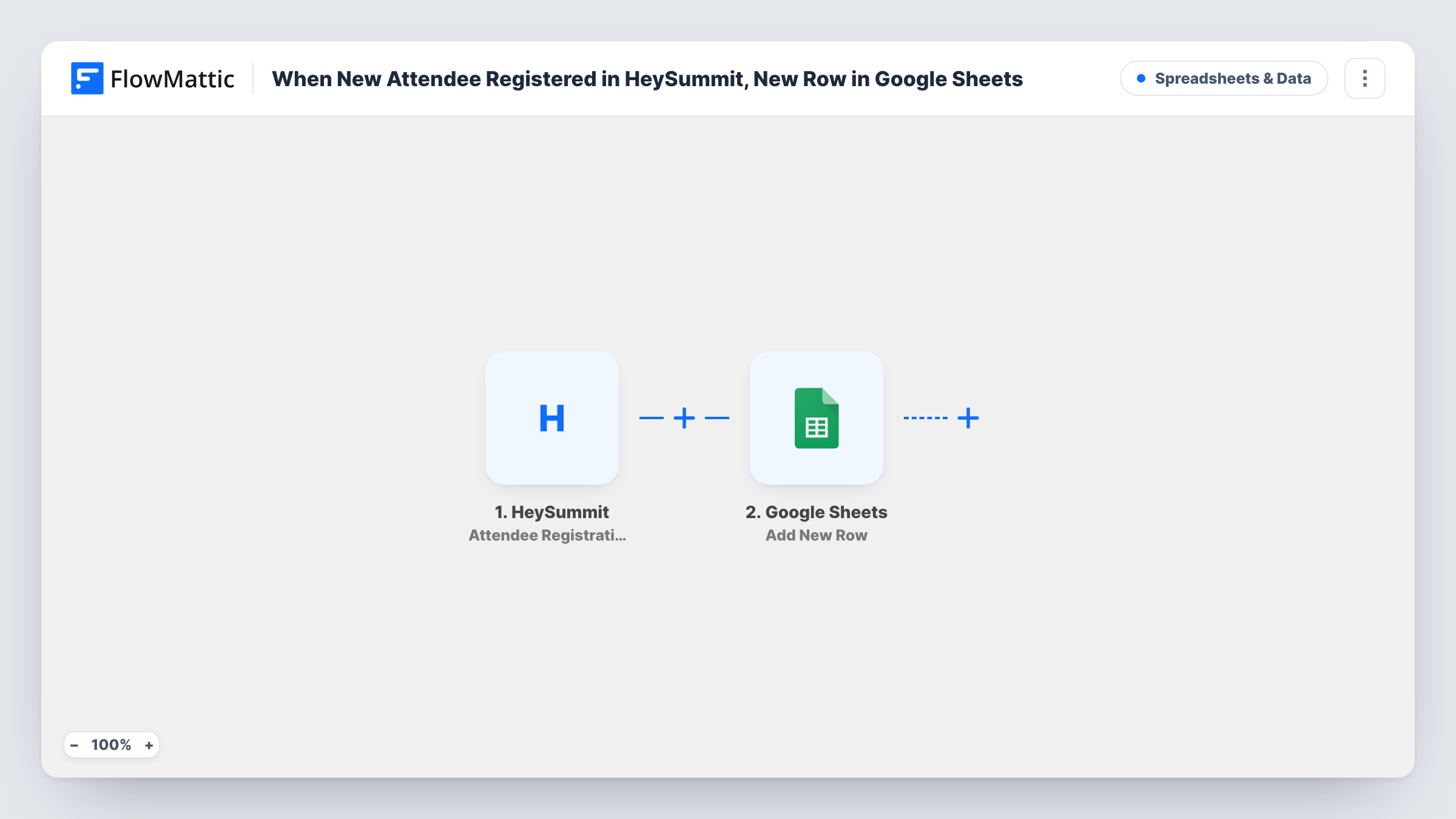
Every time someone registers as an attendee for your HeySummit event, this workflow adds a new row to Google Sheets with their details, giving you an attendee list you can sort, share and reuse.
 HeySummit
 Google Sheets
2 steps Setup ~5 min Used on 1.8k sites Free to import
What this workflow does
HeySummit keeps your attendees inside its own dashboard. Sponsors, co-hosts and team members without a HeySummit login often still need the list, and exporting it again before every meeting gets old. This workflow writes each registration to a Google Sheet as it happens.
The HeySummit trigger, named Attendee Registration Started in FlowMattic, fires when a new attendee registers for an event. The registration details HeySummit sends, such as the attendee's name and email, become fields you can map. FlowMattic then adds a new row in Google Sheets, filling the columns you match to those fields.
Each registration gives one row. The sheet only receives people who register after you turn the workflow on, so export earlier attendees from HeySummit once if you want a complete list. Task History logs each run with the data received, which is handy when you first map the columns.
Sharing registrations with a sponsor
A summit sponsor wants to watch sign-ups grow. You share a view of the sheet instead of sending exports by email each week.
Counting registrations per day
Add a date column and the sheet shows how registrations rise after each promotional email, ready for a quick chart.
Speaker teams preparing sessions
Co-hosts who run the sessions check the sheet to see who is coming, without being added as HeySummit users.
How this workflow runs
What happens at each step once the workflow is on, and what you need before you import it.
 HeySummit Attendee Registration Started
Fires when a new attendee registers for your HeySummit event. Their registration details are passed to the Google Sheets step for mapping.
- Google Sheets Add New Row
Writes one row per registration to the spreadsheet you pick. Map the attendee fields from HeySummit to your column headers and link the Google account that can edit the sheet.
What you need
- FlowMatticCore
- HeySummit AccountAccount
- Google Sheets AccountAccount
After importing, map your own data. To keep the template universal, not every step is pre-filled. Open each step in the builder and connect your accounts and fields (channels, lists, sheets, recipients) before you switch the workflow on.
Make it yours
Changes worth making after you import it.
- Register yourself once after import so FlowMattic captures a real HeySummit payload, then map the fields you need into the sheet's columns.
- If you run several HeySummit events and the trigger reports which one the attendee joined, map that into a column so you can filter the sheet by event.
- HeySummit also has a Checkout Complete trigger in FlowMattic. If your event is paid, test whether that event suits your sheet better, and build a second workflow on it if so.
Questions about this workflow
Does every HeySummit registration create a row in Google Sheets?
Yes. Each registration event runs the workflow once and adds one row. There is no Filter in the template, so every registration is written.
Can I add attendees who registered before I set this up?
No. The trigger reacts only to registrations made while the workflow is on. Export your existing attendees from HeySummit and paste them into the sheet once.
What if the same person registers twice in HeySummit?
Each registration event adds its own row, so the sheet can hold duplicates. Use Google Sheets' remove-duplicates tool on the email column when you need a clean list.
More Spreadsheets & Data workflows
Other ready-to-import templates from the same category.




Import this workflow into your WordPress site
Download the JSON, import it from the Workflows screen and connect your accounts. Every run stays on your server, with no per-task fees.
30-day money-back guarantee Unlimited workflows and runs Self-hosted