

When new booking is created in Book Like a Boss, create a new subscriber in Sendinblue
Every new booking in Book Like a Boss adds the client to Brevo (Sendinblue) as a contact, so the people who book with you can receive your newsletters and follow-up campaigns.
 Book Like a Boss
 Brevo ( Sendinblue )
2 steps Setup ~5 min Used on 3.4k sites Free to import
What this workflow does
People who book a call, a session or a service are among your warmest contacts, yet they often never make it onto your email list. This workflow closes that gap by sending each new Book Like a Boss client to Brevo the moment the booking is made.
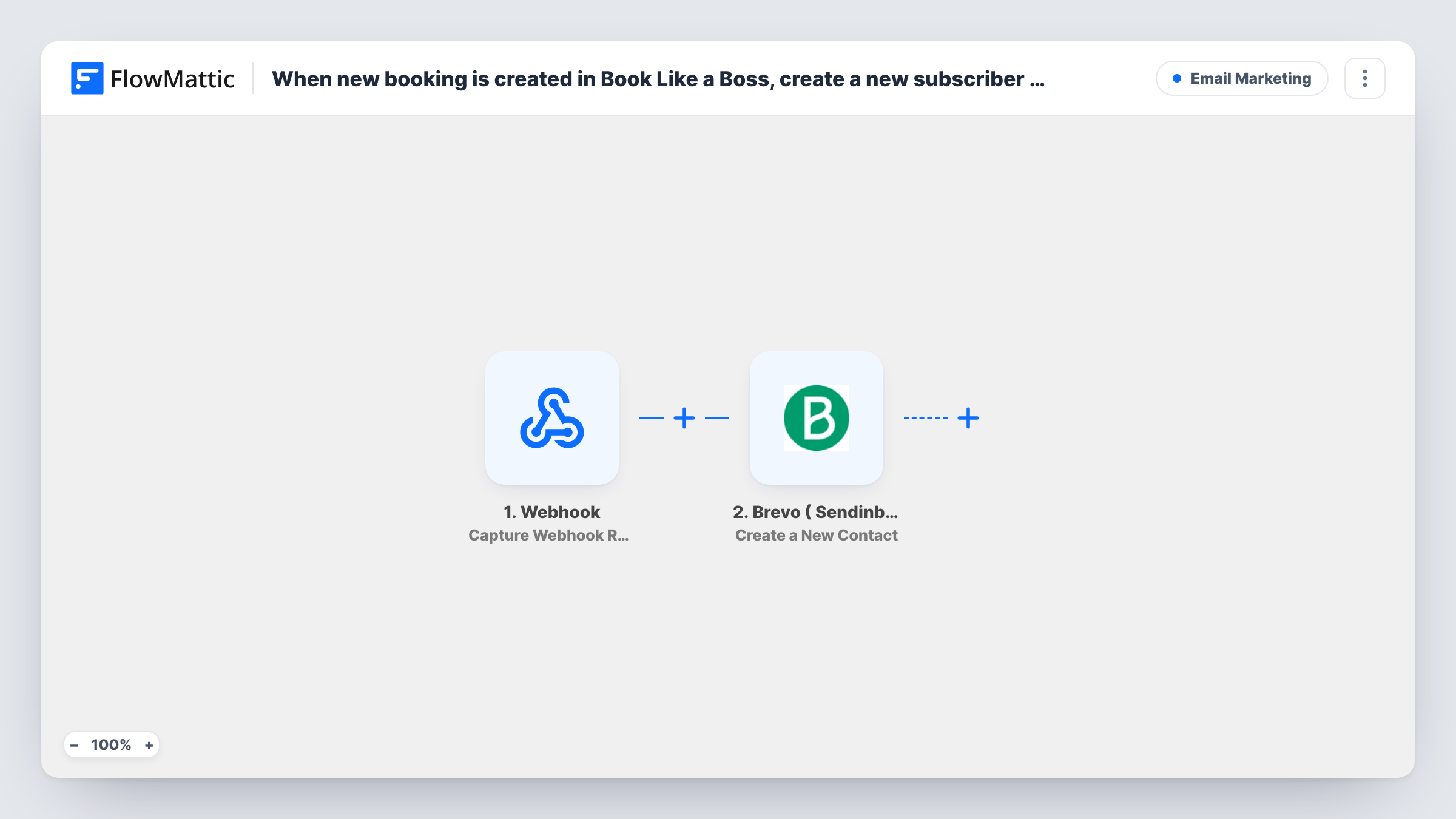
The Book Like a Boss trigger starts a run whenever a client books a slot with you. The booking details, including the client's name and email, are passed to FlowMattic, along with information about the service they booked.
The Brevo ( Sendinblue ) step then creates a new contact from those details. It ships unmapped, so after import you connect your Brevo account, map the client's email and name, and choose the list if the step offers one. From there, Brevo automations or campaigns can greet new clients or remind them to book again.
Every booking starts a run, so a client who books twice is sent to Brevo twice. Brevo may refuse to create a contact whose email it already holds; Task History records the reply. Only add people to marketing emails if your booking page gives them a way to agree to it.
Welcome email after a first consultation
A business coach adds every client who books a discovery call to a Brevo list that sends a welcome email with preparation notes.
Rebooking reminders for a salon
A hair salon puts each Book Like a Boss client into Brevo, where a campaign reminds them to book their next appointment after a few weeks.
Newsletter for workshop attendees
A photography teacher who sells workshop slots through Book Like a Boss sends the monthly newsletter to everyone who has booked.
How this workflow runs
What happens at each step once the workflow is on, and what you need before you import it.
 Book Like a Boss Booking Created
Fires when a client makes a new booking in Book Like a Boss. The client's name, email and booking details are passed on to the Brevo step.
- Brevo ( Sendinblue ) Create a New Contact
Creates a new contact in Brevo (Sendinblue) from the booking. The step ships unmapped: connect Brevo, map the client's email and name, and pick a list if the step asks for one.
What you need
- FlowMatticCore
- Book Like a Boss AccountAccount
- Brevo ( Sendinblue ) AccountAccount
After importing, map your own data. To keep the template universal, not every step is pre-filled. Open each step in the builder and connect your accounts and fields (channels, lists, sheets, recipients) before you switch the workflow on.
Make it yours
Changes worth making after you import it.
- If your Book Like a Boss booking form can ask for marketing consent, put a Filter between the trigger and the Brevo step that continues only when the client agreed.
- Use a Brevo list just for clients who booked, so you can send them their own messages separate from general newsletter subscribers.
- Book a test appointment with an email already in Brevo to see in Task History how Brevo responds to a repeat client.
Questions about this workflow
What happens when a returning client books again in Book Like a Boss?
The workflow sends Create a New Contact again with the same email. Brevo may reject it because the contact exists; Task History shows Brevo's answer.
Which booking details reach Brevo (Sendinblue)?
Only what you map. Make a test booking, check the data FlowMattic received from Book Like a Boss, and map the email, name and any other value Brevo should store.
Do cancelled bookings remove the client from Brevo?
No. Only the Booking Created event starts this workflow. Book Like a Boss also has a Booking Cancelled trigger in FlowMattic that you could use in a separate workflow.
More Email Marketing workflows
Other ready-to-import templates from the same category.



Import this workflow into your WordPress site
Download the JSON, import it from the Workflows screen and connect your accounts. Every run stays on your server, with no per-task fees.
30-day money-back guarantee Unlimited workflows and runs Self-hosted