

When New Campaign Entries in Sociamonials, Add New Row in Google Sheets
Every new entry to a Sociamonials campaign is written to a new row in Google Sheets, so you keep a sortable list of contest or promotion entrants outside Sociamonials that the whole team can open.
 Sociamonials
 Google Sheets
2 steps Setup ~5 min Used on 408 sites Free to import
What this workflow does
Sociamonials campaigns such as contests, giveaways and promotions collect entries from your audience. Once the entries come in, you often need them somewhere others can work with them: picking winners, checking eligibility, or sharing results with a client. This workflow copies each entry to Google Sheets as it arrives.
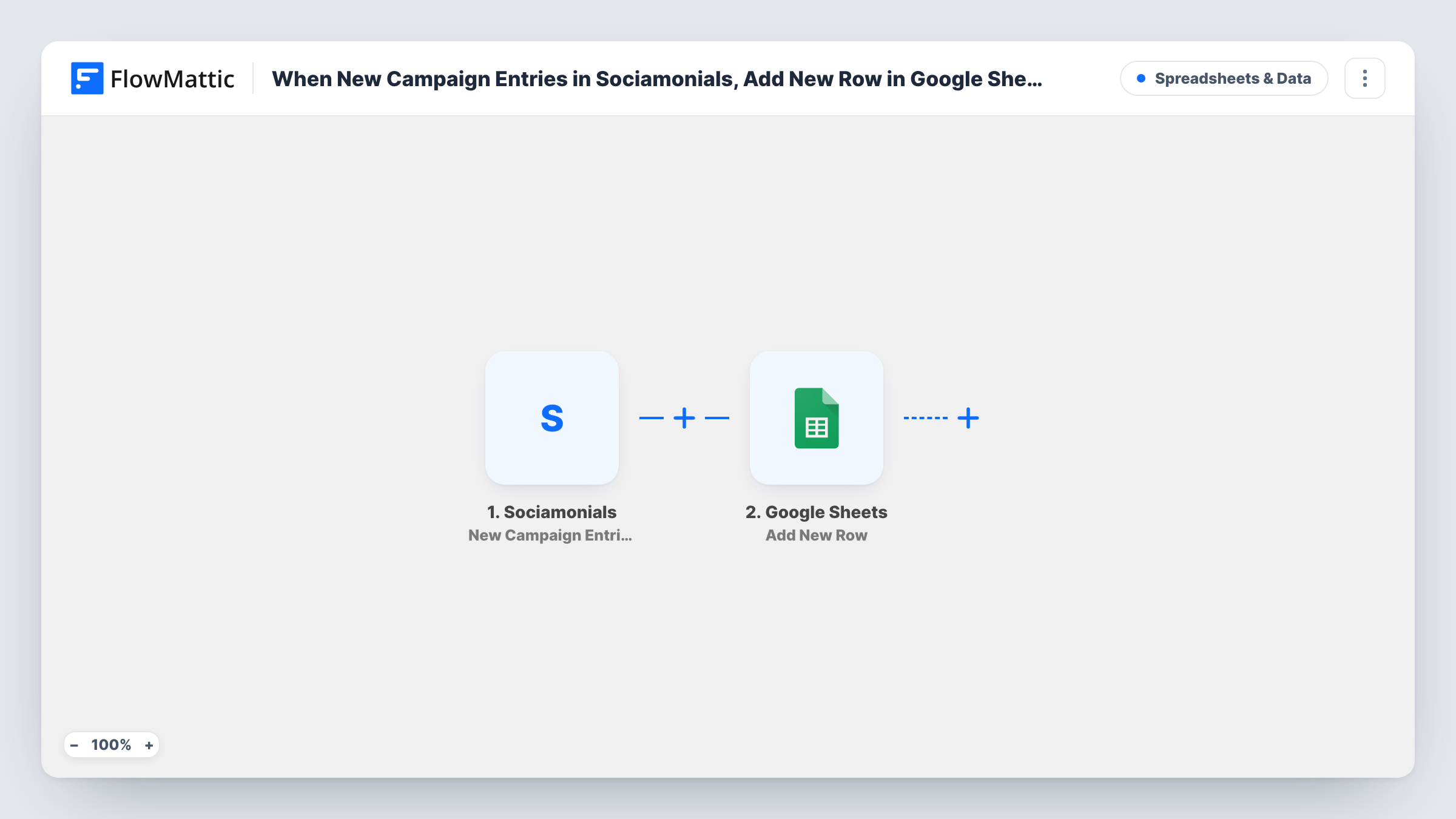
The Sociamonials trigger, New Campaign Entries, runs when a new entry is made in a campaign. The entry's data becomes available to map. FlowMattic then adds a row to the Google Sheets spreadsheet you choose, placing each value in the column you map it to.
One entry produces one row, and nothing is merged, so a person who enters twice appears twice. That's useful when entries count as chances, and easy to clean up with a sort when they don't. Look at a test entry in Task History to see which details Sociamonials sends before you name your columns.
Running a giveaway
Each entrant in your Sociamonials giveaway lands in a sheet. When the campaign closes, you pick a random row as the winner and share the sheet as a record.
Agency reporting to a client
An agency running a campaign for a client shares the Google Sheet so the client sees entries arrive without needing a Sociamonials login.
Checking eligibility
Your team adds a column next to each entry to mark whether it meets the contest rules, working through new rows as they appear.
How this workflow runs
What happens at each step once the workflow is on, and what you need before you import it.
 Sociamonials New Campaign Entries
Runs when someone makes a new entry in one of your Sociamonials campaigns. The entry's details are passed on so you can map them into the spreadsheet.
- Google Sheets Add New Row
Adds a row to the Google Sheets spreadsheet you select, with each Sociamonials entry value in its mapped column. The Google account that owns or can edit the sheet is linked when you import.
What you need
- FlowMatticCore
- Sociamonials AccountAccount
- Google Sheets AccountAccount
After importing, map your own data. To keep the template universal, not every step is pre-filled. Open each step in the builder and connect your accounts and fields (channels, lists, sheets, recipients) before you switch the workflow on.
Make it yours
Changes worth making after you import it.
- If you run several Sociamonials campaigns at once, add a Filter after the trigger on the campaign name or ID, once a test entry shows which one Sociamonials sends, so this sheet collects one campaign only.
- Map the entry's date or time, if Sociamonials sends it, into its own column. Sorting by entry time makes closing a campaign at a deadline straightforward.
- Leave a spare column for notes like Winner or Ineligible. The workflow only fills mapped columns, so your notes stay in place as new rows arrive.
Questions about this workflow
What if someone enters the same Sociamonials campaign twice?
Each entry starts its own run, so each one gets its own row. Remove repeats in the sheet afterwards if your rules allow one entry per person.
Can I keep entries from different campaigns apart?
As imported, all new entries go to the same sheet. Add a Filter on the campaign, or use a Router with a Google Sheets step per campaign, to separate them.
Will entries made before I import the workflow be added to Google Sheets?
No. Only entries made after the workflow is on reach the sheet. Earlier entries stay in Sociamonials.
More Spreadsheets & Data workflows
Other ready-to-import templates from the same category.




Import this workflow into your WordPress site
Download the JSON, import it from the Workflows screen and connect your accounts. Every run stays on your server, with no per-task fees.
30-day money-back guarantee Unlimited workflows and runs Self-hosted