

When New Order in SpreadSimple, Create or Update Contact in Campaign Monitor
Each new SpreadSimple order adds the buyer to your Campaign Monitor list as a subscriber, using the name and email from the order, so you can email customers from Campaign Monitor.
 SpreadSimple
 Campaign Monitor
2 steps Setup ~5 min Used on 383 sites Free to import
What this workflow does
SpreadSimple turns a spreadsheet into an online store, but buyers' details stay with the order unless you copy them into your email tool. This workflow sends each buyer to Campaign Monitor when an order is placed.
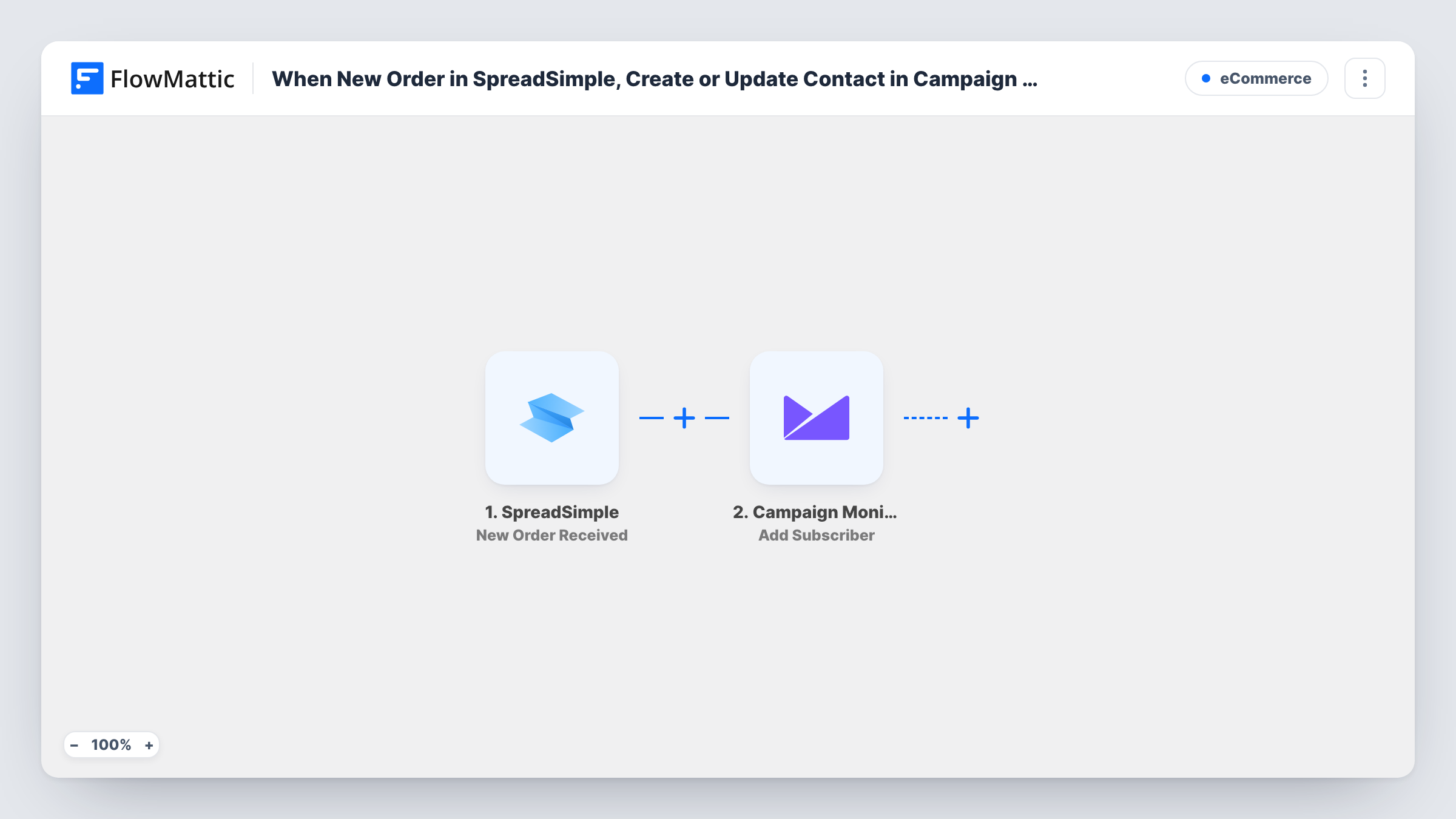
The SpreadSimple trigger is New Order Received, which fires when a new order is placed. The order data, such as the buyer's name and email, becomes available to map.
The Campaign Monitor step uses Add Subscriber to add the buyer to the list you choose. Campaign Monitor's add-subscriber request updates the details of an address that is already on the list, which covers the update half of the title. Test with a known subscriber to confirm. Repeat buyers start the workflow again with each order. You can review what each order sent to Campaign Monitor in Task History.
Small shop built on SpreadSimple
You sell prints from a SpreadSimple site. Every buyer lands on a Campaign Monitor customer list for your new-collection emails.
Pre-orders for a product launch
Pre-order buyers are added to a Campaign Monitor list, so you can email them shipping updates as the launch date nears.
Repeat buyers keeping details fresh
When a returning customer orders with a new name spelling, the subscriber already on your list gets the details from the latest order.
How this workflow runs
What happens at each step once the workflow is on, and what you need before you import it.
 SpreadSimple New Order Received
Starts a run each time a shopper checks out on your SpreadSimple site. The order data is passed on for mapping. Place a test order after import so the buyer fields appear in FlowMattic.
- Campaign Monitor Add Subscriber
Adds the buyer to the Campaign Monitor list you select, using the email and name you map from the order. An address already on the list has its details updated by Campaign Monitor.
What you need
- FlowMatticCore
- SpreadSimple AccountAccount
- Campaign Monitor AccountAccount
After importing, map your own data. To keep the template universal, not every step is pre-filled. Open each step in the builder and connect your accounts and fields (channels, lists, sheets, recipients) before you switch the workflow on.
Make it yours
Changes worth making after you import it.
- Only add buyers who agreed to marketing email. If your checkout asks for consent, add a Filter after the trigger that continues only when that answer is yes.
- Map the buyer's email from the order, and check a test run that SpreadSimple includes it. Without an email, Campaign Monitor can't add the subscriber.
- Use a list just for customers in Campaign Monitor, so you can send buyer-only emails without touching your general newsletter list.
Questions about this workflow
What if the SpreadSimple buyer is already on my Campaign Monitor list?
Campaign Monitor updates that subscriber's details instead of adding a second copy. Values from the newer order replace what was stored, so map only fields the order always fills.
Does a repeat SpreadSimple customer trigger this again?
Yes. Every new order starts a run, so a returning buyer is sent to Campaign Monitor each time they order.
Can I add buyers to more than one Campaign Monitor list?
Not as imported. Add a second Add Subscriber step after the first and pick the other list in it.
More E-Commerce workflows
Other ready-to-import templates from the same category.






Import this workflow into your WordPress site
Download the JSON, import it from the Workflows screen and connect your accounts. Every run stays on your server, with no per-task fees.
30-day money-back guarantee Unlimited workflows and runs Self-hosted