

When a new WooCommerce order is placed, create a Fluent Support ticket for the customer and tag it as "Order Inquiry"
Every new WooCommerce order opens a Fluent Support ticket for the buyer, and a second step adds a tag to that ticket, which you set to Order Inquiry after import.
 WooCommerce
 Fluent Support
3 steps Setup ~5 min Used on 898 sites Free to import
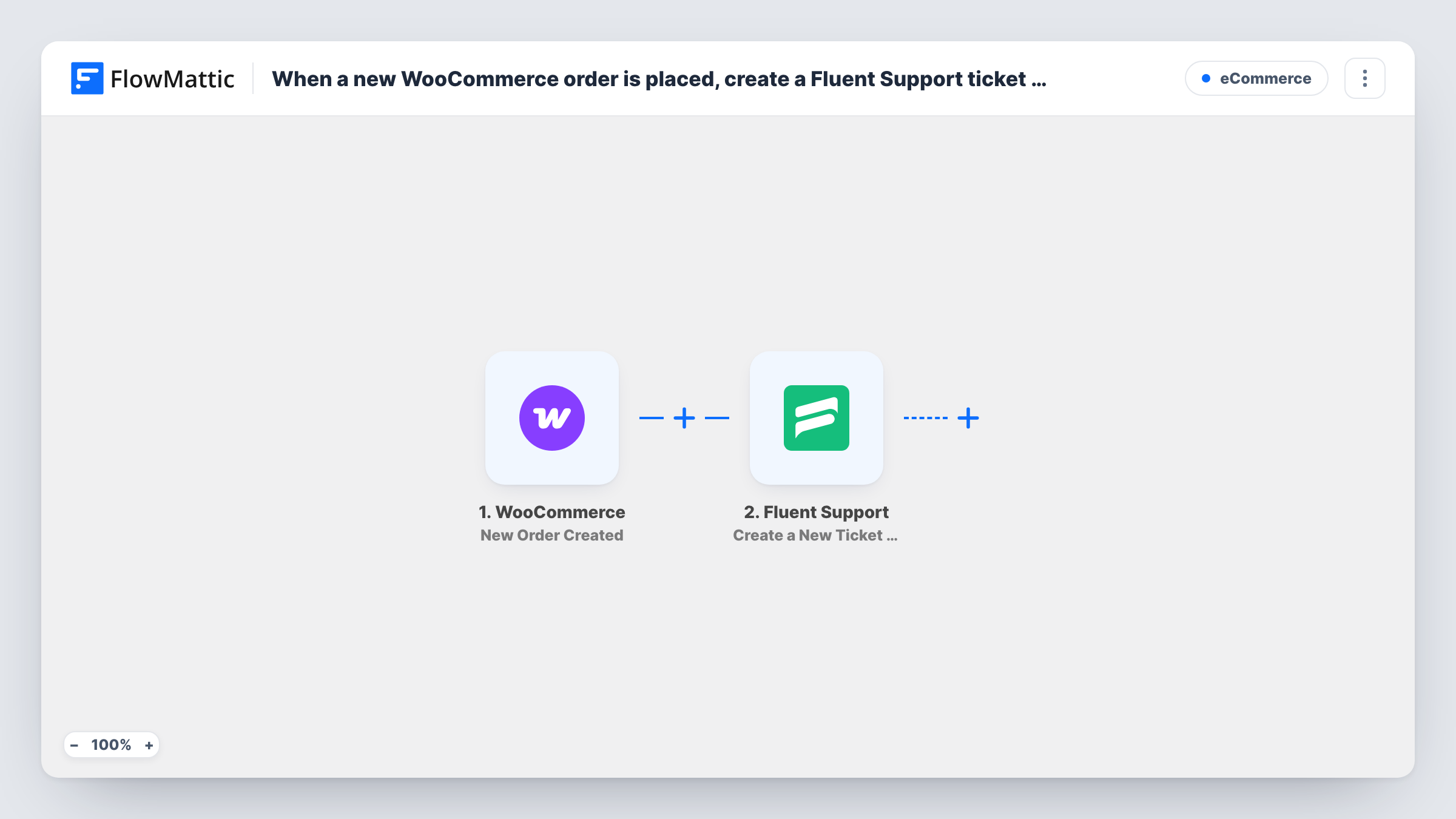
What this workflow does
Shops that handle custom work, made-to-order items or careful shipping often want a conversation thread for each order before anything goes out. This workflow gives every new order its own Fluent Support ticket, so questions about sizes, delivery or artwork stay in your helpdesk next to the rest of your support queue.
The WooCommerce trigger fires when a new order is created and passes the order on, including the billing name and email, the order number and the items. Every order starts a run, since the template has no Filter.
The first Fluent Support step creates a new ticket using the customer. It ships unmapped, so after import you map the buyer's email and name and write a ticket title and message from the order, for example the order number and what was bought. The second step, Add Tag to Ticket (Pro), already takes the new ticket's ID from step 2. The tag itself is not set in the template: create an Order Inquiry tag in Fluent Support and choose it in this step before you turn the workflow on.
Place a test order with an email that is new to Fluent Support. Task History shows whether the ticket was created for that buyer and which tag was added.
Made-to-order products that need details
A print shop asks every buyer for their artwork files, and each order's tagged ticket is where the customer replies with them.
An order queue inside the helpdesk
A small store's support agents filter Fluent Support by the Order Inquiry tag to see new orders apart from general support tickets.
Delivery questions for local orders
A florist uses each order's ticket to confirm the delivery time and the card message with the customer.
How this workflow runs
What happens at each step once the workflow is on, and what you need before you import it.
 WooCommerce New Order Created
Starts a run for each order WooCommerce creates. The billing details, order number, items and totals are passed on, so you can build the ticket from them.
- Fluent Support Create a New Ticket Using Customer
Creates a new Fluent Support ticket for the buyer. The step ships unmapped: map the billing email and name, and set a ticket title and content from the order, such as the order number and items.
- Fluent Support Add Tag to Ticket (Pro)
Adds a tag to the ticket created in step 2, whose ID is already mapped. Choose the tag after import: create Order Inquiry in Fluent Support first, then select it here.
What you need
- FlowMatticCore
- WooCommerce PluginPlugin
- Fluent Support PluginPlugin
After importing, map your own data. To keep the template universal, not every step is pre-filled. Open each step in the builder and connect your accounts and fields (channels, lists, sheets, recipients) before you switch the workflow on.
Make it yours
Changes worth making after you import it.
- Put the order number in the ticket title, so agents can match each Fluent Support ticket to its WooCommerce order at a glance.
- If only some orders need a ticket, put a Filter between the WooCommerce trigger and the Create a New Ticket Using Customer step that checks a product, category or shipping method.
- If a test order from a new buyer creates no ticket, add Create OR Get Customer Info between the trigger and the ticket step, and map the customer it returns into the ticket.
Questions about this workflow
Is the Order Inquiry tag set when I import this?
No. The tag step only has the ticket ID mapped. You create the Order Inquiry tag in Fluent Support and pick it in the Add Tag to Ticket (Pro) step. Until you do, the step has no tag to add.
Does every WooCommerce order create a Fluent Support ticket?
Yes, as imported. Each new order starts a run and opens one ticket. Add a Filter between the trigger and the ticket step if you want tickets only for certain orders.
What if the buyer isn't a Fluent Support customer yet?
Test with an email Fluent Support doesn't know and check Task History. If the ticket isn't created, add the Create OR Get Customer Info action before the ticket step so the customer exists first.
Does the buyer get an email when the ticket opens?
This workflow sends no email itself; Fluent Support may, based on its own notification settings. Review them before you go live so buyers aren't surprised by a ticket email they didn't expect.
More E-Commerce workflows
Other ready-to-import templates from the same category.





Import this workflow into your WordPress site
Download the JSON, import it from the Workflows screen and connect your accounts. Every run stays on your server, with no per-task fees.
30-day money-back guarantee Unlimited workflows and runs Self-hosted