

Celebrate successful Stripe payments in Slack
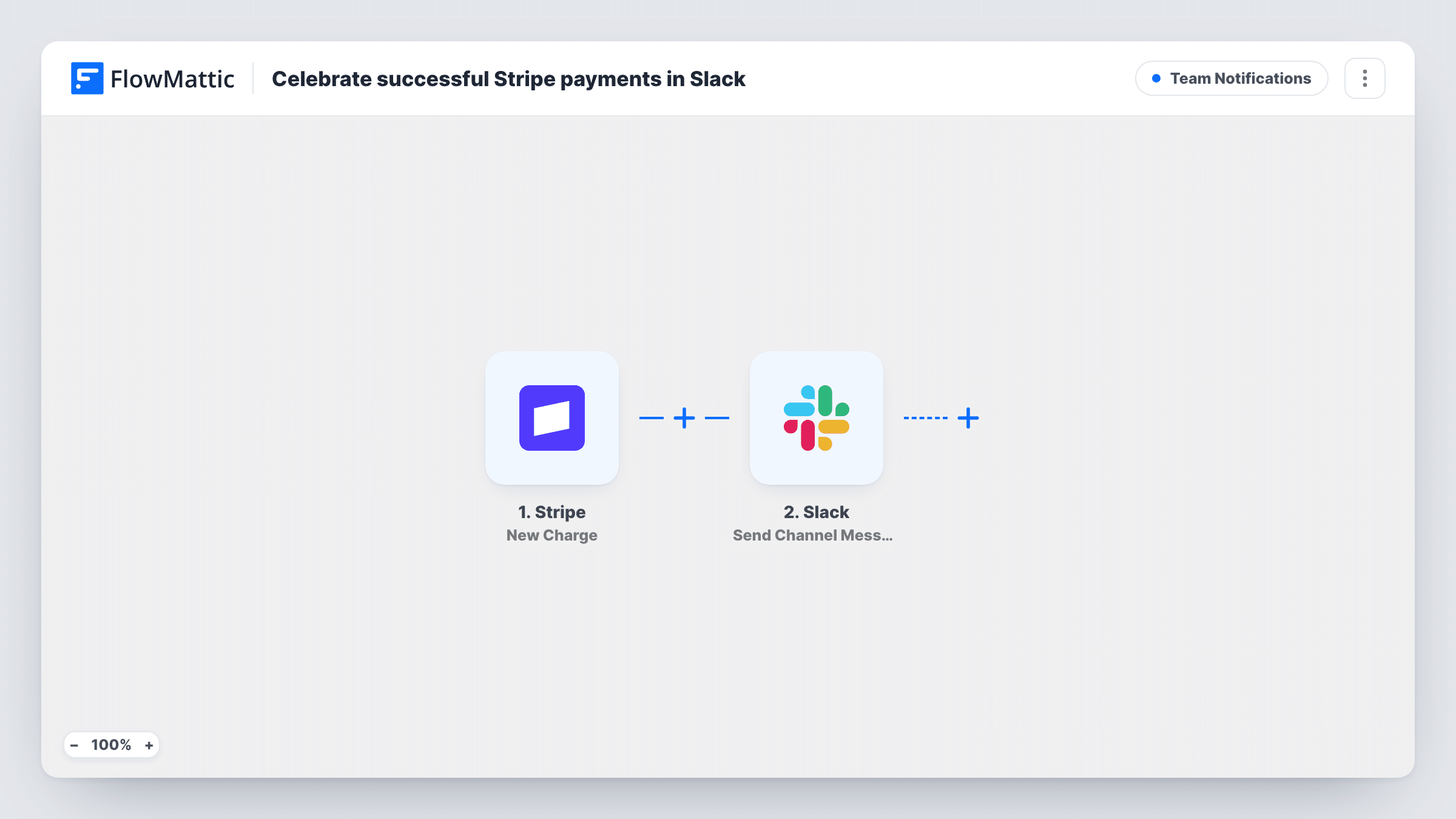
Each successful Stripe charge posts a Slack channel message with the currency, amount, customer email and charge description, so your team sees every payment as it comes in.
 Stripe
 Slack
2 steps Setup ~5 min Used on 2.0k sites Ops Free to import
What this workflow does
Payments are the clearest sign that the work is paying off, yet most of the team never opens the Stripe dashboard. Posting each one to Slack gives sales, support and founders the same view of who just paid and for what.
The Stripe trigger listens for the charge.succeeded event, which Stripe sends when a charge goes through. FlowMattic then runs Send Channel Message in Slack. The message reads Payment, then the currency and amount, the customer's email, and the charge description after a dash.
Only successful charges start a run, because that is the event the trigger is set to. Every one of them posts, as there is no Filter in between. Stripe's API records amounts in the smallest unit of the currency, such as cents, so make a test charge after import and check how the figure reads in Slack before the team relies on it.
Sales channel for a small software business
Each new payment for your product appears in the sales channel with the buyer's email, so the team can see who bought without a Stripe login.
Freelancer tracking client invoices
When a client pays, the Slack post shows the amount and the charge description, so you know which job was settled.
Online course launch day
During a launch, every course purchase posts to a shared channel, and the team watches the payments arrive in one place.
How this workflow runs
What happens at each step once the workflow is on, and what you need before you import it.
 Stripe New Charge
Starts the workflow when Stripe reports a successful charge (the charge.succeeded event). The charge's currency, amount, customer email and description are passed to Slack. Connect your Stripe account on import.
- Slack Send Channel Message
Posts a Slack channel message with the word Payment, the currency and amount, the customer email and the charge description. Connect Slack and make a test charge to confirm the message appears in the channel you expect.
What you need
- FlowMatticCore
- Stripe AccountAccount
- Slack AccountAccount
After importing, map your own data. To keep the template universal, not every step is pre-filled. Open each step in the builder and connect your accounts and fields (channels, lists, sheets, recipients) before you switch the workflow on.
Make it yours
Changes worth making after you import it.
- Add a Filter after the trigger with a greater-than condition on the amount if you only want larger payments posted. Remember Stripe's amount is in the smallest currency unit, so set the number to match.
- If the charge description is often empty for your payments, swap that part of the Slack message for another field the Stripe trigger provides.
- Make a test charge in Stripe after import and check the Slack post, so you can adjust the message text before real payments come through.
Questions about this workflow
Do failed Stripe payments post to Slack?
No. The trigger listens for charge.succeeded, so declined or failed charges never start the workflow.
Are Stripe refunds announced in Slack?
No. A refund is a different Stripe event from a successful charge, so this workflow doesn't react to it.
Why might the Stripe amount in Slack look 100 times too large?
Stripe's API stores amounts in the smallest currency unit, so a 10.00 dollar charge is 1000 there. If your test post shows that figure, this is the reason.
Can I post Stripe payments to more than one Slack channel?
Add a second Send Channel Message step after the first and set it up for the other channel. Both run for every successful charge.
More Team Notifications workflows
Other ready-to-import templates from the same category.






Import this workflow into your WordPress site
Download the JSON, import it from the Workflows screen and connect your accounts. Every run stays on your server, with no per-task fees.
30-day money-back guarantee Unlimited workflows and runs Self-hosted