

Route support tickets to the right Slack channel by priority
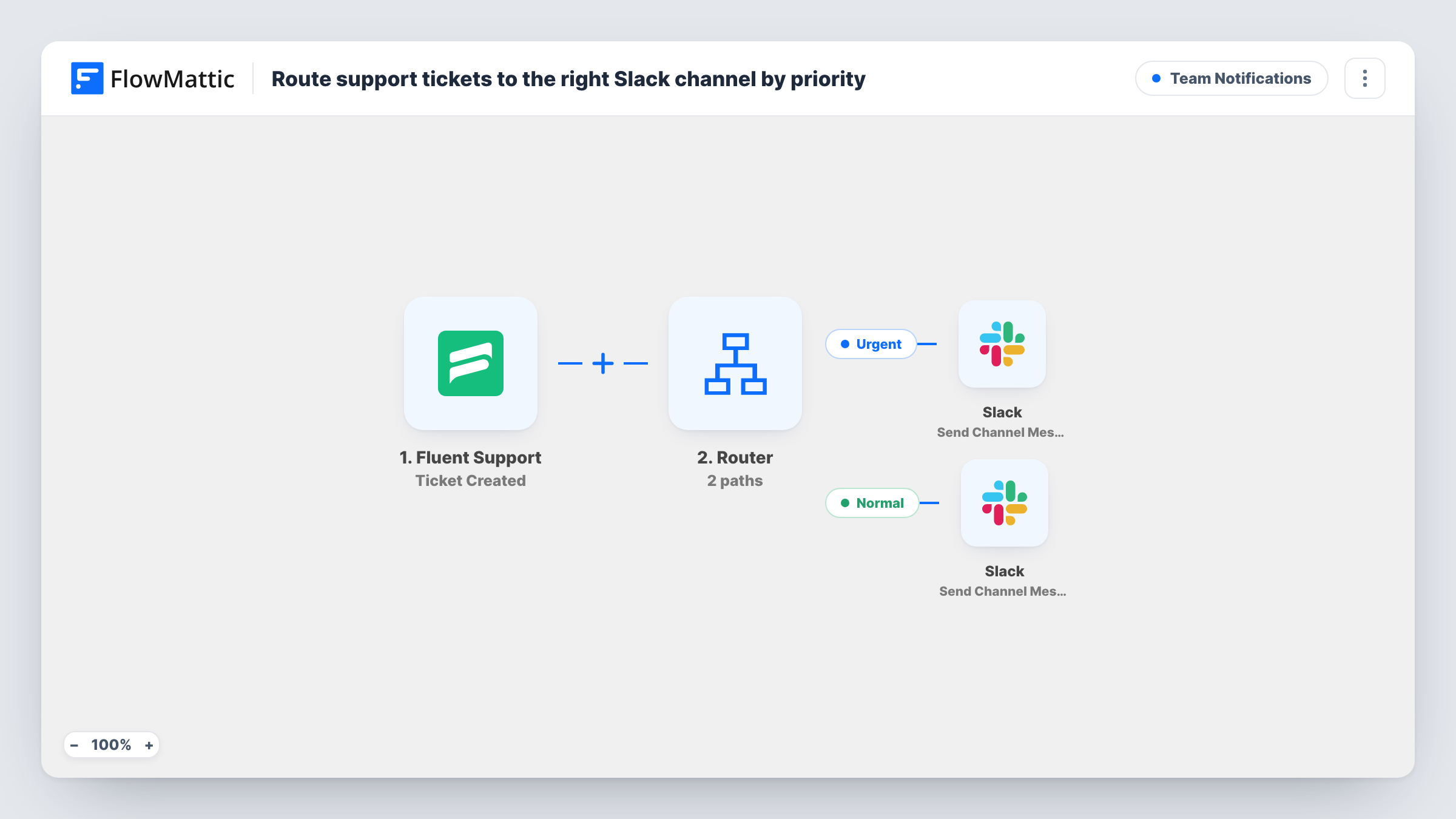
Every new Fluent Support ticket is posted to Slack once: tickets whose priority contains critical go to an urgent channel with the customer’s name, and all others go to your normal support channel.
 Fluent Support
 Branch
 Slack
4 steps Setup ~8 min Used on 3.2k sites Ops Free to import
What this workflow does
When every ticket lands in the same Slack channel, the urgent one is easy to miss between password resets. This workflow splits them at the source: tickets marked critical go to a channel your on-call people watch, and everything else goes to the usual support feed.
The Fluent Support Ticket Created trigger fires for each new ticket, whether a customer submits it or an agent opens it. A Branch named Is the ticket critical? then checks whether the ticket's priority contains critical.
On the Yes path, a Slack message posts URGENT ticket with the ticket number, subject and customer name. On the No path, a second message posts New ticket with the number and subject. A Branch takes one path per ticket, so each ticket is posted exactly once. Choose a different channel for each Slack step after import.
The Branch ignores capitals and reads the priority value Fluent Support passes to FlowMattic. Create a test ticket at your highest priority and look at Task History to confirm the value it sends reads critical. If your setup uses another word, change the Branch condition to match.
On-call alerts for a hosting company
Customers mark site-down tickets as critical. Those appear in the on-call channel with the customer's name, while routine questions stay in the main support channel.
Keeping the urgent channel quiet
A small SaaS team turns on notifications only for the urgent channel, so phones buzz for critical tickets and the rest wait for working hours.
Support manager oversight
A support lead follows the urgent channel to see every critical ticket as it arrives and checks that someone has picked it up.
How this workflow runs
What happens at each step once the workflow is on, and what you need before you import it.
 Fluent Support Ticket Created
Fires whenever a Fluent Support ticket is created, by a customer or by an agent. The ticket ID, subject, priority and customer name are passed on.
- Branch Is the ticket critical?
Checks whether the ticket's priority contains critical. Yes runs the urgent Slack step and No runs the normal one, so each ticket takes one path. Critical and CRITICAL count the same.
- Slack Send Channel Message
On the Yes path, posts URGENT ticket with the ticket number, subject and customer name to Slack. Pick your on-call or escalation channel after import.
- Slack Send Channel Message
On the No path, posts New ticket with the ticket number and subject to Slack. Point it at the channel where your team follows the everyday queue.
What you need
- FlowMatticCore
- Fluent Support PluginPlugin
- Slack AccountAccount
After importing, map your own data. To keep the template universal, not every step is pre-filled. Open each step in the builder and connect your accounts and fields (channels, lists, sheets, recipients) before you switch the workflow on.
Make it yours
Changes worth making after you import it.
- Map the customer's name into the No path message too, if your team likes to see who wrote in on every ticket.
- Add a Twilio Send SMS step on the Yes path after the Slack message if someone should also get a text for critical tickets outside working hours.
- For a private on-call channel, swap the Yes path's Slack action for Send Private Channel Message, which FlowMattic's Slack integration offers for private channels.
Questions about this workflow
Which Fluent Support priority counts as critical?
Any ticket whose priority value contains the word critical, in upper or lower case. Create one test ticket at each priority and check Task History to see the values your Fluent Support sends.
Can a Fluent Support ticket be posted to both Slack channels?
No. A Branch picks the Yes path or the No path for each ticket, never both.
Do tickets created by agents trigger the alert?
Yes. FlowMattic describes the Ticket Created trigger as firing for tickets created by either a customer or an agent, so internal tickets go through the same Branch.
What happens when a ticket's priority is raised later?
Nothing in this workflow. It runs once, when the ticket is created, so a ticket bumped to critical afterwards isn't reposted to the urgent channel.
More Team Notifications workflows
Other ready-to-import templates from the same category.



Import this workflow into your WordPress site
Download the JSON, import it from the Workflows screen and connect your accounts. Every run stays on your server, with no per-task fees.
30-day money-back guarantee Unlimited workflows and runs Self-hosted