

Create a Slack Reminder When a New Alert is Triggered in TradingView
Turn TradingView alerts into Slack reminders. When an alert fires, Slack reminds you about it at the time you set, so a signal you cannot act on right away is not forgotten.
 Tradingview
 Slack
Slack2 steps 1 downloads Setup ~5 min Used on 2.3k sites Free to import
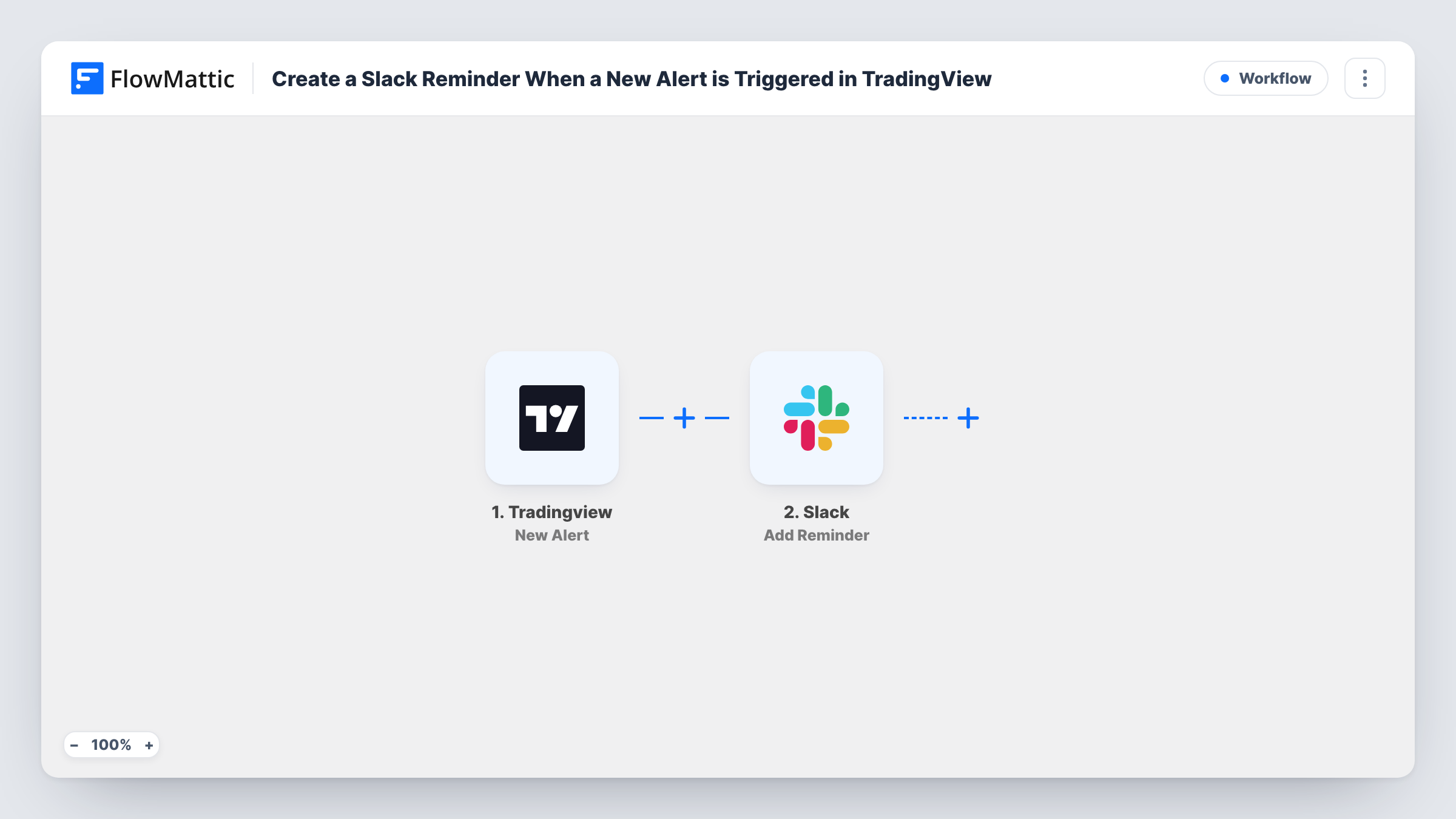
What this workflow does
Some alerts need action now. Others need a second look later: check the daily close, review a breakout after the market opens, revisit a level before the weekend. A notification that arrives at the wrong moment is easy to dismiss and forget. This workflow turns each alert into a Slack reminder that comes back when you can deal with it.
It starts with the TradingView trigger. Copy its webhook URL into the webhook setting of your alert. When the alert fires, TradingView posts the alert message to FlowMattic, and any values you put in it, such as the symbol and price, are ready to map.
The Slack step uses Add Reminder. You write the reminder text from the alert's fields and set when Slack should remind you. At that time Slackbot sends you the reminder, with the symbol and note you mapped, so you know exactly which chart to open.
Review after the close
An intraday alert fires during work hours. The reminder comes back after the market closes, when you have time to look at the chart properly.
Swing trade check-ins
When a level is hit, set a reminder for the next morning to see whether the move held before you take a position.
Rebalancing prompts
Alerts on a long-term holding create a reminder to look at your allocation, without needing you at a screen when the alert fires.
How this workflow runs
What happens at each step once the workflow is on, and what you need before you import it.
 Tradingview New Alert
Receives each alert TradingView sends to the workflow's webhook URL. Paste the URL into your alert's settings, and the message content is passed to Slack for mapping.
- Slack Add Reminder
Adds a Slack reminder. Connect your workspace, write the reminder text with the alert's symbol and note, and set when Slack should remind you about it.
What you need
- FlowMatticCore
- TradingView AccountAccount
- Slack AccountAccount
After importing, map your own data. To keep the template universal, not every step is pre-filled. Open each step in the builder and connect your accounts and fields (channels, lists, sheets, recipients) before you switch the workflow on.
Make it yours
Changes worth making after you import it.
- Put the timeframe and the reason for the alert in the TradingView message, so the reminder still makes sense hours later when you read it.
- Pair this with a channel message: add a Slack Send Channel Message step before the reminder so you see the alert now and are reminded later.
- Add a Filter after the trigger so only alerts that need a later look create reminders, for example ones whose message includes the word review.
Questions about this workflow
Who receives the reminder?
The reminder is created through the Slack account you connect in the Slack step. Send a test alert after import and confirm in Slack who receives it before you rely on it.
Can the reminder time depend on the alert?
As imported, you set one time in the step for every reminder. To vary it, include a time in your TradingView alert message and map that value into the step's time field.
Does the alert also post to a channel?
No. This workflow only creates the reminder. Add a Slack channel message step if you want both.
What do I need to set up in TradingView?
Add the workflow's webhook URL to the alert's webhook setting. Every alert that has it will create a reminder when it fires.
More Team Notifications workflows
Other ready-to-import templates from the same category.




Import this workflow into your WordPress site
Download the JSON, import it from the Workflows screen and connect your accounts. Every run stays on your server, with no per-task fees.
30-day money-back guarantee Unlimited workflows and runs Self-hosted