

Send new tasks to each department's own board
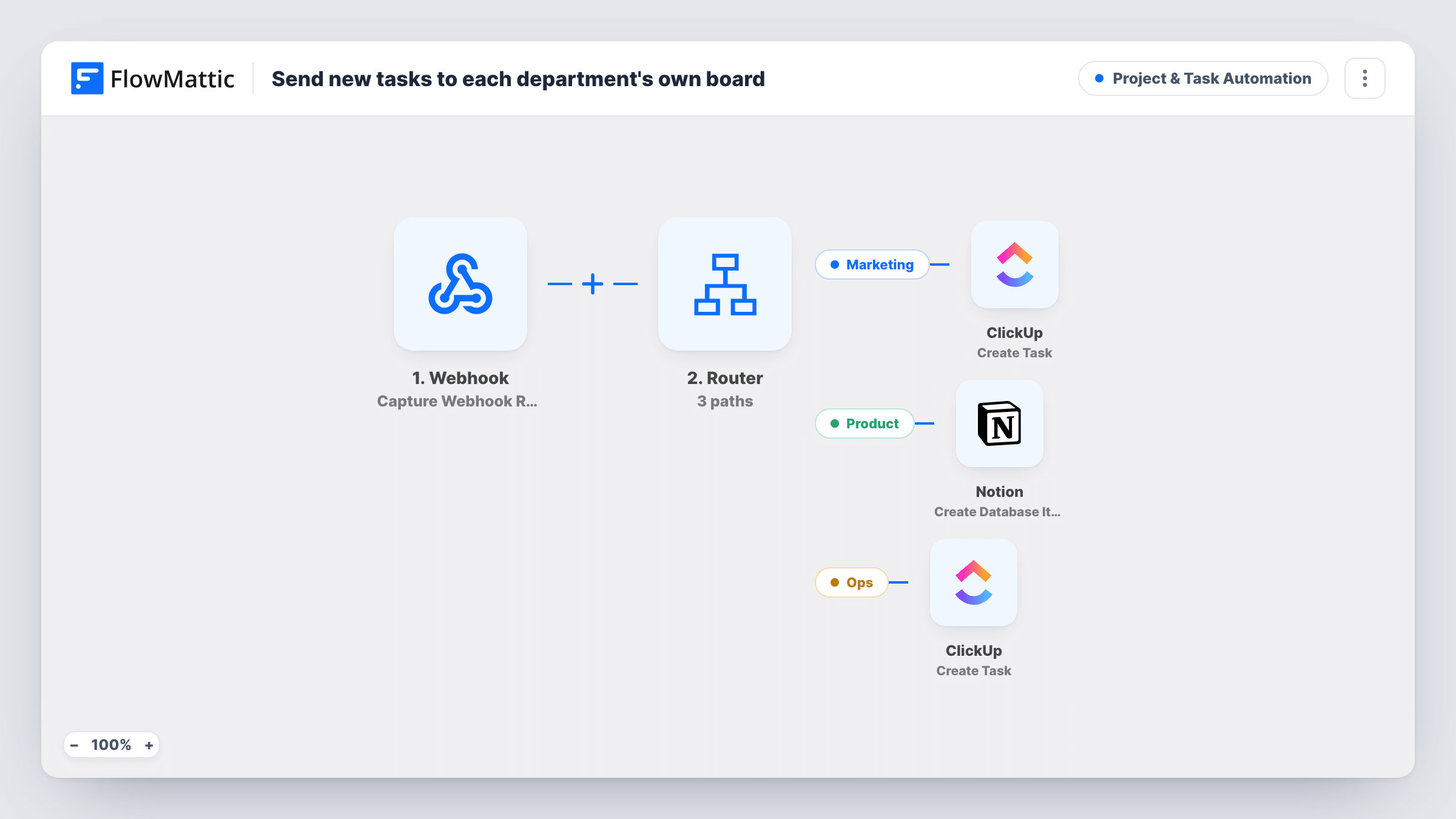
Tasks sent to a FlowMattic webhook are filed by department: marketing and ops tasks become ClickUp tasks on their own boards, and product tasks become items in a Notion database.
 Webhook
 Router
 ClickUp
 Notion
5 steps Setup ~8 min Used on 3.3k sites Productivity Free to import
What this workflow does
Departments rarely share one task tool. Marketing may run its work in ClickUp, the product team may live in Notion, and operations may keep a separate ClickUp board. When tasks come from one place, such as an intake form, an internal tool or another automation, this workflow sends each one to the board of the team that owns it.
The Webhook trigger supplies the address your sender posts to. Each request carries the task's title, notes and a dept value. A Router then reads dept: the Marketing route runs when it contains marketing, Product when it contains product, and Ops when it contains ops.
The Marketing and Ops routes each create a ClickUp task named after the title, with the notes as the description. Point each one at that department's list after import. The Product route creates an item in a Notion database, and that step ships unmapped: pick the database and map the title and notes yourself.
The Router runs every route that matches, and it ignores capitals, so Marketing and marketing take the same route. Send just one of marketing, product or ops as dept so each task is filed once. A value such as devops also contains ops, and a dept that matches none of the three files nothing. Turn on the webhook's authentication setting if only your own sender should be able to start runs.
One intake form for three teams
A company's internal request form posts to the webhook with a department picker. Marketing and ops requests appear on their ClickUp boards, and product requests land in the Notion roadmap database.
Meeting action items filed by owner
A note-taking tool sends each action item with the owning department. The product team finds theirs in Notion, while the other two teams get ClickUp tasks.
Tasks from a custom internal app
A developer adds a webhook call to the company's admin panel, so tasks raised there go to the right department's board without a person forwarding them.
How this workflow runs
What happens at each step once the workflow is on, and what you need before you import it.
 Webhook Capture Webhook Response
Starts a run whenever a request arrives at this workflow's webhook address. The sender should include title, notes and dept, which the later steps use. These field names are examples you can change.
- Router 3 paths
Checks the dept value against three routes: Marketing when it contains marketing, Product for product and Ops for ops. Every matching route runs, upper or lower case alike, so send a single department value per task.
- ClickUp Create Task
On the Marketing route, creates a ClickUp task named after the webhook's title, with the notes as its description. Choose the marketing team's ClickUp list when you configure this step.
- Notion Create Database Item
On the Product route, creates an item in a Notion database. The step ships unmapped: after import, connect Notion, choose the product team's database and map the title and notes into its properties.
- ClickUp Create Task
On the Ops route, creates a ClickUp task from the same title and notes. Point it at the operations board, which can be a different ClickUp list from the marketing one.
What you need
- FlowMatticCore
- ClickUp AccountAccount
- Notion AccountAccount
After importing, map your own data. To keep the template universal, not every step is pre-filled. Open each step in the builder and connect your accounts and fields (channels, lists, sheets, recipients) before you switch the workflow on.
Make it yours
Changes worth making after you import it.
- Have your sender use a fixed list of dept values, exactly marketing, product and ops, rather than free text. Something like marketing ops would match two routes and create two tasks.
- Add a fourth route with its own ClickUp Create Task step for dept values that match none of the three, so unassigned work still lands on a shared triage list.
- Turn on the Webhook trigger's authentication setting and send the key with each request, so other callers can't create tasks on your boards.
Questions about this workflow
What does the webhook request need to contain?
A title, notes and a dept value in the payload, under the names the template uses, or names you change the mappings to. Send a test request after import so FlowMattic can show you the fields it received.
Why does the product team get Notion instead of ClickUp?
The template is built for teams split across tools. If your product team also uses ClickUp, swap the Notion step on the Product route for a ClickUp Create Task step pointed at their list.
What happens to a task whose dept matches none of the routes?
Nothing is created for it. The run ends at the Router because none of the three conditions matched. Add a catch-all route only if it can't overlap with the other three.
Must the product team's Notion database exist before I import?
Yes. The Create Database Item step adds an item to a database you choose, so create the product team's database first and connect your Notion account to it.
More Project & Task Automation workflows
Other ready-to-import templates from the same category.


Import this workflow into your WordPress site
Download the JSON, import it from the Workflows screen and connect your accounts. Every run stays on your server, with no per-task fees.
30-day money-back guarantee Unlimited workflows and runs Self-hosted