

AI agent that turns requests into well-formed project tasks
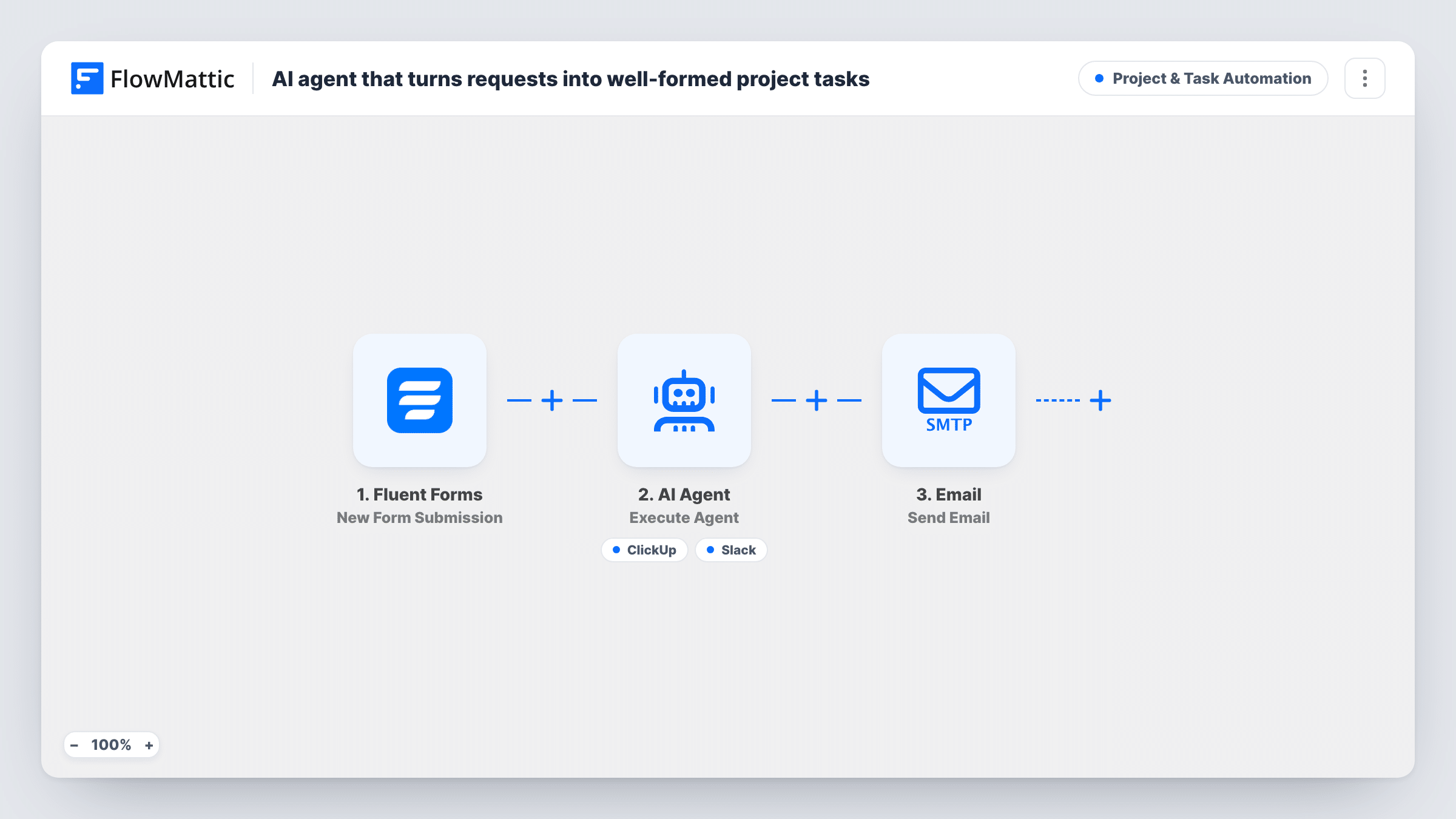
A Fluent Forms request goes to an AI agent that rewrites it as a scoped task with acceptance criteria, can create it in ClickUp and post a note in Slack. The requester then gets an email saying the request is logged.
 Fluent Forms
 AI Agent
 ClickUp
 Slack
 Email
5 steps Setup ~8 min Used on 2.0k sites Productivity Free to import
What this workflow does
Requests sent through a form are rarely ready to work on. They arrive as one line with no clear outcome, and someone has to turn each into a proper task before the team can pick it up. This workflow hands that first pass to an AI agent, so the task arrives in ClickUp already written up.
When someone submits your Fluent Forms request form, FlowMattic gives the AI Agent the requester's name, their message, the priority and the team they chose. The agent runs on OpenAI GPT-4o and is told to turn the request into a well-scoped task with a title, description and acceptance criteria, create it, and notify the owner. It has two tools. ClickUp Create Task takes the task name and description the agent writes. Slack Send Channel Message posts a message the agent writes to your chosen channel.
After the agent finishes, a fixed Email step thanks the requester by name and confirms the request is in your queue. That email goes out on every submission, whatever the agent did, and the agent picks when to use its tools. Review Task History for the first few requests to confirm a task and a Slack note were created each time.
Internal requests to a web team
Colleagues ask for page changes through a form. Each request lands in ClickUp with acceptance criteria, so the developer knows when the change counts as done.
Agency client change requests
Clients describe what they want in plain words. The agent turns it into a scoped ClickUp task, and the client gets an email confirming it was received.
Operations ticket intake
Staff pick a team and a priority on the form. The agent includes both in the task it writes, and the Slack message lets the right group know something new arrived.
How this workflow runs
What happens at each step once the workflow is on, and what you need before you import it.
 Fluent Forms New Form Submission
Starts on each new entry in the Fluent Forms form your team uses for requests. The name, email, message, priority and team fields are passed to the next steps.
- AI Agent Execute Agent
Hands the request to an AI agent using GPT-4o from OpenAI. It gets the requester's name, message, priority and team, and is told to write a scoped task with acceptance criteria, create it and notify the owner.
- ClickUp Create Task
Agent tool: creates a task in ClickUp. The agent writes both the task name and the description, which is where the acceptance criteria go.
- Slack Send Channel Message
Agent tool: posts a message to a Slack channel. The agent writes the text, so it can summarise the new task for whoever owns it.
 Email Send Email
Emails the requester at the address from the form, thanking them by name and confirming the request is in your queue. This step runs after the agent on every submission.
What you need
- FlowMatticCore
- Fluent Forms PluginPlugin
- AI ProviderAccount
- ClickUp AccountAccount
- Slack AccountAccount
After importing, map your own data. To keep the template universal, not every step is pre-filled. Open each step in the builder and connect your accounts and fields (channels, lists, sheets, recipients) before you switch the workflow on.
Make it yours
Changes worth making after you import it.
- Spell out your ClickUp conventions in the agent's system prompt, such as a title format or a checklist style for acceptance criteria, so every task reads the same way.
- Tell the agent in its instructions to include the requester's email in the task description, so whoever picks up the task knows who to ask about it.
- If some requests should never become tasks, such as spam, add a Filter between Fluent Forms and the AI Agent that checks a field before the agent runs.
Questions about this workflow
Does the AI agent set the ClickUp priority from the form?
The ClickUp tool in this template only takes a task name and description. The agent sees the priority and can mention it in the text. Check a test run before relying on anything more.
Will the requester get the confirmation email if no ClickUp task was made?
Yes. The Email step runs after the agent on every submission and does not check what the agent did. Watch Task History early on to catch any run where the task was not created.
Which Fluent Forms fields does the template expect?
It maps name, email, message, priority and team. Use those field names in your form, or remap the agent's input and the Email step to your own after a test submission.
Can the Slack note go to the person who owns the task?
The tool sends a channel message, and the agent writes its text. List who owns which team in the agent's instructions, so it can name the right person in the message.
More Project & Task Automation workflows
Other ready-to-import templates from the same category.



Import this workflow into your WordPress site
Download the JSON, import it from the Workflows screen and connect your accounts. Every run stays on your server, with no per-task fees.
30-day money-back guarantee Unlimited workflows and runs Self-hosted