

AI agent that personalises onboarding for every new subscriber
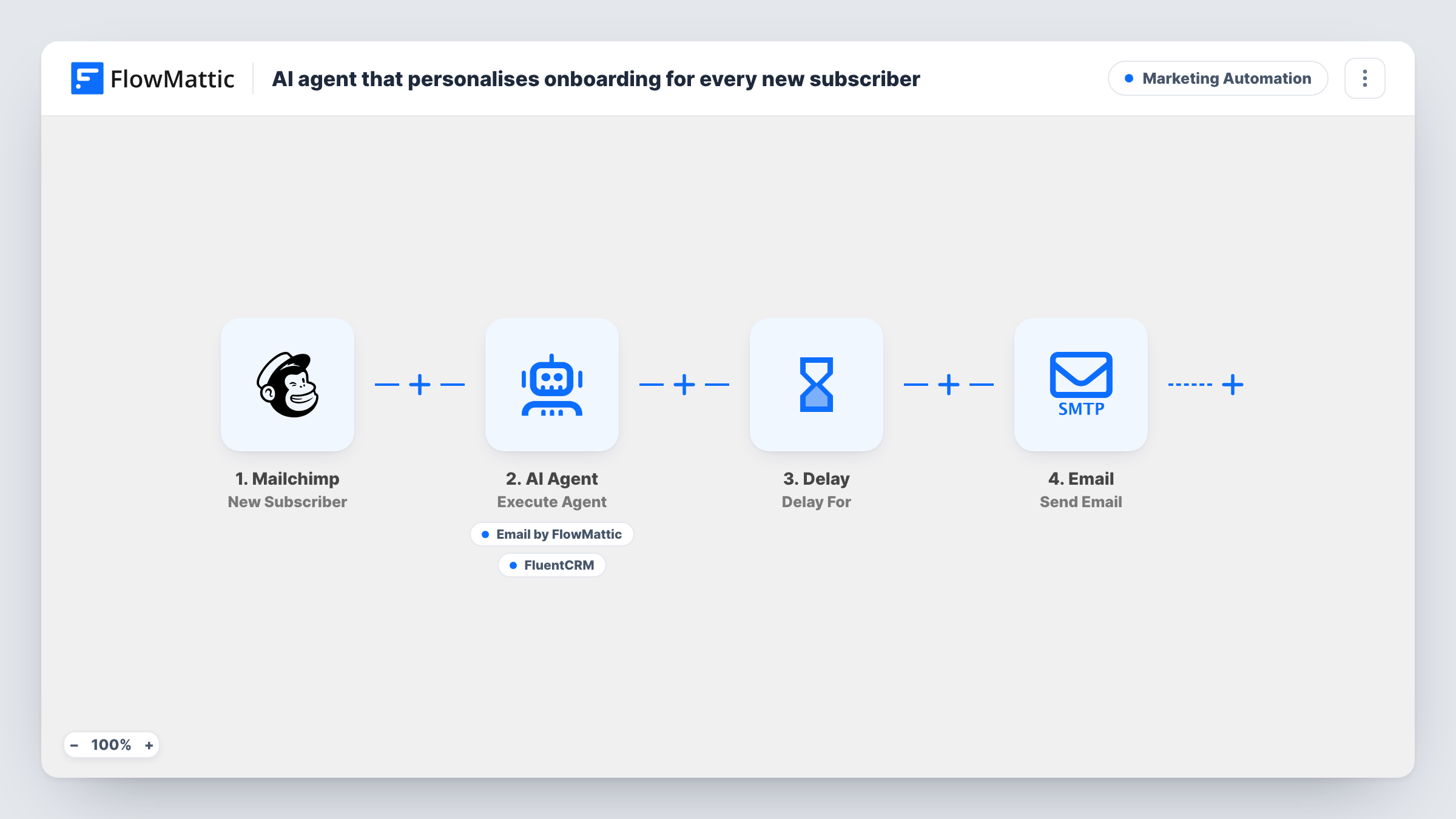
When someone joins your Mailchimp audience, an AI agent writes a welcome email shaped by how they signed up and can add them to FluentCRM. Three days later a fixed follow-up email goes out.
 Mailchimp
 AI Agent
 Email
Email
 FluentCRM
 Delay
Delay6 steps Setup ~12 min Used on 1.5k sites Marketing Free to import
What this workflow does
A generic welcome email treats a webinar signup and a blog reader the same way. This workflow gives each new subscriber a welcome written for them, keeps a copy of the contact in your WordPress CRM, and follows up a few days later.
The Mailchimp trigger fires on each new subscriber. FlowMattic hands an AI Agent on OpenAI GPT-4o a single line with the subscriber's first name and their Mailchimp signup source. Its instructions are to write and send a personalised welcome email based on that source, and to add the person to FluentCRM. It has two tools: an Email send step addressed to the subscriber, where the agent writes the subject and body, and a FluentCRM Create or Update Contact step that uses their email and first name.
The agent decides when to call each tool, so check the first runs in Task History. After the agent finishes, a Delay holds the run for 3 days, then a second email with fixed wording offers a quick tip. That follow-up is sent whatever the agent did, so it still goes out if no welcome was sent.
Several lead magnets on one Mailchimp list
People join from different signup sources. The agent can tailor the welcome to the source shown in Mailchimp, so a guide download and a newsletter signup read differently.
Running FluentCRM alongside Mailchimp
You send newsletters from Mailchimp but manage contacts in WordPress. The FluentCRM tool lets the agent mirror each new subscriber into your CRM with their email and first name.
A simple two-touch welcome sequence
A small shop wants a personal hello on day one and a nudge on day three. The agent covers the first email and the fixed follow-up covers the second.
How this workflow runs
What happens at each step once the workflow is on, and what you need before you import it.
 Mailchimp New Subscriber
Fires when a new subscriber joins your Mailchimp audience. Their email, first name and signup source feed the agent, its tools and the follow-up email.
- AI Agent Execute Agent
Runs an AI agent on OpenAI GPT-4o with the subscriber's first name and signup source. It is told to write and send a personalised welcome based on the source and add them to FluentCRM.
 Email Send Email
Agent tool that sends the welcome email to the subscriber's address. The agent writes the subject line and the body text, so the wording changes from one subscriber to the next.
- FluentCRM Create or Update Contact
Agent tool that creates the subscriber in FluentCRM, or updates them if they already exist, using their Mailchimp email and first name. The agent decides when to call it.
- Delay Delay For
Pauses the workflow for 3 days after the agent step finishes, before the follow-up email is sent. Change the number of days to suit your welcome timing.
- Email Send Email
Sends the subscriber a follow-up with the subject A quick win for you and a short line greeting them by first name. Replace the text with your real tip before you turn the workflow on.
What you need
- FlowMatticCore
- Mailchimp AccountAccount
- AI ProviderAccount
- FluentCRM PluginPlugin
After importing, map your own data. To keep the template universal, not every step is pre-filled. Open each step in the builder and connect your accounts and fields (channels, lists, sheets, recipients) before you switch the workflow on.
Make it yours
Changes worth making after you import it.
- Rewrite the follow-up email body after import. As shipped it promises a tip but gives none, so put the actual tip or a link to it in the message.
- Add your brand voice and sign-off to the agent's instructions, for example the sender name and the tone you use, so each welcome reads like the rest of your emails.
- Place a Filter before the follow-up email that checks a field you care about, if only some subscribers should get the day-three message.
- Subscribe a test address of your own after import, then read the welcome email the agent writes and check that the FluentCRM contact appears.
Questions about this workflow
Does Mailchimp still send its own welcome email?
This workflow doesn't change your Mailchimp settings. If your audience already sends a welcome, subscribers will get both, so turn one off if you only want the AI-written version.
Which email account sends the AI welcome and the follow-up?
Both go through the Email step's SMTP connection in FlowMattic, not through Mailchimp. Set up that connection with the address you want subscribers to see.
What if the subscriber is already a FluentCRM contact?
The tool uses Create or Update Contact, so an existing contact with that email is updated rather than added twice.
Is the day-three email sent even if the agent skips the welcome?
Yes. The Delay and the follow-up email come after the agent step and run on every subscriber, no matter which tools the agent called.
More Marketing Automation workflows
Other ready-to-import templates from the same category.






Import this workflow into your WordPress site
Download the JSON, import it from the Workflows screen and connect your accounts. Every run stays on your server, with no per-task fees.
30-day money-back guarantee Unlimited workflows and runs Self-hosted