

Send a weekly digest email built from a Google Sheet
Once a week, this workflow reads row data from a Google Sheet and emails it to your team as a digest, so the numbers you track in a spreadsheet reach inboxes without anyone copying them.
 Schedule
 Google Sheets
 Email
Email3 steps Setup ~5 min Used on 1.7k sites Community Free to import
What this workflow does
Plenty of teams keep their weekly figures in a spreadsheet: leads, sales, tickets closed. The sheet only helps if people look at it, and a weekly email is harder to miss. This workflow sends that email on a timer, using data from the sheet.
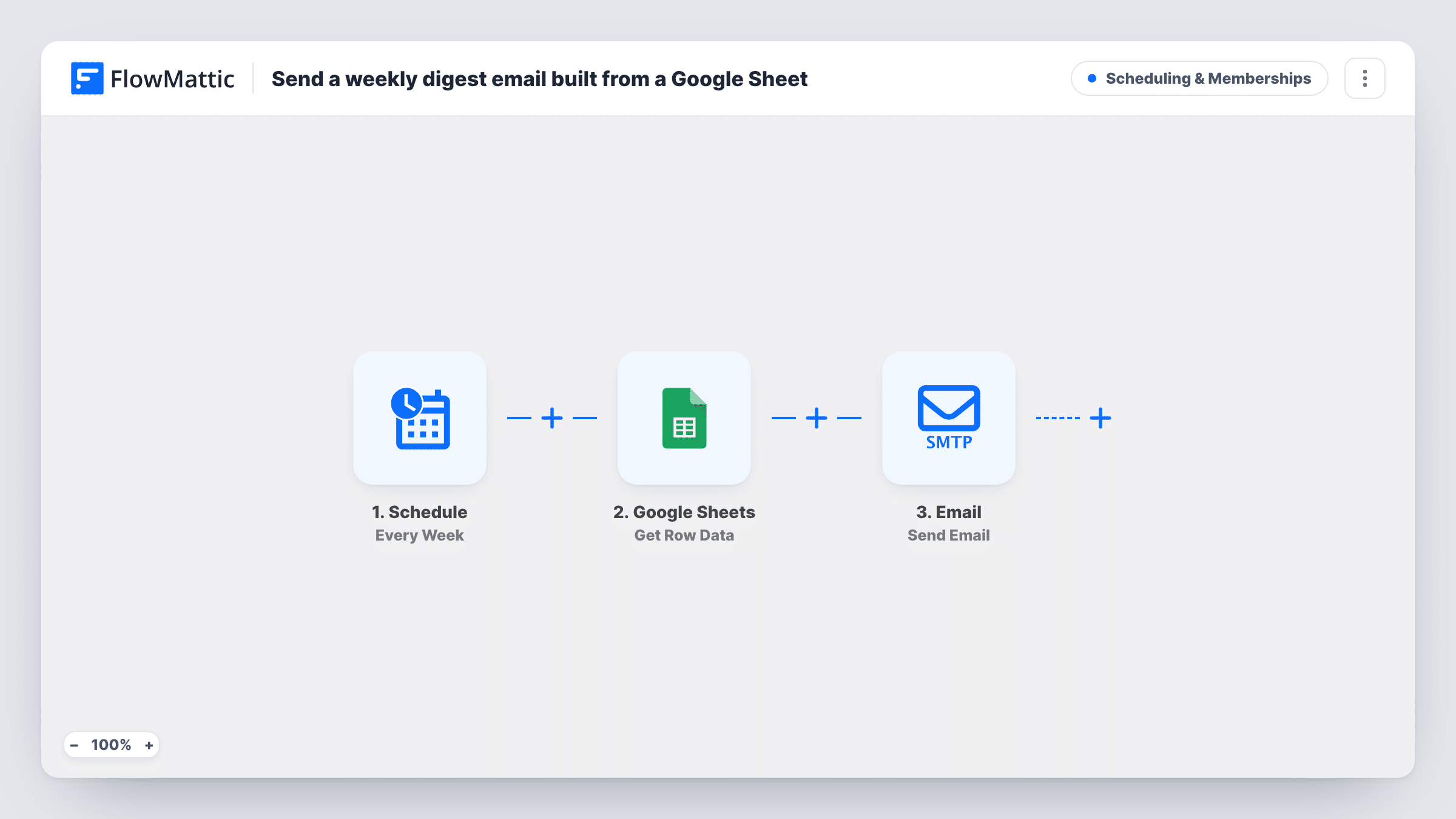
The Schedule trigger runs the workflow every week. Google Sheets Get Row Data then reads data from the spreadsheet you connect; the template leaves this step unconfigured, so you choose the sheet and row after import. The Email step sends a message titled Your weekly digest, with a short intro line followed by the data returned from the sheet.
The email goes to [email protected], a placeholder address you must change before turning the workflow on. The step drops the sheet's data into the body as one block. Run a test to see how it reads, and map individual values into the email instead if you want a cleaner layout. Keep a summary row in the sheet updated with formulas and each weekly email reflects the latest numbers.
Weekly sales numbers for a small team
Your sheet totals the week's orders and revenue in one row. Every week the team gets those figures by email without opening the spreadsheet.
Support metrics for a manager
A row holding tickets opened, closed and still waiting is emailed to the support lead each week as a quick status check.
Content calendar reminders
A row listing the coming week's planned posts is sent to your writers, so everyone starts the week knowing what is due.
How this workflow runs
What happens at each step once the workflow is on, and what you need before you import it.
 Schedule Every Week
Wakes the digest up every week. Nothing else triggers it, so the email goes out on the same schedule whether or not the sheet has changed.
- Google Sheets Get Row Data
Reads row data from the Google Sheets spreadsheet you connect. The template leaves this step empty, so set the sheet and row after import and test that it returns data.
 Email Send Email
Emails the sheet's data under the subject Your weekly digest. Replace the placeholder [email protected] with your real recipients before going live.
What you need
- FlowMatticCore
- Google Sheets AccountAccount
After importing, map your own data. To keep the template universal, not every step is pre-filled. Open each step in the builder and connect your accounts and fields (channels, lists, sheets, recipients) before you switch the workflow on.
Make it yours
Changes worth making after you import it.
- Map individual values from the Google Sheets step into the email body, each with a label, so the digest reads as a short report rather than one block of data.
- Add a Filter before the email that stops the run when a key cell is empty, so nobody gets a blank digest in a quiet week.
- Add a second Email step with a different subject if a manager should get the same digest separately from the team.
Questions about this workflow
Which Google Sheets row does the weekly digest use?
The one you set in the Get Row Data step after import. The template ships it unconfigured, so the workflow has nothing to read until you choose it.
Who receives the email as imported?
A placeholder address, [email protected]. Change it in the Email step to your team's real address before you switch the workflow on.
Can it send the whole spreadsheet?
Not as imported. The step reads row data, not the full sheet. Keep a summary row that totals what you want with formulas, and point this step at that row.
What day and time does the digest go out?
It follows the Every Week schedule in the trigger. Open the trigger after import to check when it runs, and pick a time your team reads email.
More Scheduling & Memberships workflows
Other ready-to-import templates from the same category.




Import this workflow into your WordPress site
Download the JSON, import it from the Workflows screen and connect your accounts. Every run stays on your server, with no per-task fees.
30-day money-back guarantee Unlimited workflows and runs Self-hosted