

Create a Zoom meeting for each booking and email the link
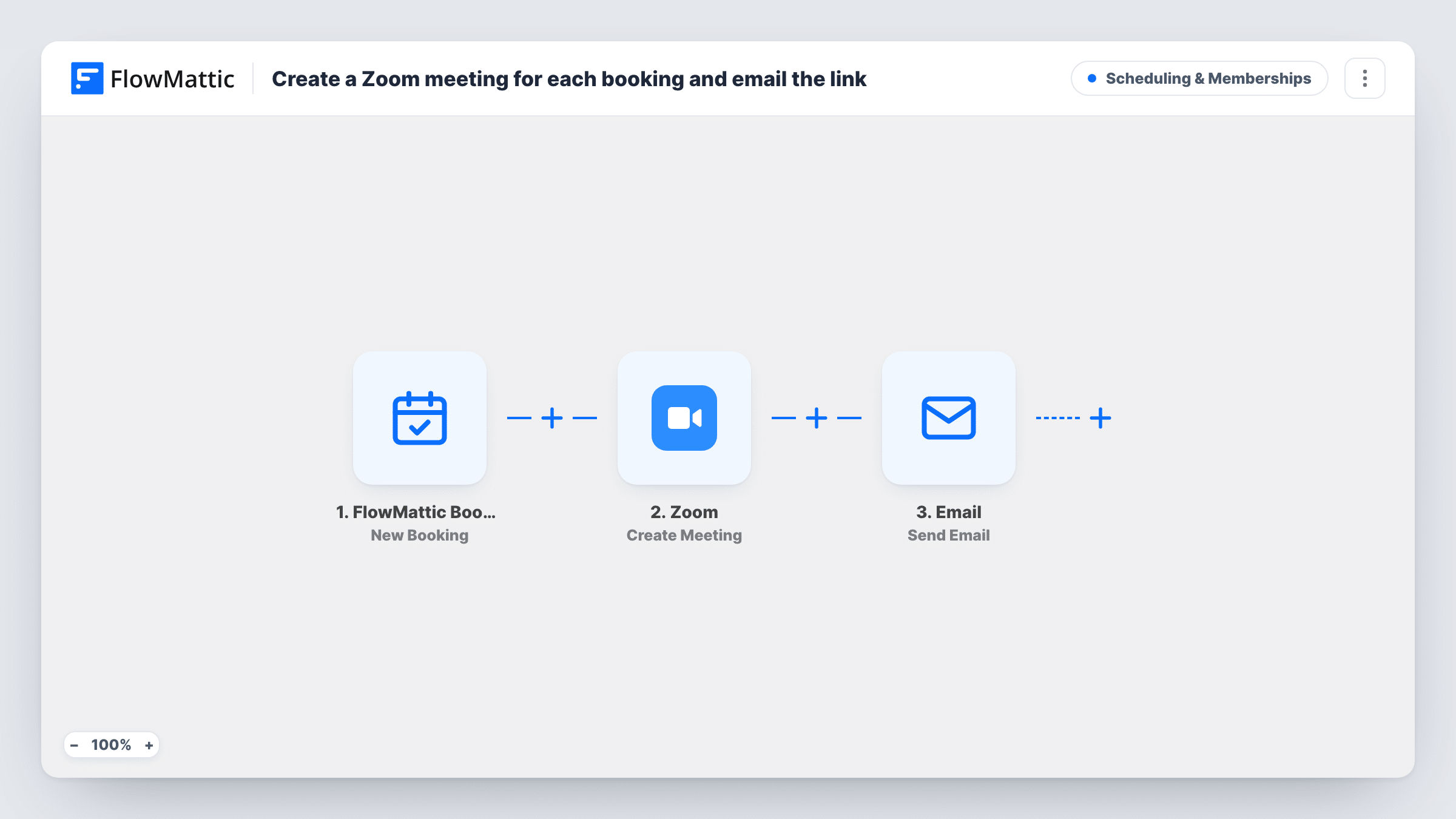
For each new FlowMattic Bookings appointment, a Zoom meeting is created for the booked date and time, and the customer receives an email with its join link.
 FlowMattic Bookings
 Zoom
Zoom
 Email
Email3 steps Setup ~5 min Used on 2.1k sites Community Free to import
What this workflow does
When you meet clients online, every booking needs a meeting link, and making one in Zoom and pasting it into an email takes time for each call. This workflow does both for every new booking, so the customer gets a link and you never open Zoom to make one.
The FlowMattic Bookings New Booking trigger starts a run when a slot is booked on one of your calendars. It passes the calendar name, the booking date and start time, and the customer's name and email.
Next, Zoom runs Create Meeting with a topic made from the calendar name and the customer's name, such as Coaching Session with Dana Lee, and a start time built from the booking date and time. The booking's duration and time zone aren't mapped into the meeting. Connect your Zoom account after import, then book a test slot and check the meeting's time and length in Zoom.
Last, FlowMattic's Email step writes to the customer at the address they booked with. The subject names the booking date, and the body greets them by name and gives the Zoom join link from the previous step. Each new booking makes its own meeting, so two bookings never share a link.
Online coaching sessions
A life coach's clients book a session on the website and get their own Zoom link by email right after, with no manual step from the coach.
Remote product demos
A software company's prospects book a demo slot, and each demo gets a separate Zoom meeting named after the prospect.
Telehealth check-ins
A nutritionist runs follow-up calls over Zoom, and every client who books a check-in receives the join link at the address they entered.
How this workflow runs
What happens at each step once the workflow is on, and what you need before you import it.
 FlowMattic Bookings New Booking
Runs for each new booking on a FlowMattic Bookings calendar. The calendar name, booking date, start time, duration, time zone and the customer's name and email are handed to the Zoom and email steps.
- Zoom Create Meeting
Creates a Zoom meeting with the calendar name and customer name as its topic, starting at the booking date and time. Duration and time zone aren't mapped, so look at the first test meeting in Zoom.
 Email Send Email
Emails the customer their Zoom join link, with the booking date in the subject and a greeting by name. Edit the text to add the time, the calendar name or how to prepare.
What you need
- FlowMatticCore
- Zoom AccountAccount
After importing, map your own data. To keep the template universal, not every step is pre-filled. Open each step in the builder and connect your accounts and fields (channels, lists, sheets, recipients) before you switch the workflow on.
Make it yours
Changes worth making after you import it.
- When you configure Create Meeting, look for a duration option and map the booking's duration in minutes into it, so the meeting matches the booked slot. A test booking shows what Zoom set.
- Add the booking time and the time zone to the email body, since the customer only sees the date in the subject as imported.
- If some calendars are for in-person visits, put a Filter between the New Booking trigger and the Zoom step that continues only for your online calendars' names.
Questions about this workflow
Is the Zoom meeting the same length as the booking slot?
Not necessarily. The template sets the topic and start time but no duration. Check the length of a test meeting in Zoom, and map the booking's duration into the Create Meeting step if it differs from the slot.
What happens to the Zoom meeting if the booking is cancelled?
Nothing. This workflow runs on New Booking only, so the meeting stays in Zoom and you remove it there yourself. The customer still has the link from the email.
Will the Zoom meeting start at the right time for customers in other time zones?
The start time comes from the booking date and time, without the booking's time zone. Make a test booking and compare the meeting time in Zoom with the slot, then adjust the step if needed.
More Scheduling & Memberships workflows
Other ready-to-import templates from the same category.




Import this workflow into your WordPress site
Download the JSON, import it from the Workflows screen and connect your accounts. Every run stays on your server, with no per-task fees.
30-day money-back guarantee Unlimited workflows and runs Self-hosted