

Email a branded ticket image for each confirmed booking
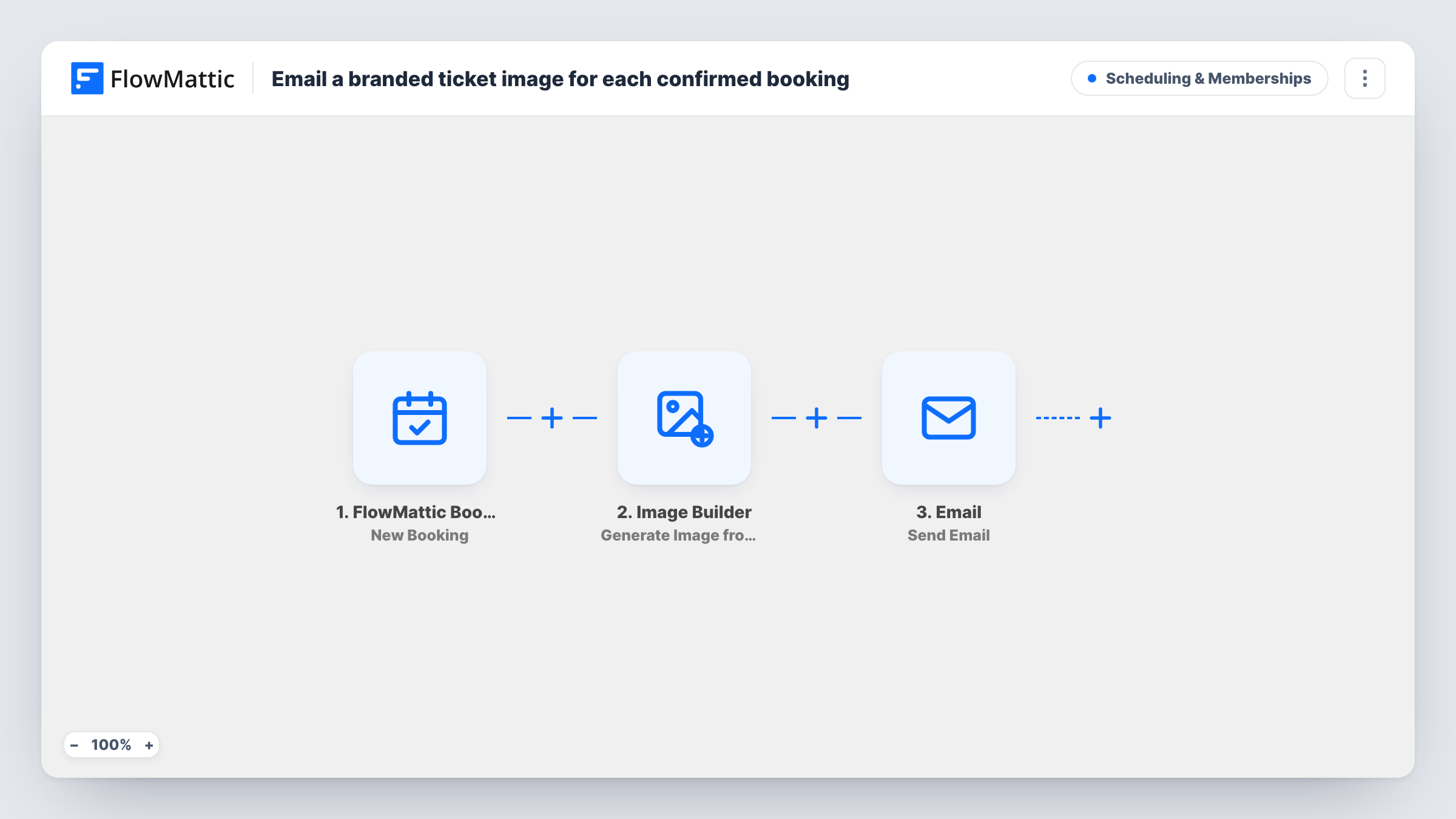
When a booking is confirmed, FlowMattic renders a ticket image from your Image Builder template (it receives name, calendar, date and time) and emails the attendee a link to it. Choose the template in the Image Builder step after import.
 FlowMattic Bookings
 Filter
 Image Builder
 Email
4 steps Setup ~8 min Used on 1.7k sites Community Free to import
What this workflow does
For classes, tours or events, a ticket feels more official than a line of text. Guests can keep it on their phone and show it at the door. This workflow designs one from each booking and emails it to the guest.
The FlowMattic Bookings trigger is New Booking, described as firing when a new booking is made on a calendar. There is no separate confirmation event, so the ticket goes out for every booking as soon as it is made. The booking ID, calendar name, guest email, date and start time are passed on.
The Image Builder step renders a saved template through Cloudflare Browser Rendering and saves the PNG to your Media Library as ticket- plus the booking ID. It points at template ID 8, so choose your own ticket design and map the booking fields into its tokens. The Email step then sends the guest a message titled with the calendar name, giving the date, start time and the ticket's link.
Workshop or class seats
A pottery studio taking class bookings on a FlowMattic Bookings calendar emails each student a ticket with the session date and time.
Guided tours with set start times
A walking-tour company sends every booker a branded ticket image they can show the guide at the meeting point.
Small venue events
A venue running talks or tastings through FlowMattic Bookings gives guests a ticket that names the event calendar and start time.
How this workflow runs
What happens at each step once the workflow is on, and what you need before you import it.
 FlowMattic Bookings New Booking
The workflow starts automatically when a new booking is made on a calendar in FlowMattic Bookings. FlowMattic captures that data for the steps below.
- Filter Continue If
The Filter only lets a run continue when your conditions are met, stopping everything else before it goes any further.
- Image Builder Generate Image from Template
Image Builder — pick a saved Image template, supply dynamic data (as JSON or per-token inputs), render the HTML through Cloudflare Browser Rendering, and save the PNG to the Media Library. Data is mapped from earlier steps; connect your Image Builder account on import.
 Email Send Email
Email — send an email using built-in WP mail function or custom SMTP. Data is mapped from earlier steps; connect your Email account on import.
What you need
- FlowMatticCore
After importing, map your own data. To keep the template universal, not every step is pre-filled. Open each step in the builder and connect your accounts and fields (channels, lists, sheets, recipients) before you switch the workflow on.
Make it yours
Changes worth making after you import it.
- Put the booking ID on the ticket design itself, so staff can match a ticket to the booking when the guest arrives.
- Use the Email step's attachment option with the saved PNG if guests should get the ticket inside the email rather than as a link.
- Build a second workflow on Booking Cancelled to email guests that their ticket no longer applies.
Questions about this workflow
Does the ticket go out before a FlowMattic booking is confirmed?
The workflow runs on New Booking, so the ticket is sent as soon as a booking is made. FlowMattic Bookings has no separate confirmed event to wait for.
Do I need Cloudflare Browser Rendering for the booking ticket?
Yes. Image Builder renders its templates through Cloudflare Browser Rendering, so FlowMattic needs that service configured before tickets can be made.
What happens when a guest reschedules?
Nothing in this workflow. Rescheduling fires FlowMattic Bookings' Booking Rescheduled event, which you could use in a separate workflow to send an updated ticket.
Is the ticket image private?
It is saved to your WordPress Media Library, where files usually open for anyone who has the URL. Avoid putting sensitive details on the ticket design.
More Scheduling & Memberships workflows
Other ready-to-import templates from the same category.







Import this workflow into your WordPress site
Download the JSON, import it from the Workflows screen and connect your accounts. Every run stays on your server, with no per-task fees.
30-day money-back guarantee Unlimited workflows and runs Self-hosted